

Prerequisites
Before you begin, ensure you have:- Access to App Store Connect
- A user with
Customer Supportrole and permission to generate Individual API keys - Your app published on the Apple App Store
Integration overview
AppReply exclusively uses the Individual API key authentication method, which provides:- Improved security through limited access permissions
- Access to only app ratings and reviews functionality
- No exposure of broader admin privileges
Step-by-step integration
Configure Customer Support user
For an existing Customer Support user
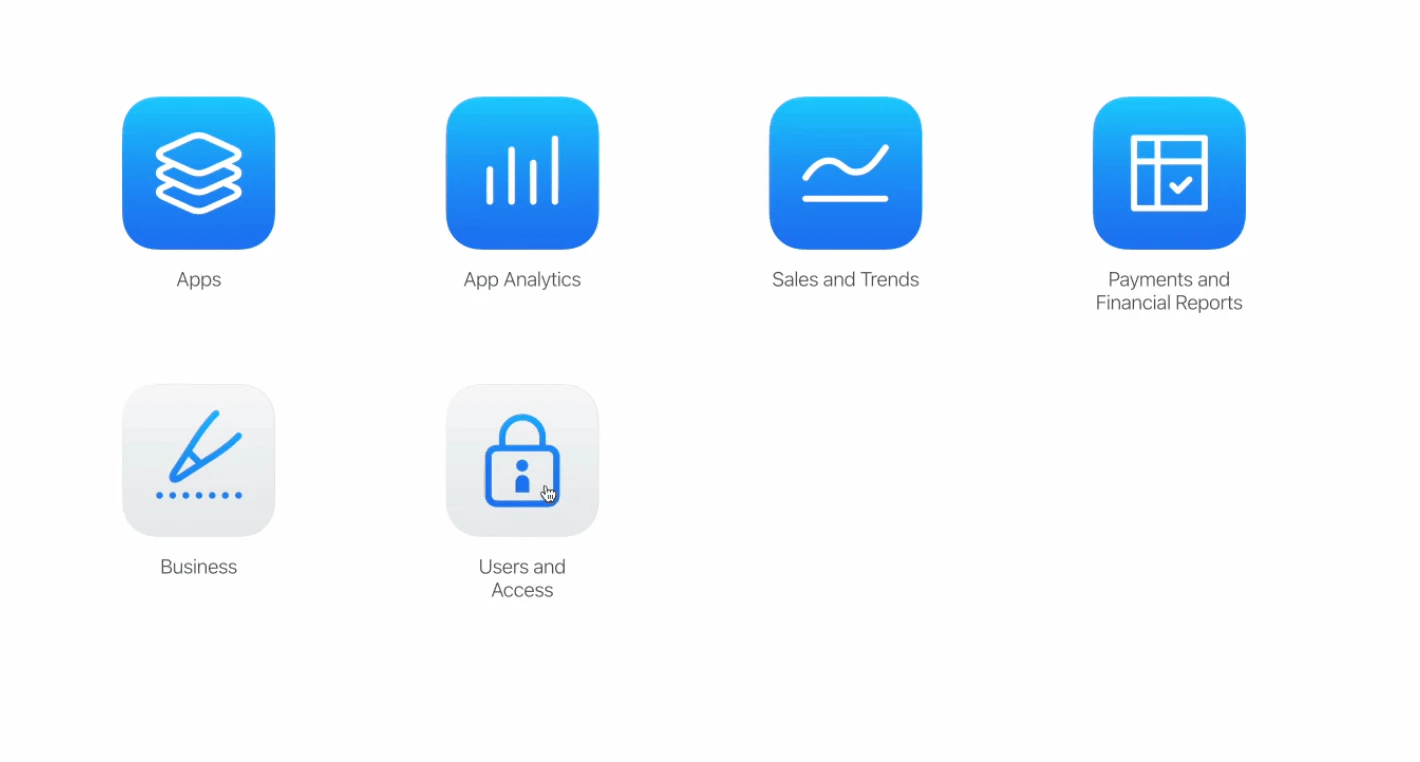
If you have an existing Customer Support user without API key access:- Go to the “Users & Access” page
- Select the “People” tab
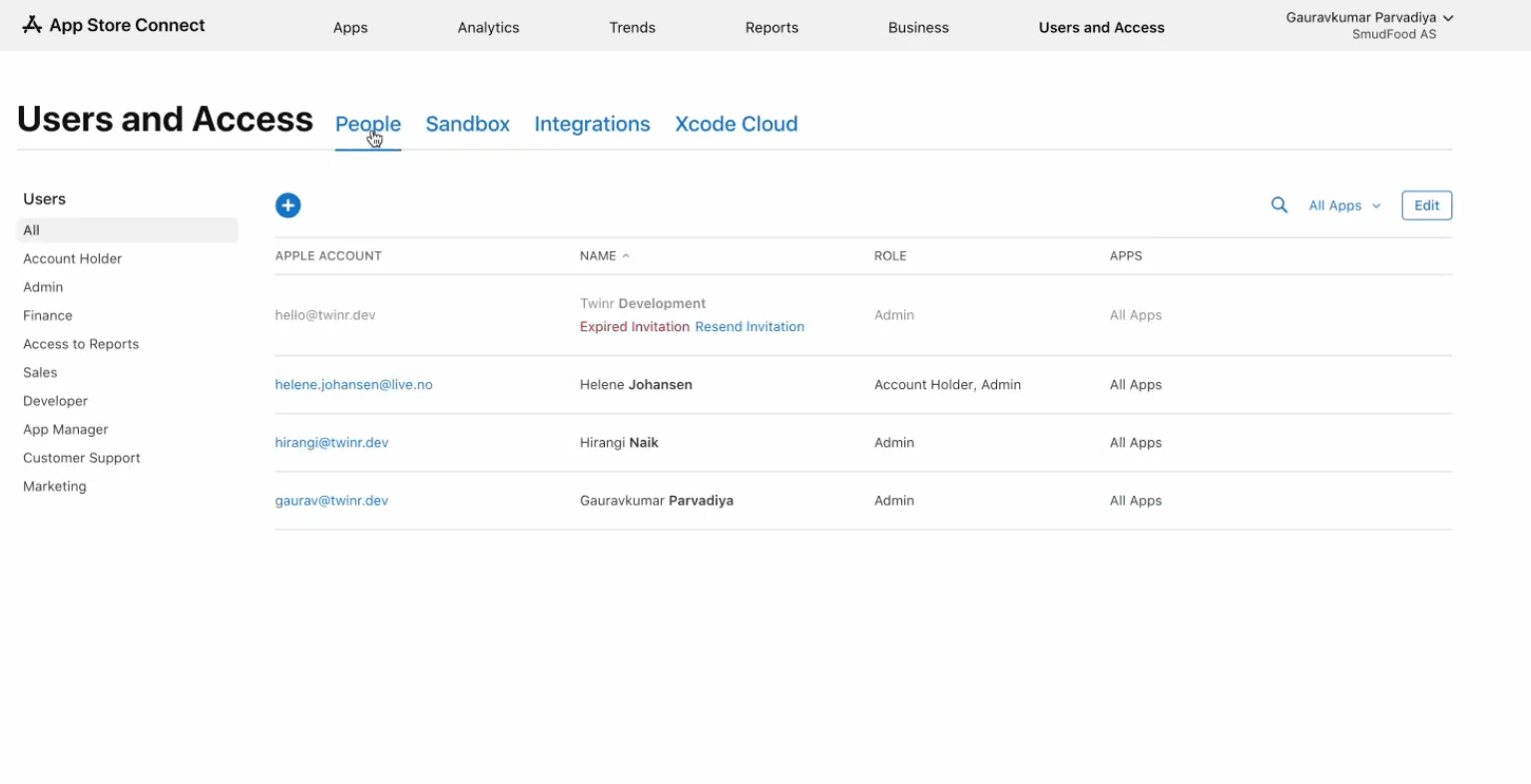
- Click on the email address of the Customer Support user
- Check the “Generate Individual API Keys” box
- Click “Save” in the top right corner
For a new Customer Support user
If you need to create a new Customer Support user:- Go to the “Users & Access” page, then select the “People” tab
-
Click the ”+” button
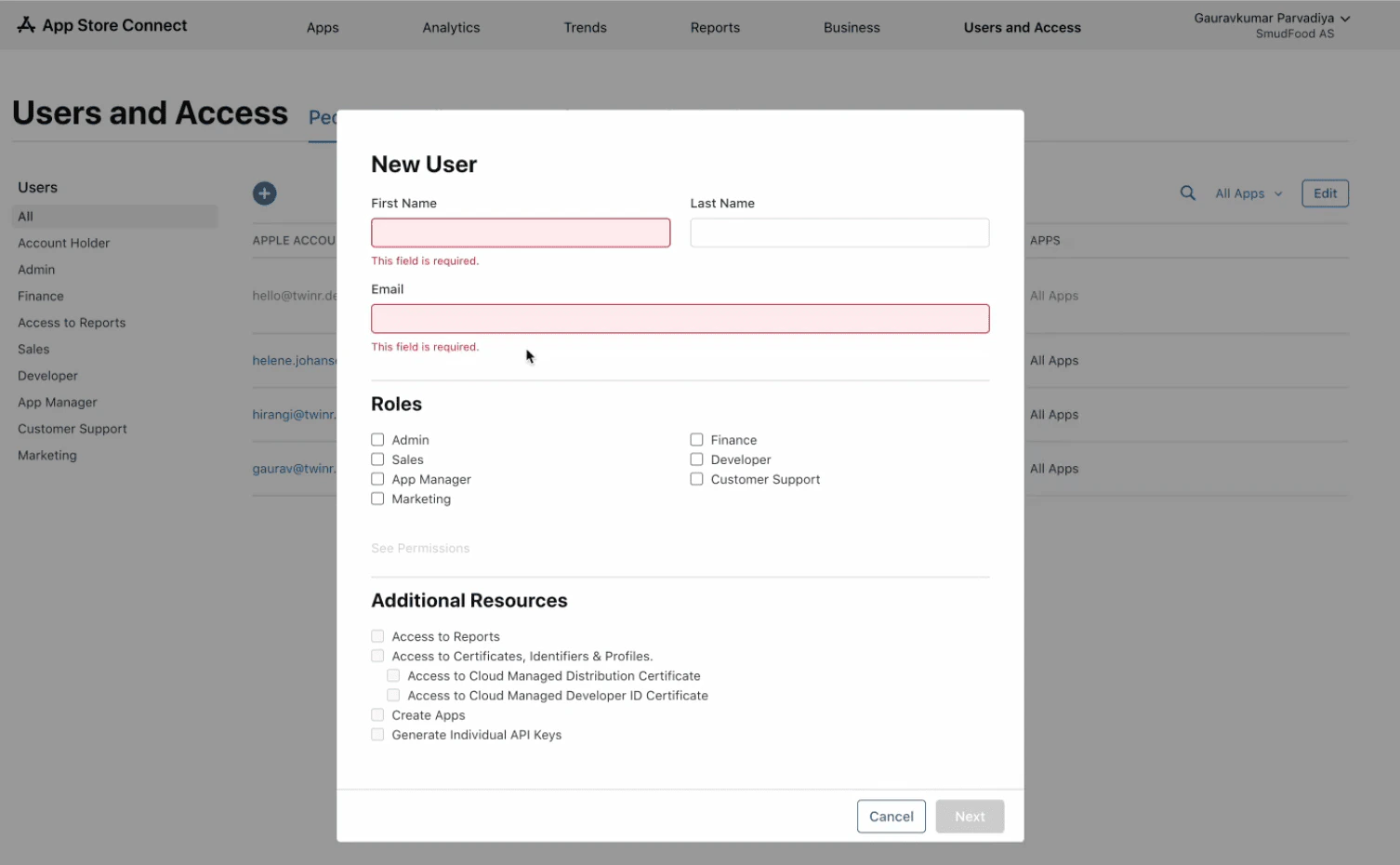
- Enter the First and Last Name and email address
- Under Roles, check “Customer Support”
- Under “Additional Resources” select “Generate Individual API Keys”
- Click “Next”
2
Generate the Individual API Key
Once your Customer Support user has API key permissions:
- Log in to App Store Connect as that user
- Click your username in the top right, then click “Edit Profile”
- Under “Individual API Key”, click “Generate Key”
- Make note of the “Key ID” (you’ll need this for AppReply)
- Click “Download API Key” to download the .p8 file
- Important: This file can only be downloaded once
- Store it securely; if lost, you’ll need to revoke and generate a new key
3
Complete integration in AppReply
- Log in to AppReply
- Go to “Applications”
- Click the three dots (⋮) next to your app and select “Integrate”
- Enter the Key ID you copied earlier
- Upload the .p8 file you downloaded
- Click “Integrate”
Verification
After completing the integration, AppReply will:- Verify your API key credentials
- Test the connection to App Store Connect
- Begin syncing your reviews (usually within 5-15 minutes)
Understanding permissions
The Customer Support role with an Individual API Key provides AppReply with access to:- Read app ratings and reviews
- Reply to customer reviews
Troubleshooting
If you encounter issues:- API not approved: Ensure Apple has approved API access for your account
- Permission errors: Verify the user has Customer Support role with API key generation enabled
- Invalid key: Make sure you’ve entered the correct Key ID and uploaded the proper .p8 file
- Lost key file: The .p8 file can only be downloaded once; if lost, you’ll need to revoke and generate a new key
- Using team key: AppReply only supports Individual API keys. Team API keys will not work.
API key limitations
- Each user can only have one active API key at a time
- If you need to generate a new key, you must first revoke the existing one
- API keys cannot be edited after creation (name or access level)
Security notes
- Store your .p8 file securely
- Immediately revoke any compromised or lost API keys
- Use only the minimum required permissions (Customer Support role)
- Consider creating a dedicated user for the AppReply integration
Getting support
- Click on the chat bubble in the bottom right corner of your dashboard
- Email: help@appreply.co
- Response time: usually within 24 hours during business hours
- Include screenshots of your App Store Connect settings for faster assistance