How knowledge base documents and crawled URL sources are chunked, embedded, and scoped so MAX can cite them in a reply
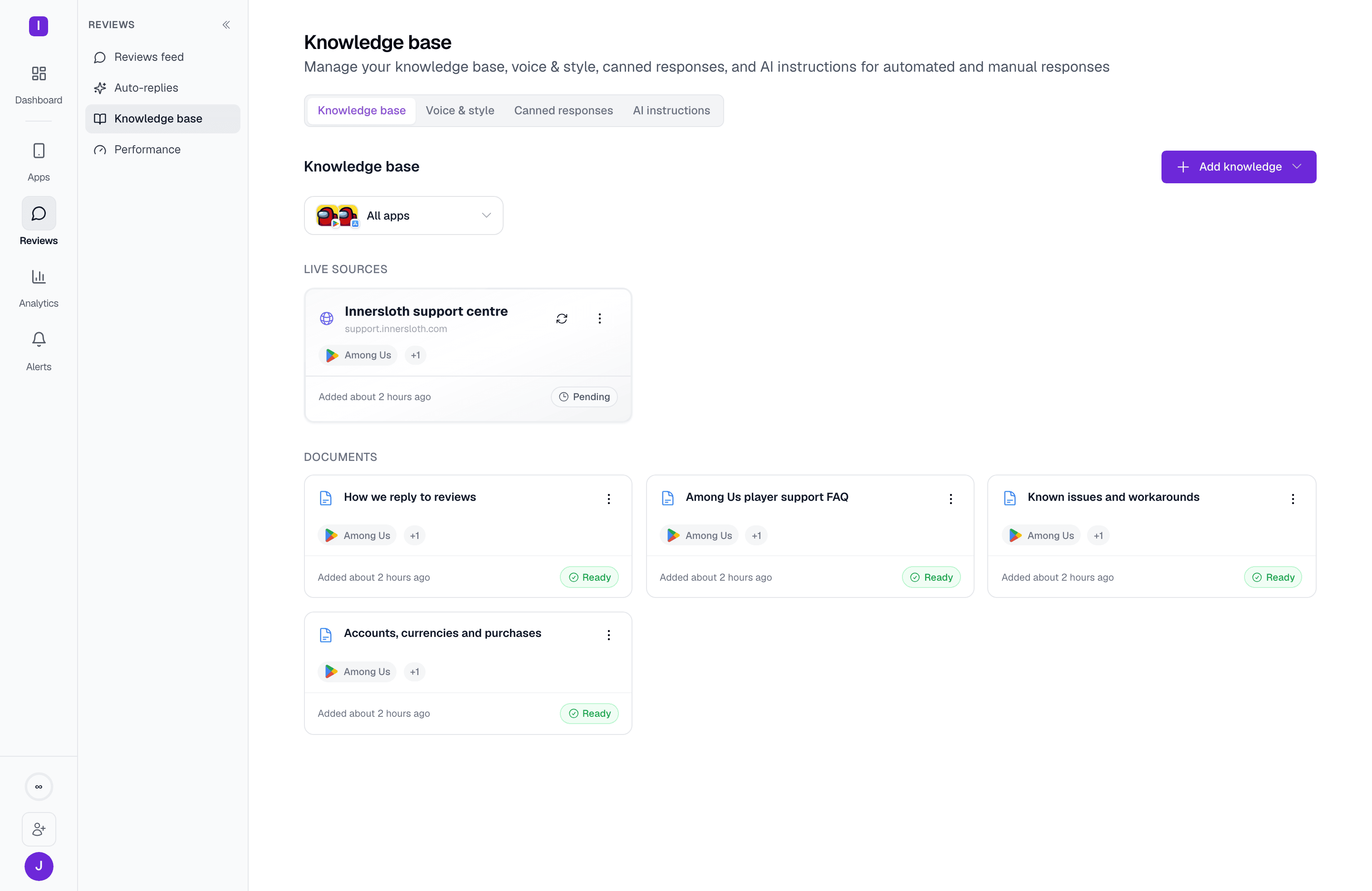
The Knowledge base tab (Reviews > Knowledge base in the sidebar) is where you add the material MAX draws facts from when it writes a reply. This page covers the two source types, how they’re processed into something the AI can actually retrieve, and how to scope them. For the Voice & style, Canned responses, and AI instructions tabs, see the Knowledge base overview and the full page reference.
Adding documents or writing articles requires an active paid plan (Hobby and above). Crawled URL sources go one tier further — they’re gated to the Pro plan.
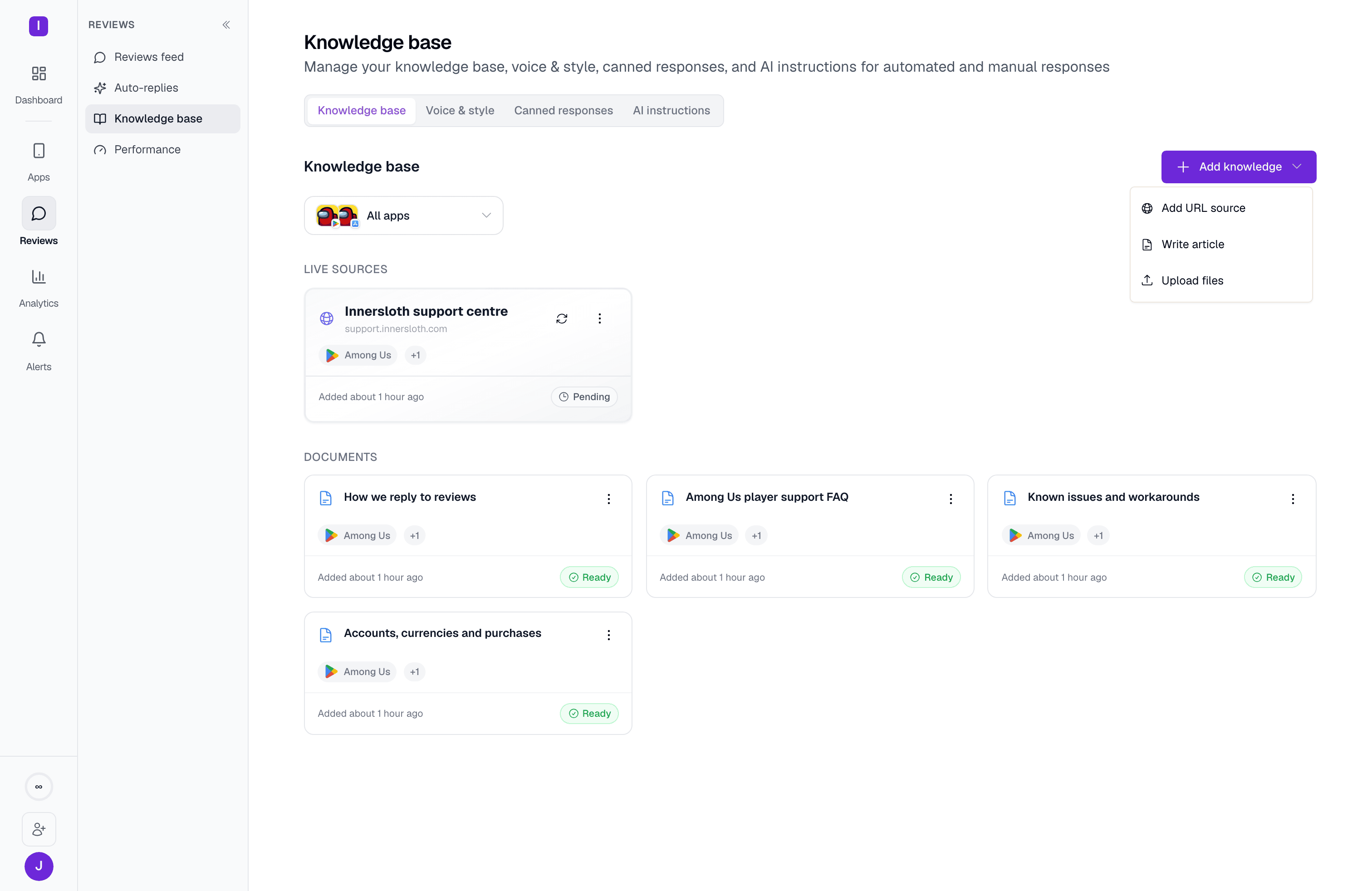
Documents — a self-contained piece of content, added one of two ways:
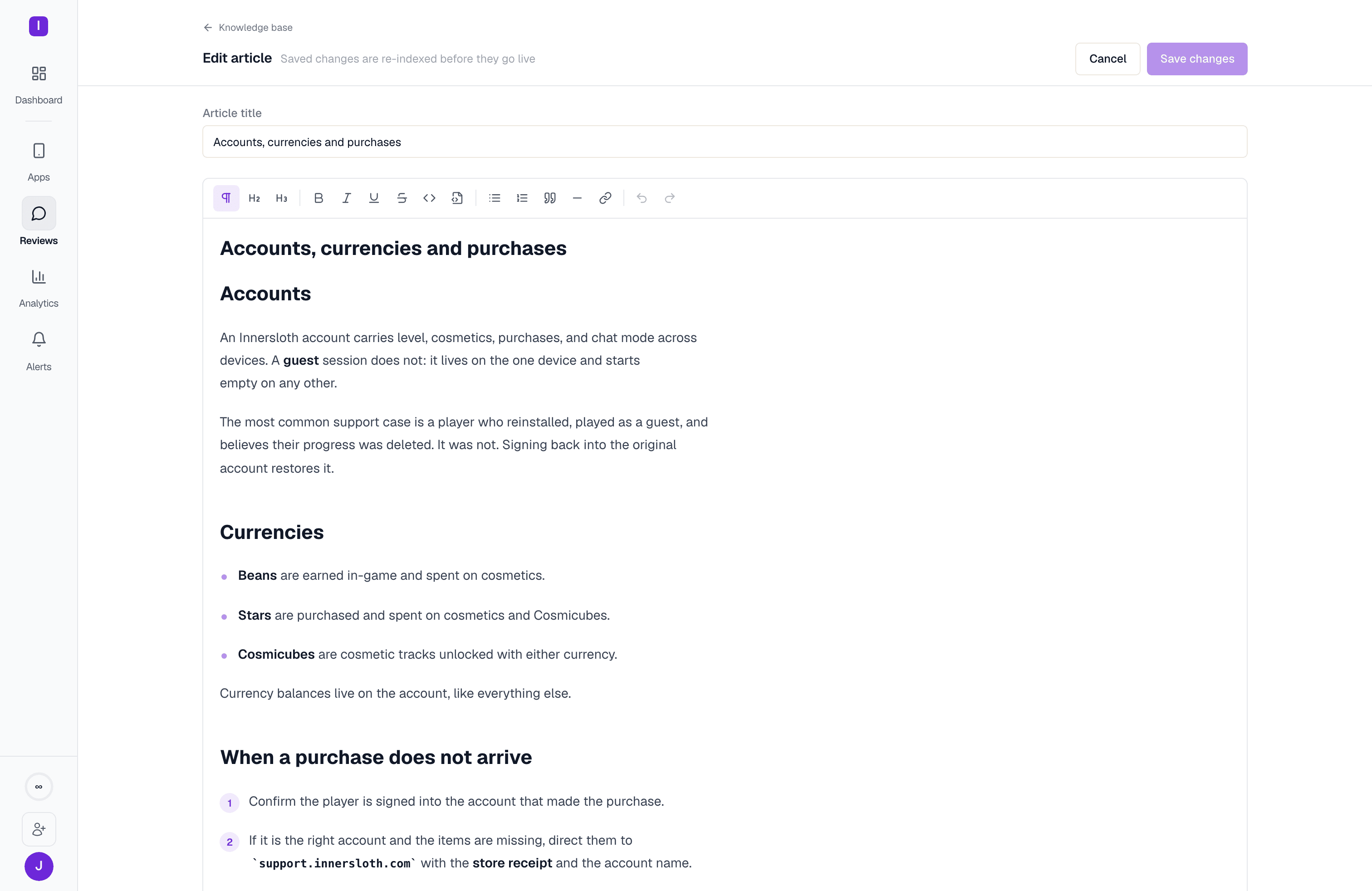
Write article opens a rich-text editor (bold, headings, lists, quotes, links) for writing guidance directly, up to 200,000 characters.
Upload files accepts PDF, TXT, MD, DOC, or DOCX, up to 5MB per file and 10 files per batch.
URL sources point AppReply at an external site — your help center or docs — instead of a one-time upload. You describe what to pull (“Troubleshooting guides for sync, passwords, and tab management. Skip marketing and release notes.”) or leave it blank and AppReply infers scope from the app’s own top review topics. It then previews ranked candidate pages for you to pick from, or you can skip the picker and crawl the whole site. Either way, it re-crawls on a schedule you choose — every 3 days, weekly, or monthly — so the knowledge base stays current as your docs change.
If you pick specific pages (the default, “curated scope”), only those pages are crawled and re-crawled — new pages published on the site later are not picked up automatically. Choose “Skip picker, crawl all” if you want future pages included.
Once a document or a crawled page is indexed, it’s split into smaller sections — chunks — each with its own embedding, so retrieval at reply time can pull the specific paragraph that answers a review rather than dumping an entire article into the prompt. A document’s card shows how many sections it was split into once indexing finishes, and a status of Processing while it’s being chunked and embedded, Ready once retrievable, or Failed if indexing errored out (with the error shown inline).
Only text-based content is editable after upload — an authored article, or an uploaded TXT/MD/DOC/DOCX file. A PDF’s content is read-only (re-upload a new version to change it), and a document over the 200,000-character limit is also read-only until you split it into smaller documents. Editing is also blocked while a document is mid-indexing.
Deleting a document removes all of its processed chunks and embeddings, not just the source text — this can’t be undone.
URL sources use the same idea at the page level: each crawled page becomes its own chunk set, and the source card shows Ready, Crawling, Pending (added but not yet crawled), Paused, Error, or No pages (crawl finished but found nothing) rather than a per-page breakdown. From the source’s menu you can trigger an immediate Recrawl now, pause and resume crawling, or delete the source entirely — which, like a document, removes every indexed page and chunk it produced.
Every document and source can be scoped to specific apps or left as All apps (global) — set at creation, and editable later from a document’s card menu (Edit app scope). A filter at the top of the tab narrows the list to one or more apps, so an org with several apps and a shared help center can keep everything visible without losing track of what applies where.
Knowledge base overview
How documents, canned responses, AI instructions, and voice & style combine in a reply
Knowledge base page reference
The full tab-by-tab reference, including Voice & style and Canned responses