

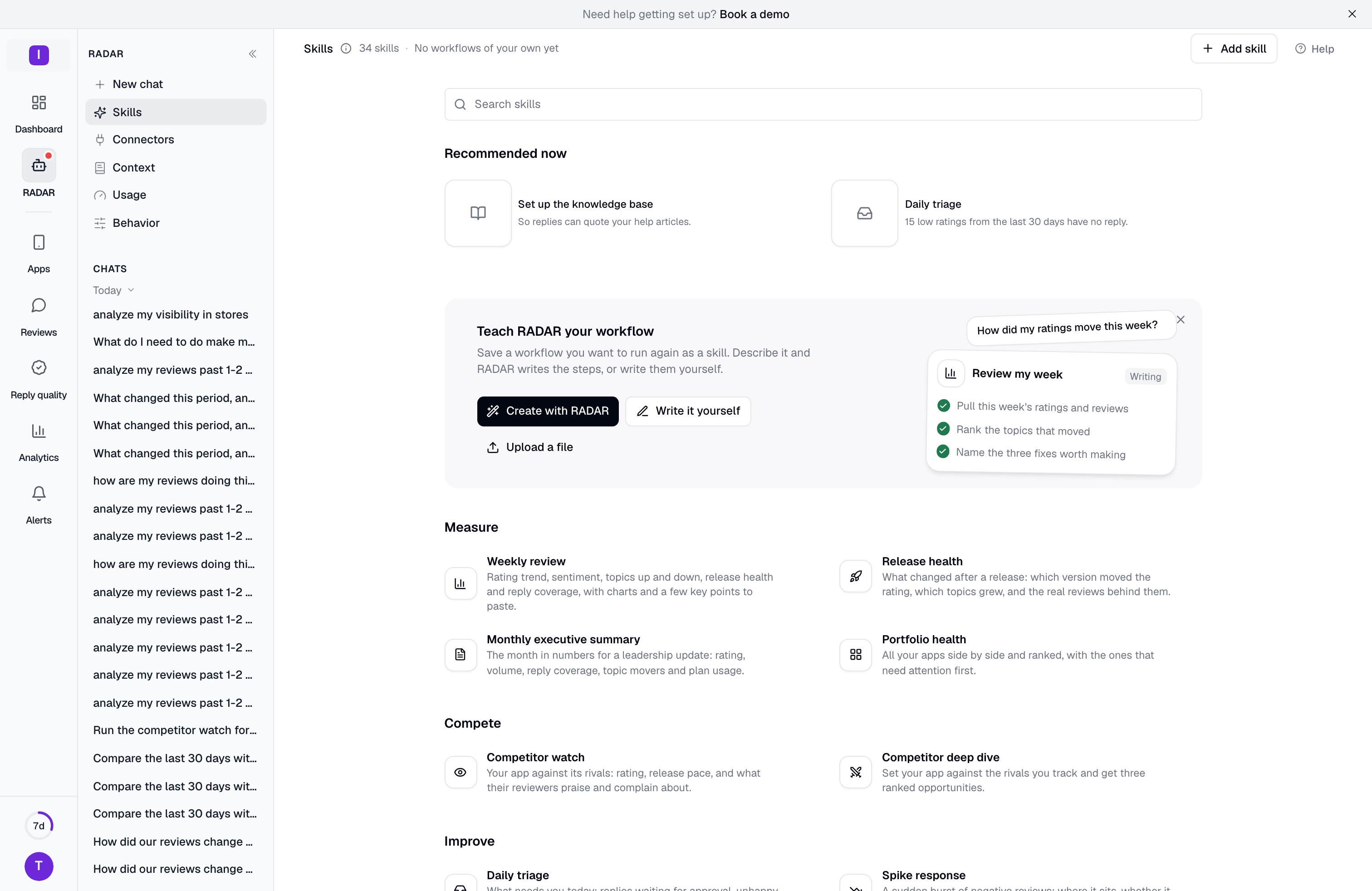
What the Skills page shows
Skills sit under one heading per kind of job, in this order:
A group shows its first six skills. Click Show all to see the rest. Type in Search skills to find one by name or by what it does.
Each skill has a one-line summary of what you get. Click it to start.
The list depends on you. A skill that your role, your plan or your organization’s settings hide is left out, the same way RADAR itself cannot use it. A Member and an Admin can see different lists. For example, Voice of the customer and AI visibility audit need a paid plan and at least one research connector switched on, Review site reputation needs a paid plan and Review sites and search data switched on, and Learn and test the complete reply setup is listed for Admins and Owners only.
Recommended now
When something is worth doing today, a Recommended now section appears above the groups with up to two skills. An open setup step comes first, because nothing else works well before it. After that, RADAR suggests the daily triage when replies are waiting for your approval or unhappy reviews from the last 30 days have no reply. If nothing is worth suggesting, the section is not shown.Start a skill
There are three ways to start one:- From the Skills page. Click a skill. A new chat opens and RADAR starts it. The skill’s name appears as a chip in place of the first message.
- From the slash menu. In the message field, type
/at the start or after a space. A list opens with commands first and your skills below it. Keep typing to narrow it, for example/week. Use the arrow keys and press Enter or Tab, or click a row. - From the plus menu. Click the plus button next to the message field and choose Skills.
Save a workflow of your own
Some routines are yours alone: the Monday review for your leadership channel, or the way you check a launch. Save one as a workflow and anyone in the organization can start it from the Skills page or the slash menu, the same as a built-in skill. Only an Admin or Owner can add, change or remove a workflow. For a Member the Add skill button is switched off, and a tooltip says why. There are three ways to add one. Open Add skill at the top of the Skills page, or use the Teach RADAR your workflow banner. The banner can be closed with its cross, and it then stays closed in this browser; Add skill keeps all three ways.1
Create with RADAR
Describe the routine in your own words. RADAR asks up to three short questions if it needs them, drafts a name, a description and numbered steps, and shows you the whole draft. It then proposes saving it as a card. Nothing is saved until you approve the card, and the card shows the full text.
2
Write it yourself
Fill in a Name, a Description and the Instructions, then click Create skill. The button stays off until the text is acceptable. A counter appears under a field when you get near its limit.
3
Upload a file
Choose a
.md or .txt file. RADAR opens it in the same form so you can check it before saving. If the file starts with a front matter block holding name and description, those fill the first two fields. Otherwise the name comes from the file name.What a workflow can hold
Two workflows cannot share a name. Instructions are kept whole and are never shortened.
Write the instructions as numbered steps with concrete actions: which data to pull, for what period, how to compare it and what to hand back. A workflow is instructions only. It runs under the same rules and the same approval cards as any chat, so it cannot skip an approval or change something without a card. Because every member can read a workflow, it is not saved if the text looks like it holds a password, key or token.