

Where to find RADAR
RADAR lives in two places.- Its own page. It has its own area of the dashboard with your chats, plus pages for Skills, Connectors, Context, Usage and Behavior.
- A side panel beside every dashboard page. Every page bar has a Help button, and the pages other than RADAR’s own pages also have an Agent button. Agent opens the chat as a panel next to the page you are on. The panel stays open while you move between pages, so you can ask about the reviews you are looking at without leaving them. If you leave RADAR’s page while an answer is being written, it carries on in the panel. On a narrow screen the page bar buttons show only their icons.
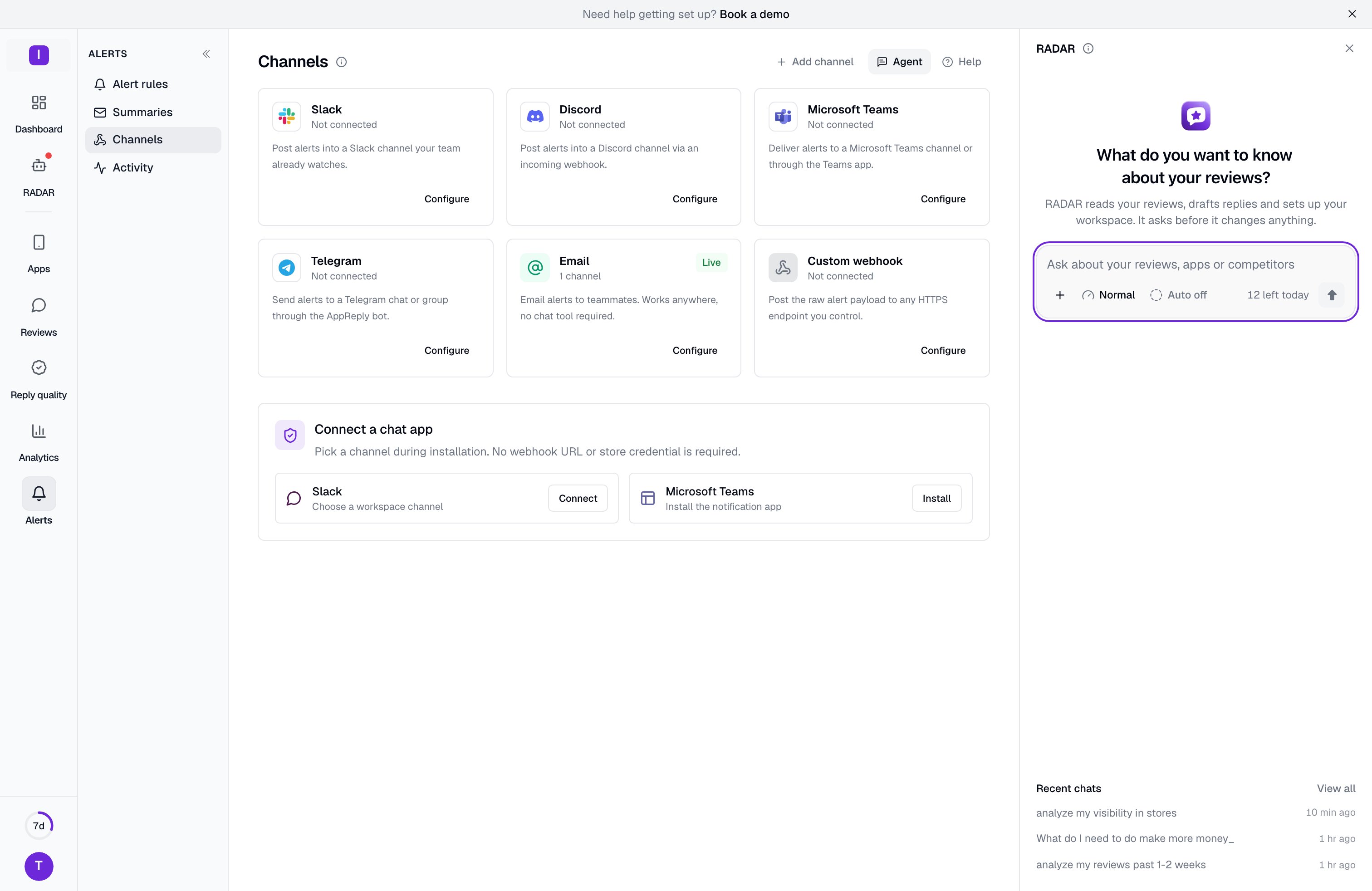
RADAR needs at least one connected app. It is included on the Standard, Pro and Ultimate plans (shown as Enterprise on the pricing page) and during the free trial. The Free and Hobby plans do not include it. RADAR is in beta: a Beta label beside the headline of a new chat opens a short note about it.If your workspace shows “RADAR is not switched on for this workspace yet”, contact us and we will set it up. If it shows “RADAR is switched off for now”, RADAR has been paused for a while, and your earlier chats stay readable.
What you can ask and do
Questions about your reviews and apps- What changed this period, and why?
- Explain my ratings in simple terms.
- What are people saying about my app this week?
- Which topics are growing, and which reviews are behind them?
- How are my replies doing?
- How do we compare to competitors?
- What do reviewers of a rival app praise and complain about?
- What do the public store listings of an app say?
- Replies to reviews.
- Auto-reply rules.
- Alert rules and summary reports.
- Topics.
- Reply templates.
- Knowledge base sources and articles.
- Apps and competitor apps.
- Team members and your plan.
You stay in control
- RADAR proposes, you decide. A change is made only after the person who asked for it approves the card. If you reject it, nothing changes.
- Roles still apply. Approving a change checks your role in the workspace at that moment. If a change needs an Admin or the Owner, a Member cannot approve it.
- Auto-approve is optional and small. You can let RADAR make small changes that are easy to undo without asking. Replies to reviewers, rules, alerts and settings always wait for you. See Auto setting.
- Proposals expire. An approval card that nobody decides on expires after 24 hours.
Quality and Auto in the message field
Along the bottom of the message field, from the left, are the + (Add context) button, Quality and Auto. In the side panel, a Point at content button sits just before Send. This section covers Quality and Auto.Quality
The quality button sets how hard RADAR works on your next message. It has three levels.
Pick Normal for everyday questions. Use High or Max for a hard question, such as a long period across many apps. The level you pick is kept as your preference: new chats start at it, or at Normal if you have never picked one. A chat keeps the level it last ran at. You can also type /quality in the field.
Max is available on the Pro and Ultimate plans (shown as Enterprise on the pricing page) and during the free trial. On Standard it carries a Pro tag and cannot be picked, and a Max choice saved earlier runs as High.
Auto setting
The Auto button turns auto-approve on or off for new chats. It reads Auto on or Auto off. With Auto on, RADAR makes small changes that are easy to undo without asking. Examples are pinning a takeaway to Home, putting a flagged reply back in the queue, and creating or renaming a template folder. Everything else still waits for you: replies to reviewers, rules, alerts and settings. So do marking a flagged reply as handled (it leaves the queue) and changing a template folder’s language. With Auto off, every change waits for your approval. This is the safe choice if you are not sure. The setting is fixed when a chat starts. Inside an existing chat, the button only shows how that chat was started, and a change applies to new chats. In a teammate’s chat, auto-approve does not apply to you, so changes you ask for there always wait for your approval. You can also set your default on the Behavior page.Where to next
Chats and answers
Ask questions, read answers with charts, attach files and approve changes.
Skills
Start a ready-made routine or save a workflow of your own.
Connectors
Choose which data sources RADAR may read.
Context
Give RADAR notes and see what it remembers.
Behavior
Set your approval and notification preferences.
Usage
See your limits and what has been used.