

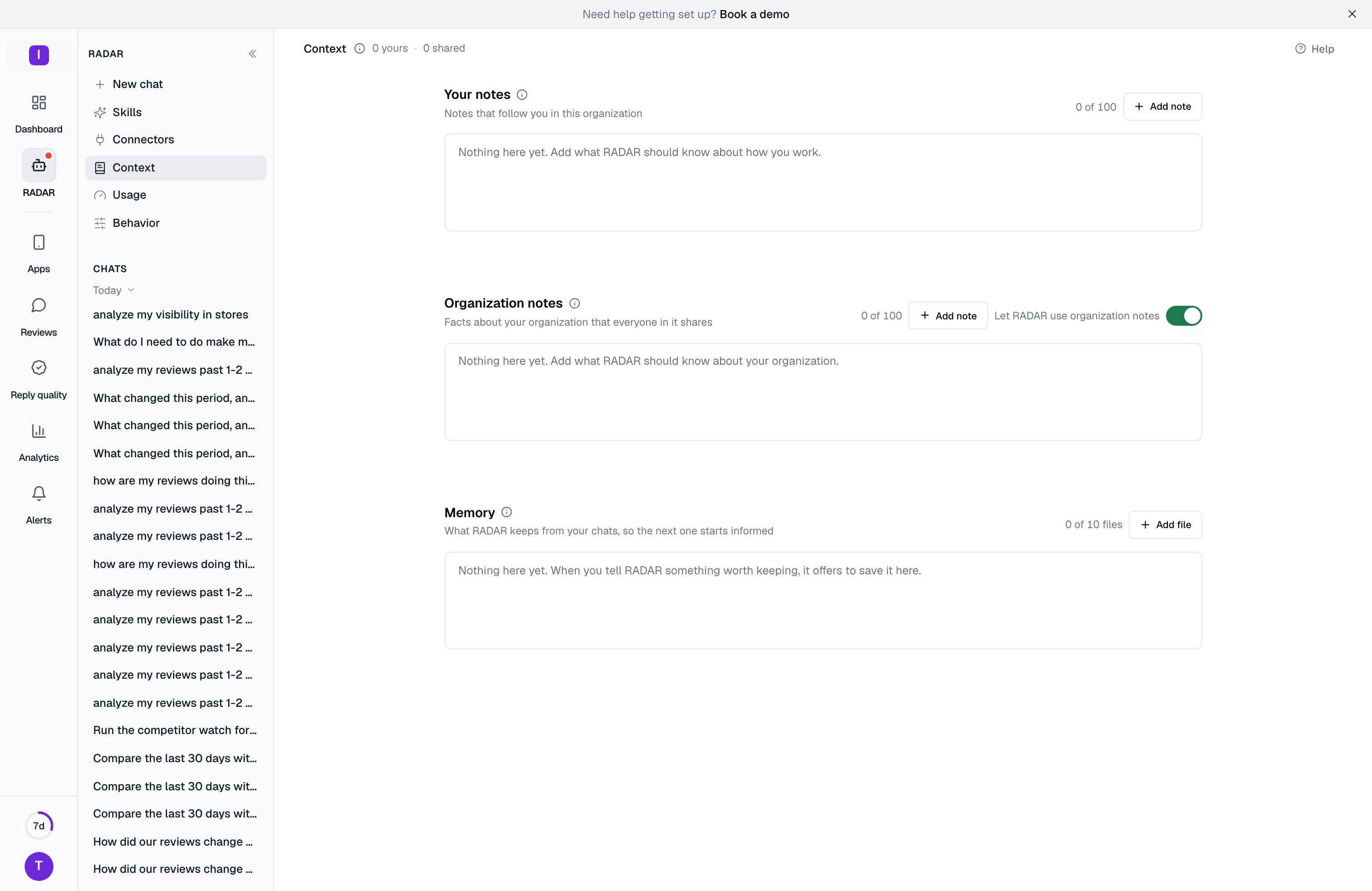
Your notes
Your notes follow you in this organization. Nobody else reads them. Use them for how you work: the language you want answers in, the format you prefer, the apps you care about most.- Click Add note, type up to 500 characters of plain text and save.
- You can keep up to 100 notes. The counter next to Add note shows how many you have used.
- Click Edit to change a note. Click Remove to delete it. Remove asks once, and Keep cancels.
Organization notes
Organization notes are shared facts that everyone in the organization gets: your products, your markets, your tone, words to avoid. Every member can read them. Only an Admin or Owner can add, edit or remove them. The limits are the same: 500 characters a note and 100 notes. Each note shows who changed it last. An organization note is also refused when it holds an email address or a phone number, or reads like an order to RADAR, such as “approve all” or “ignore the rules”. Every person decides for themselves whether RADAR uses these. The switch Let RADAR use organization notes only changes your own chats. When it is off, the page says so and RADAR also skips its memory for you.RADAR reads as many notes as fit in a chat, newest first. If you have more notes than fit, the page tells you how many of them RADAR reads.
Memory
Memory is what RADAR keeps from your chats about the organization, so the next chat starts informed. It is kept in a few short files:
Each file holds short entries, one per line. An entry is one sentence of up to 280 characters, and a file holds up to 6,000 characters. A longer line is refused with its line number. Every member can read the files, because every member’s chats use them.
Not all of the memory goes into every chat. RADAR carries the newest entries of the three standard files that fit in about 3,000 characters, and searches the memory for the rest when a question needs it. Files you add are known to RADAR by name and are found by searching.
How something gets into memory
Memory is shared, so nothing goes in without a person. When someone in an Admin’s or Owner’s chat says something worth keeping, RADAR proposes an entry as an approval card. The card shows the exact entry. Nothing is saved until that Admin or Owner approves it, and this card is never approved automatically, whatever your approval settings are. An Admin or Owner can also type an entry here by hand. In a Member’s chat, RADAR cannot change the shared memory. What a Member asks it to remember goes to their own notes instead.Manage the memory
Click Show on a file to read it. Admins and Owners can also:- Edit the text of a file. If the file changed while you were editing, the save is refused so nothing newer is overwritten.
- Restore an earlier version. RADAR keeps the last five versions of a file, and restoring one keeps the current text in its place.
- Delete a file and its earlier versions. This cannot be undone.
- Add file to make a file of your own, for example “Launch plan”, with a name of up to 60 characters. RADAR offers to save to it when you ask it to, by name. You can add seven files beside the three standard ones.
- Tidy now to remove entries that were said twice, replaced by a newer entry, or out of date. A tidy only removes entries: it never rewrites one, never empties a file and never removes more than half of a file’s entries. The text before a tidy is kept as an earlier version you can restore. The button appears once there are at least two entries, and the memory can be tidied five times a day. RADAR also tidies by itself about once a day when there is something to tidy.
- Forget everything to clear every file and every earlier version.