

/quality. See Quality.
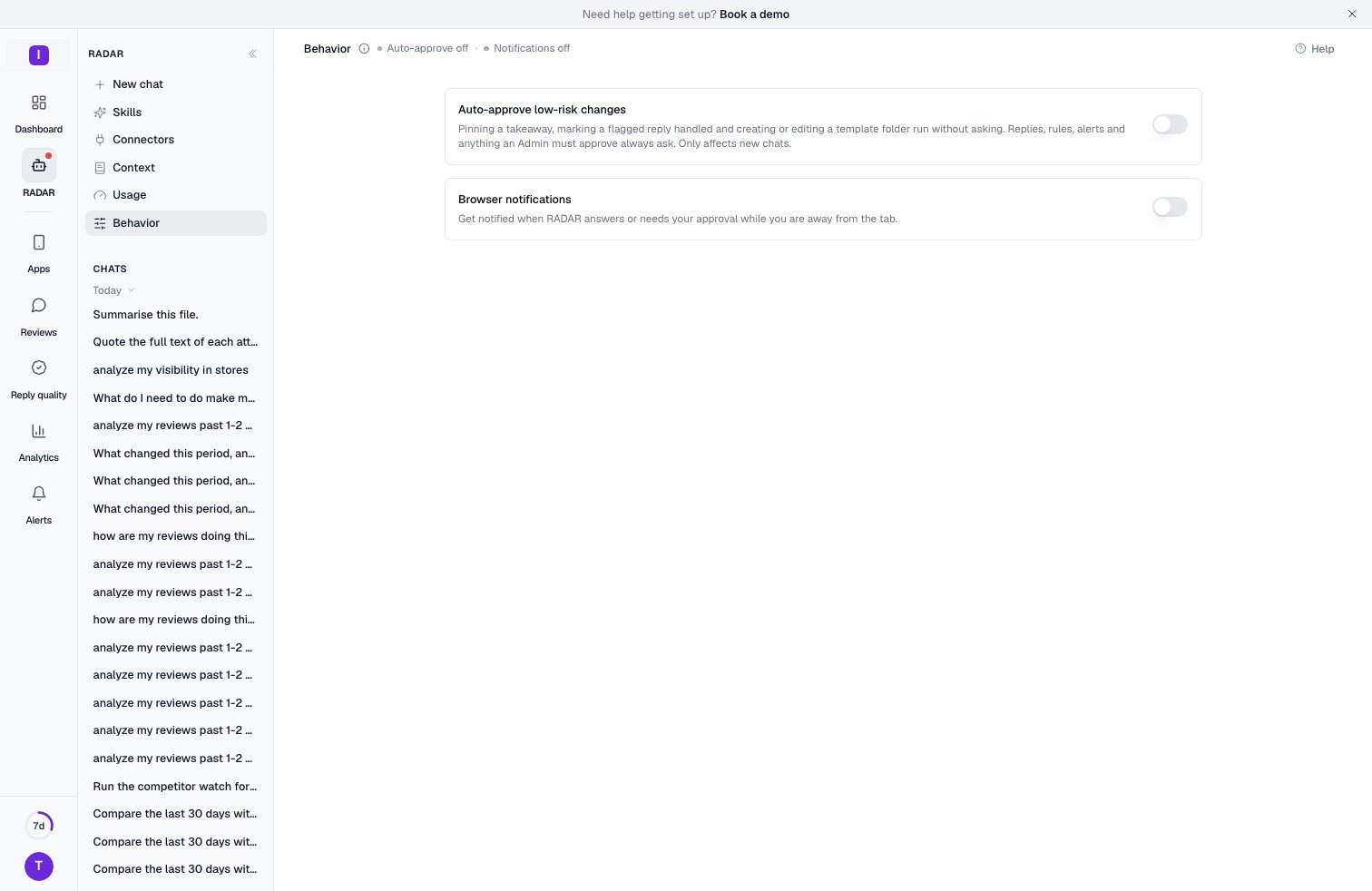
Auto-approve
RADAR never changes anything in your account on its own. When it wants to make a change, it shows an approval card, and nothing happens until you approve it. Auto-approve lets a small set of changes skip that click. It is off until you turn it on.What it covers
Auto-approve covers only changes that are small and easy to undo:- Pinning a takeaway to the top of the Home page.
- Putting a flagged reply back in the queue.
- Creating a template folder, or renaming one.
What it never covers
Everything else waits for your own click on its card. That includes marking a flagged reply as handled, because it removes the reply from the Flagged queue, replies to reviewers, auto-reply rules, alert rules, summary reports, topics, knowledge base changes, template response texts, and anything that deletes something, costs money or changes who has access. Dismissing a takeaway also waits, because it removes the takeaway for everyone in your workspace. Even a change of a covered kind waits for you in two cases:- Its card shows a warning. For example, changing the language of a template folder can change what live auto-reply rules send, so that card always asks.
- It was proposed more than 10 minutes ago. Auto-approve answers the message you just sent, not a card you find later in an old chat.
Auto-approve covers only the person who started the chat. If you ask RADAR for a change in a chat a teammate started, the change waits for your click, even if you have auto-approve on.
Only new chats are affected
A chat takes your auto-approve setting at the moment it starts, and keeps it. Turning the switch on or off changes new chats only. Chats you already started stay as they were. In the message field you can also type/auto on or /auto off to set the same preference. The command works in a new chat only. In a chat that already exists it is disabled and says “Set when a chat starts. Change it from a new chat.”
You can also flip the same setting from the field in a new chat. The Auto on or Auto off chip in the bottom row does exactly what the switch on this page does. In a chat that already exists, the chip only tells you how that chat was started. Hover over it to read what it covers.
Browser notifications
With this switch on, your browser can tell you when RADAR has something for you while you are looking at another tab. You get a notification in two cases:- RADAR answered. An answer you asked for has finished.
- RADAR needs your approval. A change is waiting for your click.
- You only get a notification when the RADAR tab is in the background. If you are looking at the answer, you do not need one.
- A new notification of the same kind replaces the old one instead of stacking up.
- You get one approval notification per change, and only for answers you started in that tab. Opening an old chat does not notify you about its old cards.
Turn it on
1
Flip the switch
Turn on Browser notifications.
2
Allow it in your browser
Your browser asks whether this site may show notifications. Choose to allow them.
Notifications depend on the browser. A browser without notification support cannot turn them on, and some mobile browsers, such as Chrome on Android, do not show them.