

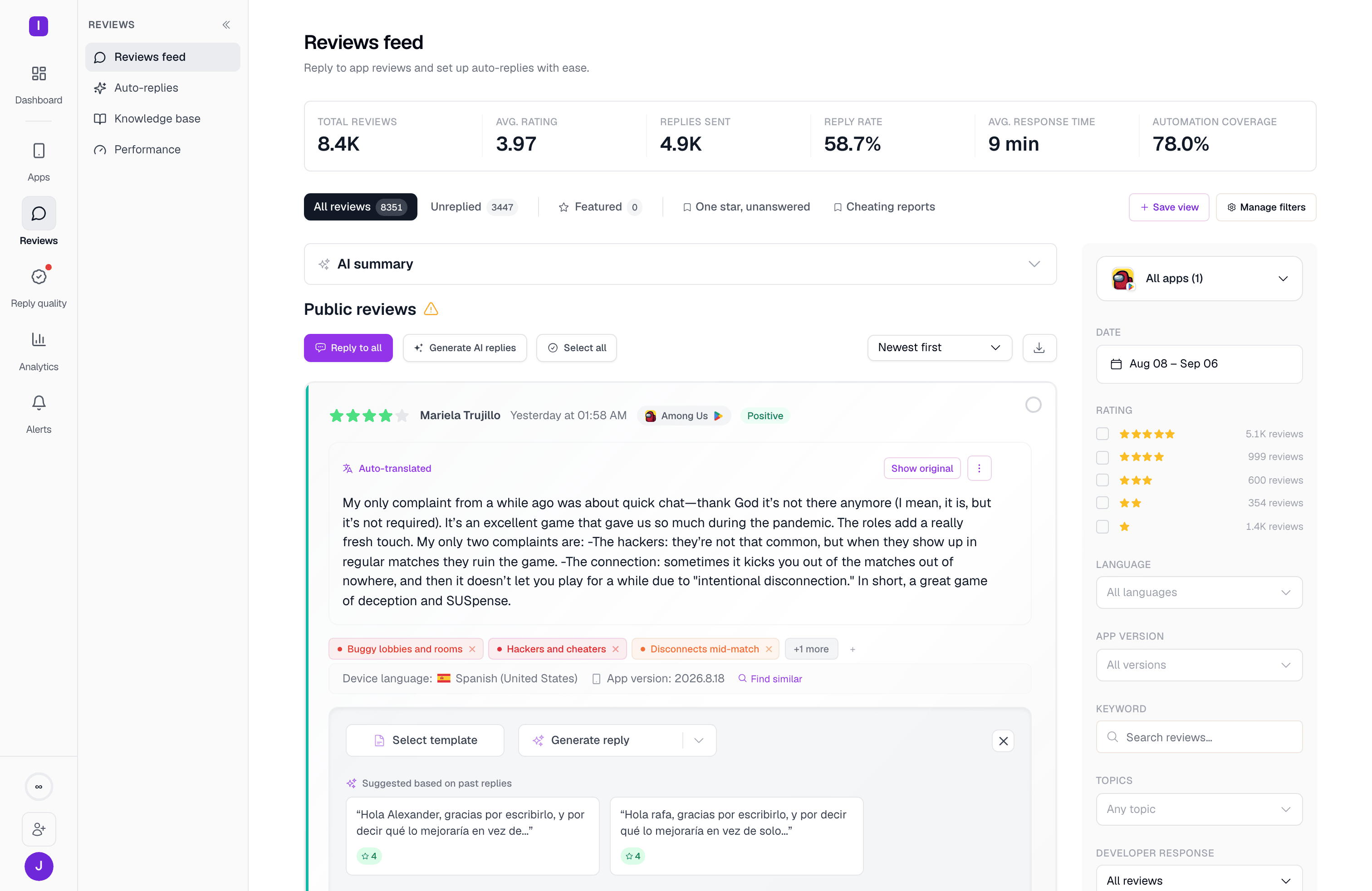
Six vitals at a glance
The bar at the top of the page recalculates from whatever filters are currently applied:
Automation coverage links straight to Automations, and picks up a small warning icon whenever it drops below 20%, as a nudge to add or enable more rules.
Tabs, saved views, and filters
Three built-in tabs sit above the feed: All reviews, Unreplied, and Featured (Pro plan — reviews you’ve manually marked as featured, shown to everyone so free-plan teams can see what they’re missing). Alongside them are your own saved views — a filter combination you named and pinned, shown as a small bookmarked tab with a live count badge. Use Save view to pin the filters you currently have applied, and Manage filters to rename, reorder, or delete saved views later. The filter rail on the right covers:- Date range — nine presets (Today, Yesterday, Last 3 days, Last 7 days, This month, Last month, Last 6 months, Last 12 months, This year) or a custom range
- Rating, with a live review count per star
- Language, Country, and App version
- Keyword, a free-text search across review content
- Topics — filter to reviews tagged with one or more of your Topics
- Developer response — All reviews, With response, No response, or Pending approval
- An app picker above the filters, for narrowing to one app or several at once when your organization has more than one connected
AI summary of the filtered set
Above the review list, AI summary is collapsed by default. Expand it and AppReply clusters whatever reviews match your current filters into a handful of weighted themes, each with a percentage of the set it represents, a few named topic chips with counts, a short prose explanation, and links through to sample reviews or the full topic in Analytics. A search box lets you pull a summary for any custom topic instead of the auto-detected ones, and a Compare toggle switches the summary from the selected period alone to a comparison against the prior one.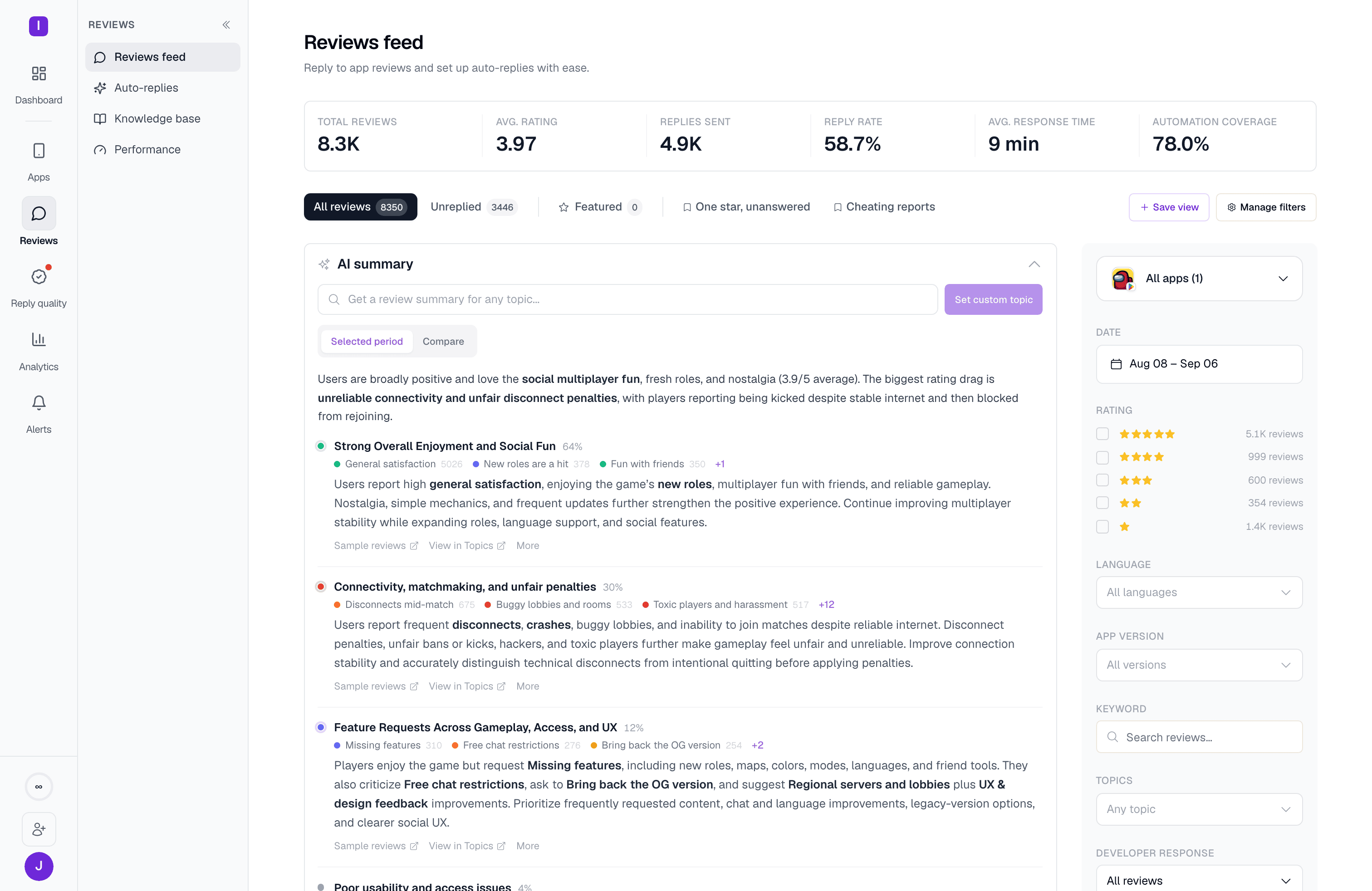
AI summary requires a Standard plan or above.
Replying to a review
Clicking into a review’s reply box opens the composer: Select template to pull in a canned response, or Generate reply to have AppReply MAX draft one. The dropdown next to Generate reply lists any of your saved AI instructions (your default one, if you’ve set one, runs automatically) plus two built-in presets, “Ask to contact support” and “Ask to increase rating.” While MAX drafts, the button shows Thinking… On accounts with reply history, you’ll often see Suggested based on past replies first — one or two clickable chips built from similar past reviews (Pro plan) that you can use as-is or as a starting point.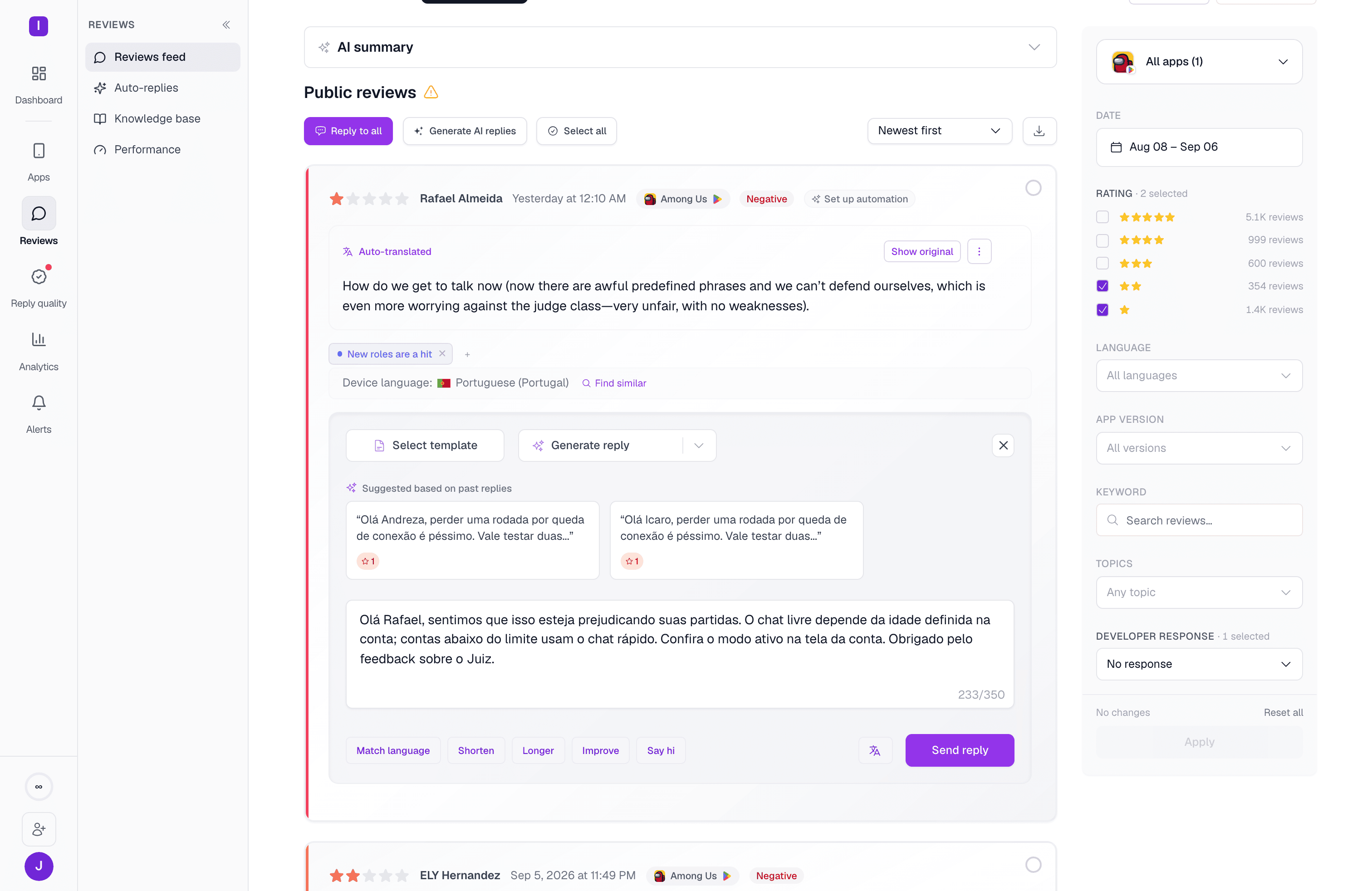
Finding similar reviews and tagging topics
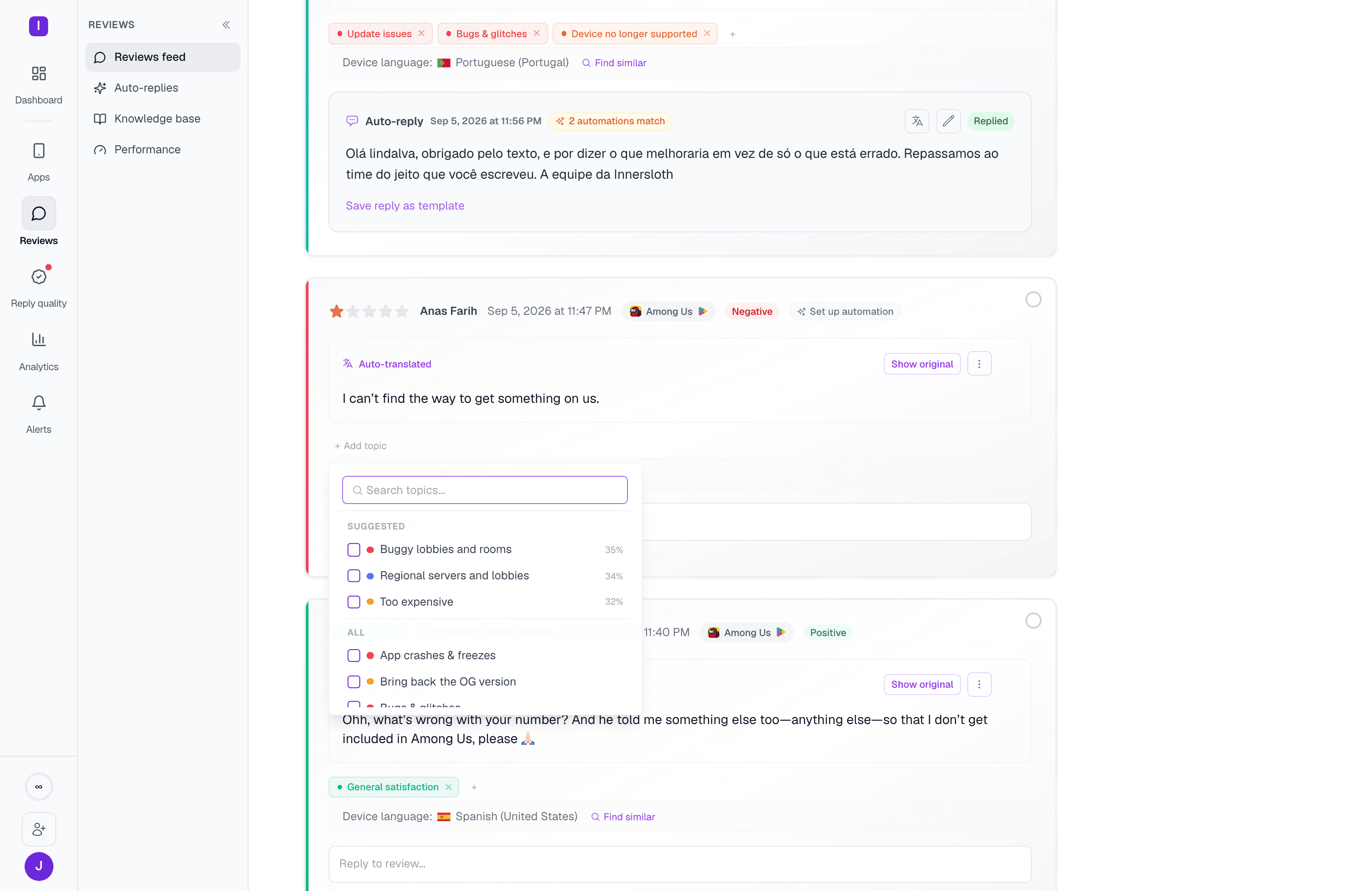
Every review card has a Find similar link that opens a semantic search for the closest-matching reviews across the app, each shown with a match percentage, its own topic tags, and a rating — useful for spotting a pattern before you commit to a reply. Topic chips on the card itself can be edited directly: + Add topic opens a searchable list of suggested and existing topics to tag the review with.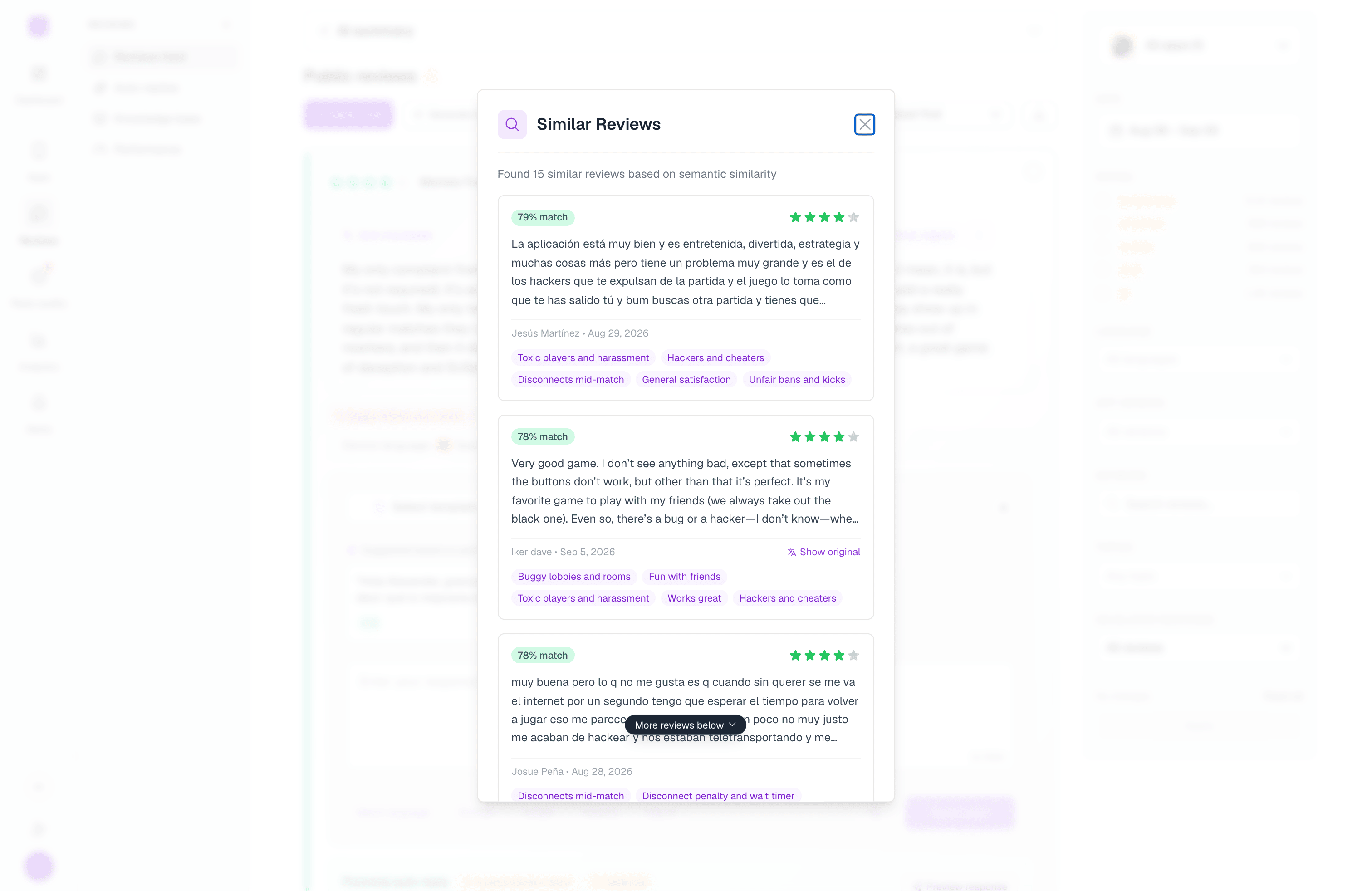
Approval-mode automations
If an automation is configured to require approval before publishing, its matching replies land in the feed as an Auto-reply (pending approval) draft rather than posting immediately. Each shows which automation produced it, and gives you Approve & Publish, translate, reject, and edit controls right on the card, along with the same “Save reply as template” shortcut.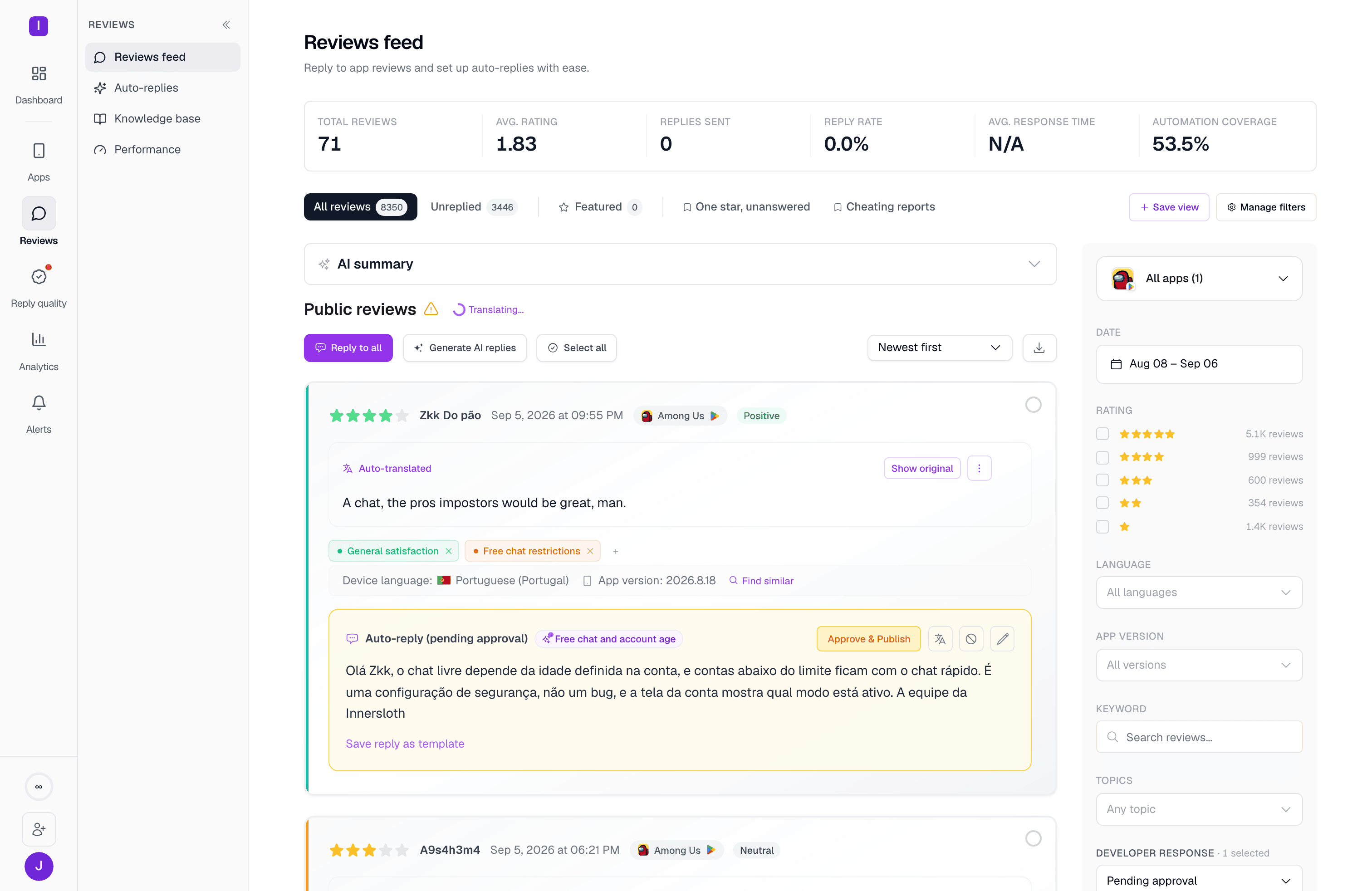
Bulk actions
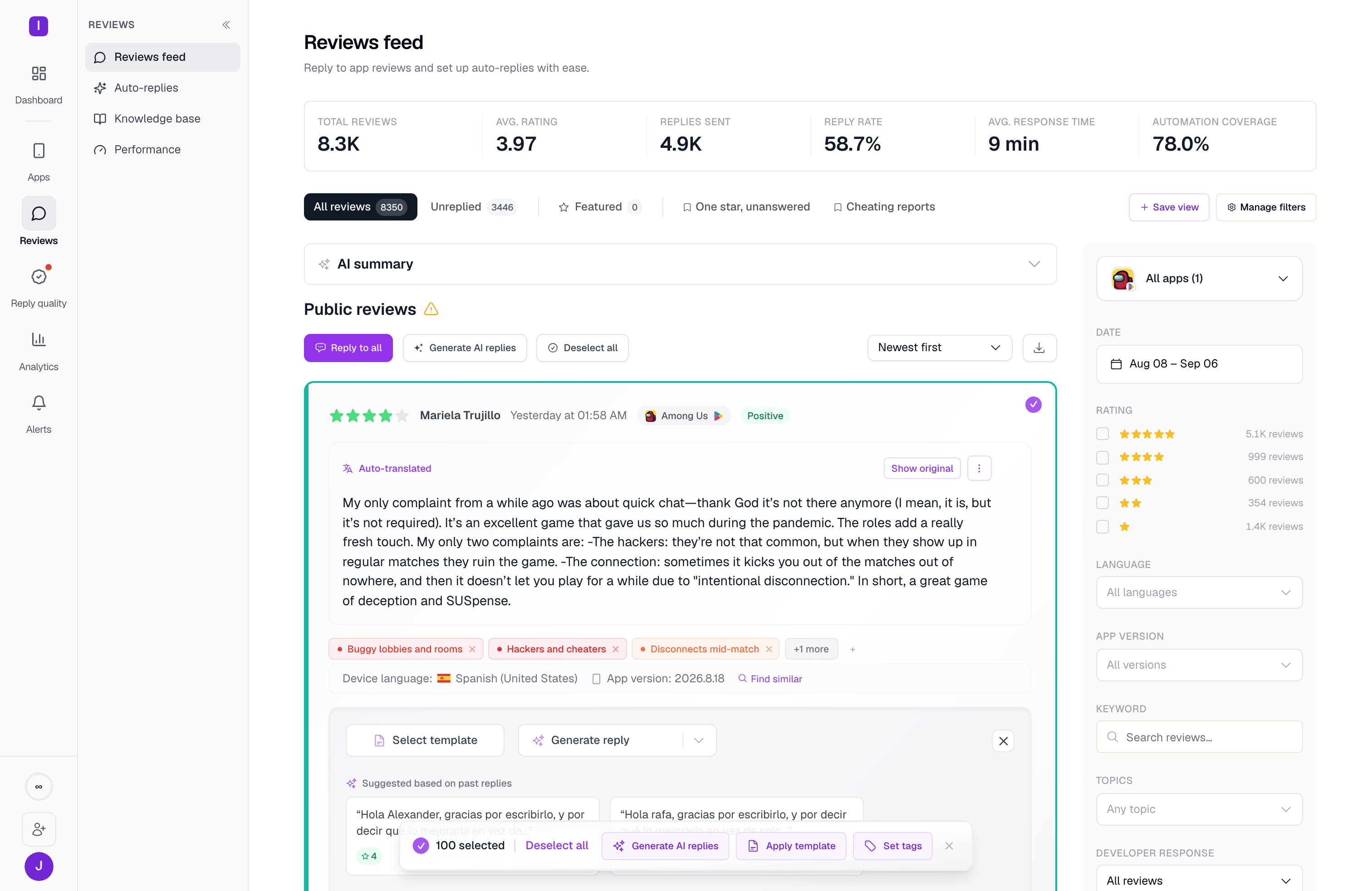
Select more than one review — individually, or with Select all — and a bulk action bar appears at the bottom of the screen:- Generate AI replies for every selected review at once (paid plans)
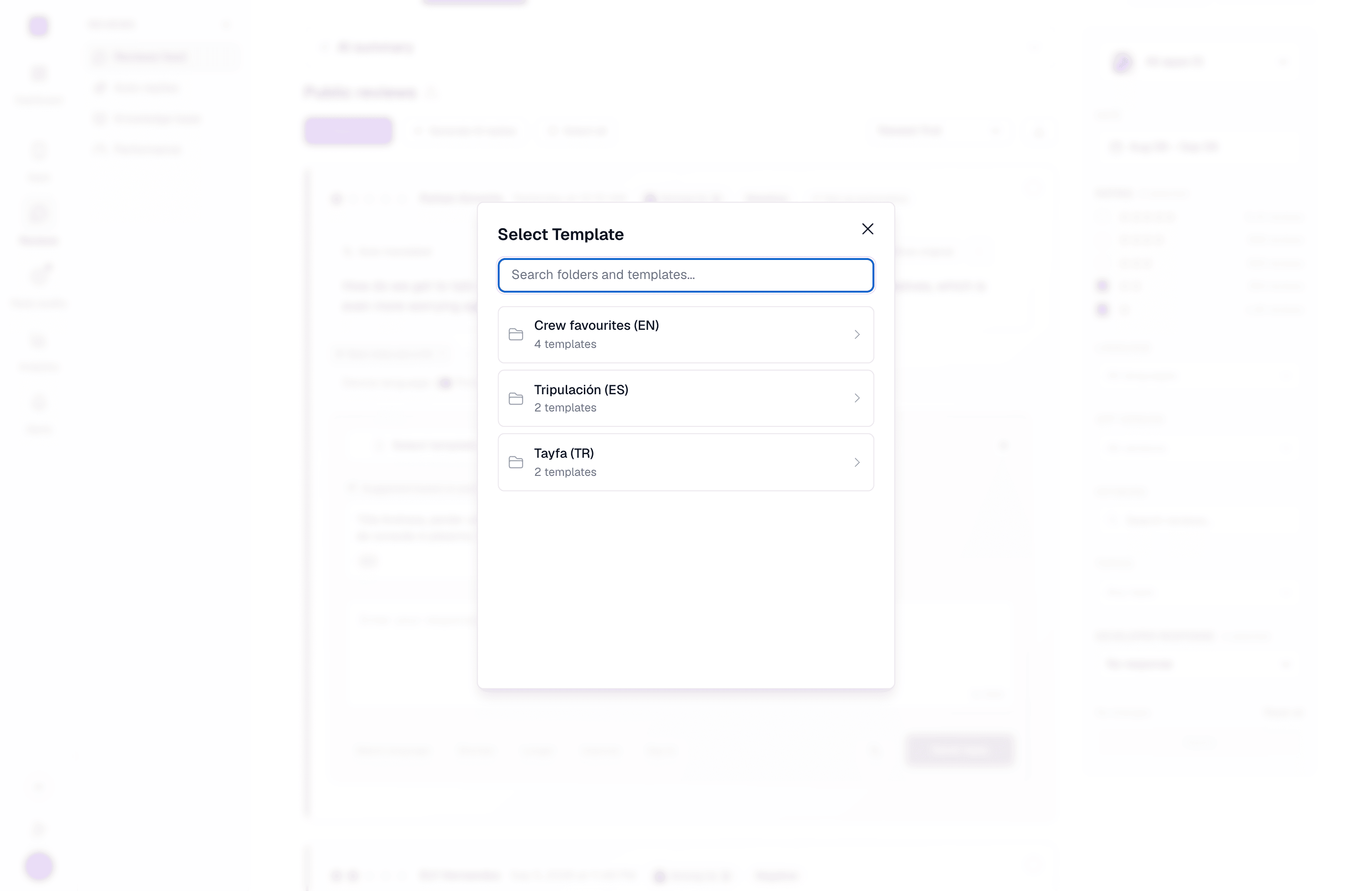
- Apply template, which opens the same folder picker as the single-review composer and applies a random response from the chosen folder to each selection, so recipients don’t all get an identical reply
- Set tags, to bulk-apply one or more topics across the selection
- Reply to all, in the page header, submits every draft that already has content — written by hand, generated, or template-applied — across the current page in one action
Other useful controls
- CSV export (the download icon by the sort dropdown) exports the currently filtered reviews to a spreadsheet — paid plans only
- Sort by newest or oldest first
- Reviews auto-translate into your organization’s preferred language when that’s turned on in Settings, with a Show original toggle on any translated review
Canned responses and knowledge base
Organize the templates and knowledge base MAX draws on when generating replies
Auto-replies
Automate replies to reviews that match rules you define