

Match the response method to the review type: templates for consistent scenarios, AI generation for complex or varied feedback.
Template-based responses
Template-based actions use a folder of your pre-written response templates as the foundation, with an optional AI enhancement layered on top.Choose your template folder
Select from your organized template folders to match the automation’s purpose:Positive feedback templates
Best for: 4-5 star thank you messages
- Store several variations of gratitude messages
- Include feature announcements or updates
- Add subtle requests for referrals or social shares
Issue resolution templates
Best for: Bug reports and technical issues
- Acknowledge the problem empathetically
- Provide troubleshooting steps or workarounds
- Include contact information for escalation
Feature request templates
Best for: User suggestions and enhancement requests
- Thank users for their input
- Explain your development process
- Set realistic expectations for timelines
Billing support templates
Best for: Subscription and payment questions
- Clarify pricing and billing cycles
- Provide clear paths to account management
- Address common subscription concerns
AI enhancement options
Each automation applies one AI enhancement setting to its templates: Standard reply, AI rewriting, or AI translation.Standard reply (no enhancement)
Use your template exactly as written — for consistent, formal responses:When to use standard replies
When to use standard replies
Best for scenarios requiring exact consistency:
- Legal disclaimers or compliance statements
- Specific step-by-step instructions
- Formal business communications
- URLs and contact information that can’t change
AI rewriting (recommended)
Let AI rephrase your templates for each response while preserving the core message. In the builder, this option is labeled Increases response variety by 85%:- How AI rewriting works
- Benefits
- Best practices
Your template:AI variations:
- “Thanks so much for the fantastic review! It’s amazing to hear you love the app. Feedback like yours inspires us to keep pushing forward.”
- “We really appreciate your 5-star rating! Knowing you’re having a great experience with the app makes our day. Your support means everything to our team.”
- “What a wonderful review — thank you! We’re so happy you’re enjoying the app. Your positive feedback gives our team the energy to keep innovating.”
AI translation
Automatically translate your templates to match each reviewer’s language. In the builder, this option is labeled Supports 94+ languages automatically:- How translation works
- Global strategy
Automatic language detection:
- AppReply detects the review’s language
- Translates your template to match
- Preserves tone, intent, and key information
- Posts in the reviewer’s native language
AI rewriting and AI translation both require a Standard plan or above. On a lower plan, the builder still lets you turn them on, but the automation is saved disabled until you upgrade.
AI-generated responses
Writing effective AI instructions
The quality of AI-generated responses depends heavily on your instructions. The instructions field takes 10 to 5,000 characters, with a live indicator (Too short / Minimal / Good / Excellent) as you type. Think of the instructions as briefing a new team member:- Instruction structure
- Advanced instructions
- Instruction examples
Follow this framework for best results:
Quick add instructions
Rather than typing from scratch, click a chip to append a ready-made line to your instructions:- Include greeting — “Always start every response with a hello to the user.”
- Greet the user by name
- Include signature — appends a placeholder for your sign-off
- Use formal tone of voice
- Use informal tone of voice
- Ask to contact support team by Email or URL
- Request detailed feedback
AI response examples
5-star review response
5-star review response
Review: “Love this app! The new dark mode is perfect and the sync feature works flawlessly.”AI Response: “Thank you so much for the amazing review! We’re absolutely thrilled that you’re loving the new dark mode. If you ever have suggestions for other features you’d like to see, we’d love to hear from you. Thanks again!”
Bug report response
Bug report response
Review: “App keeps crashing when I try to export files. Really frustrating as I need this for work.”AI Response: “We sincerely apologize for the crashes you’re experiencing with file exports. Please reach out to our support team with details about your device and the file types you’re exporting. Thank you for your patience, and we’ll get this resolved for you quickly.”
Feature request response
Feature request response
Review: “Good app but really needs a calendar integration. Would make it perfect for my workflow.”AI Response: “Thank you for the positive feedback and the great suggestion! Calendar integration is actually something we’ve been exploring. In the meantime, you might find our existing scheduling features helpful. And please keep the suggestions coming!”
AI Intelligence
AI-generated responses can draw on three tiers of context, called AI Intelligence in the builder:1
No Memory
Each review is treated independently — the AI only sees the review itself and your instructions. Available on every plan.
2
Basic Memory
Enhanced with your knowledge base documents and response history through retrieval-augmented generation. This is what powers “Use knowledge base”-style grounding. Requires the Pro plan — on a lower plan the automation saves disabled until you upgrade.
3
Agentic Memory
The most capable tier: retrieves your approved replies and product context from across the account for each draft, and shows what it learned (voice, negative-review strategy, known solutions) once your account has enough history. This tier is invite-only — contact AppReply to enable it.
Available with AppReply MAX on the Pro plan. See AppReply MAX for how the AI learns your team’s voice from manual and automated replies.
Approval workflow
When Approval Mode is enabled on an automation, generated responses are not posted immediately. Instead, they are saved with a “Pending approval” status. New automations default to Approval Mode.1
Review matches automation
The automation generates a response as usual, using your chosen method (template or AI-generated).
2
Response saved as pending
The response appears in your review feed with an approval badge instead of being posted to the store.
3
Team member reviews
A team member reads the generated response and can edit it if needed.
4
Approve and publish
Approve to post the response to the app store, or reject it to discard.
Choosing the right response method
Match your response method to the scenario:- Template + AI rewriting
- Template + AI translation
- AI-generated responses
Best for:
- High-volume, similar responses (thank you messages)
- Scenarios where you want consistency with variety
- Responses with specific required information
- When you have proven templates that work well
Response quality and testing
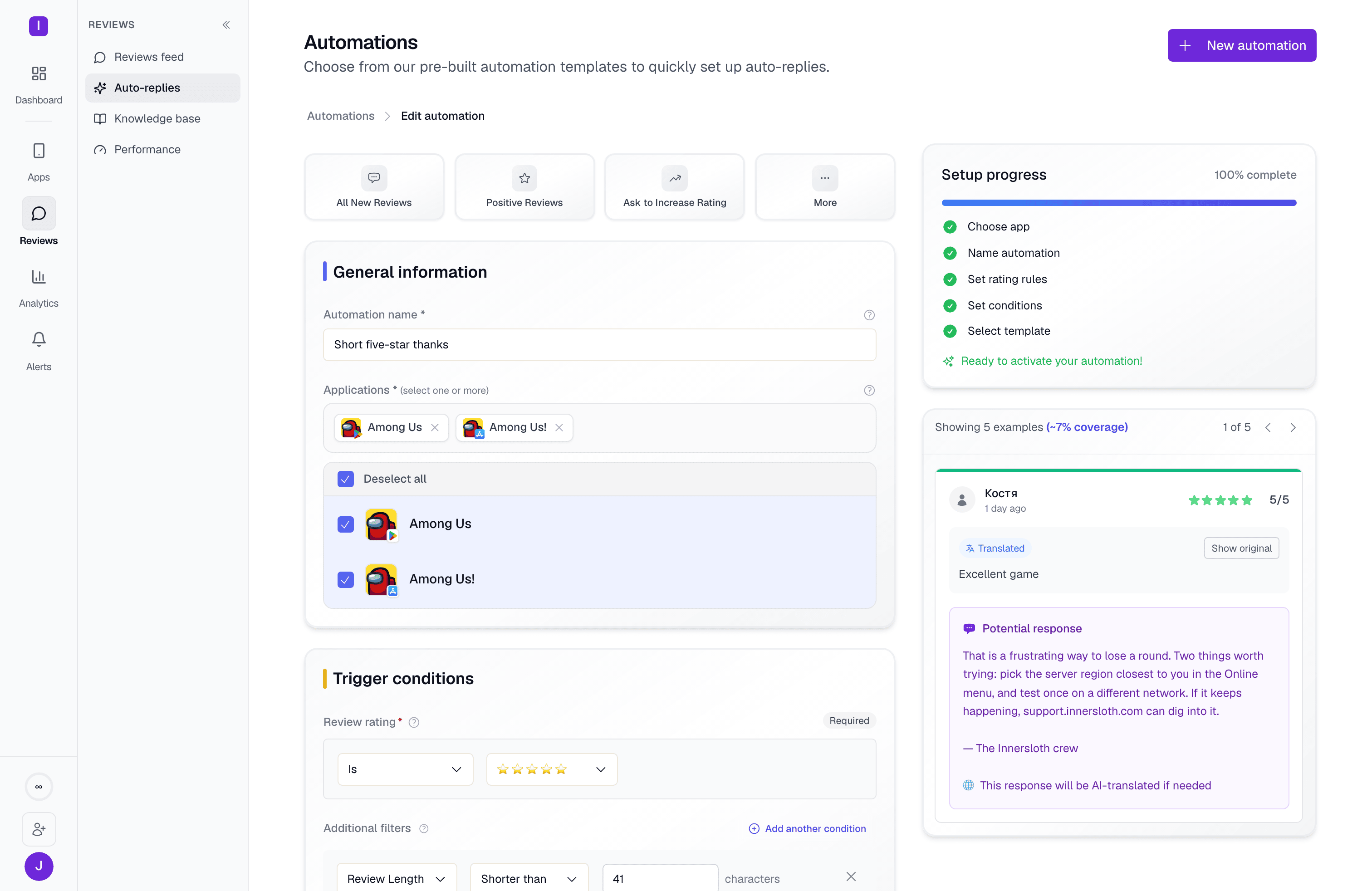
While you build a rule, the builder’s preview panel shows real example reviews that currently match your conditions, along with the coverage percentage across your recent review volume. Each example also gets a generated “Potential response,” the fastest way to sanity-check a response method before it goes live. Once the rule is live and the app has a scorecard, every AI draft is checked against it before it publishes. A failing draft is rewritten once with the reason attached, and one that still fails publishes with a flag. See Checks before publishing.Quality assurance checklist
Before going live
Before going live
Test your automation thoroughly:
- Create the automation in disabled mode first
- Review the example matches and their potential responses in the builder’s preview panel
- Test with various review types and languages
- Verify responses sound natural and on-brand
Monitor and improve
Monitor and improve
Ongoing optimization:
- Check the Reply quality pass rate and open the Flagged replies
- Look for user replies to your automated responses
- Adjust instructions based on real performance
- Update templates based on seasonal or product changes
Warning signs
Warning signs
Watch for these issues:
- Users replying “this seems automated”
- Generic responses that don’t address specific concerns
- Grammatical errors or awkward phrasing in translations
- Responses that contradict your current app features
- Overly long or short responses for the review type
Troubleshooting common issues
- Responses feel generic
- Translation quality issues
- Responses too long or short
Solutions:
- Add more specific instructions for AI responses
- Include context about your app and user base
- Use AI rewriting instead of standard templates
- Reference specific review content in instructions
Templates
Learn to create response templates that power your automations
Triggers
Learn how to set up conditions that target exactly the reviews you want to handle