

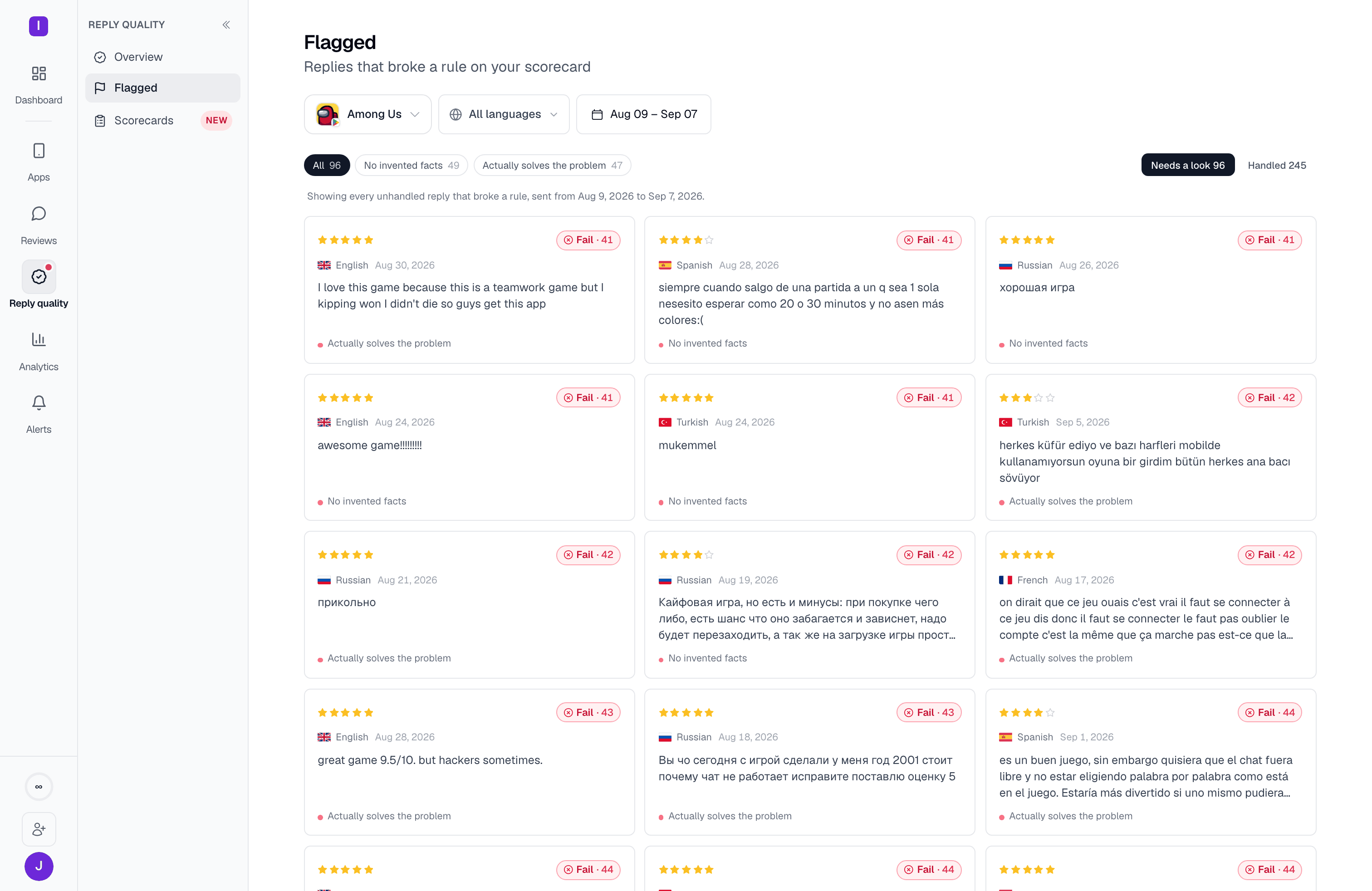
Needs a look vs. Handled
The queue opens on Needs a look, not on every reply ever flagged — a view that can reach zero is what makes a triage session end. Switch to Handled to see replies you’ve already worked through. Marking a reply handled removes it from Needs a look immediately; it isn’t deleted, and its history stays visible under Handled. Above the queue, chips break the current view down by which criterion failed. At a glance, you can see whether your flagged replies are many different problems or one rule catching the same mistake repeatedly — the kind of finding that turns into a single scorecard edit rather than dozens of individual fixes. The queue’s default order is worst-first: replies with a critical failure, then the lowest scores, come first. When you open Flagged from the Overview’s Voice match tile instead, it opens ordered by the replies least like this app’s own voice.Two layouts
On a wide screen the queue renders as a grid of cards, styled like an app store review, because a one-line row at that width stretches review text further than is comfortable to read. On a narrow screen it switches to a compact row list instead. On longer queues, the page paginates rather than scrolling indefinitely: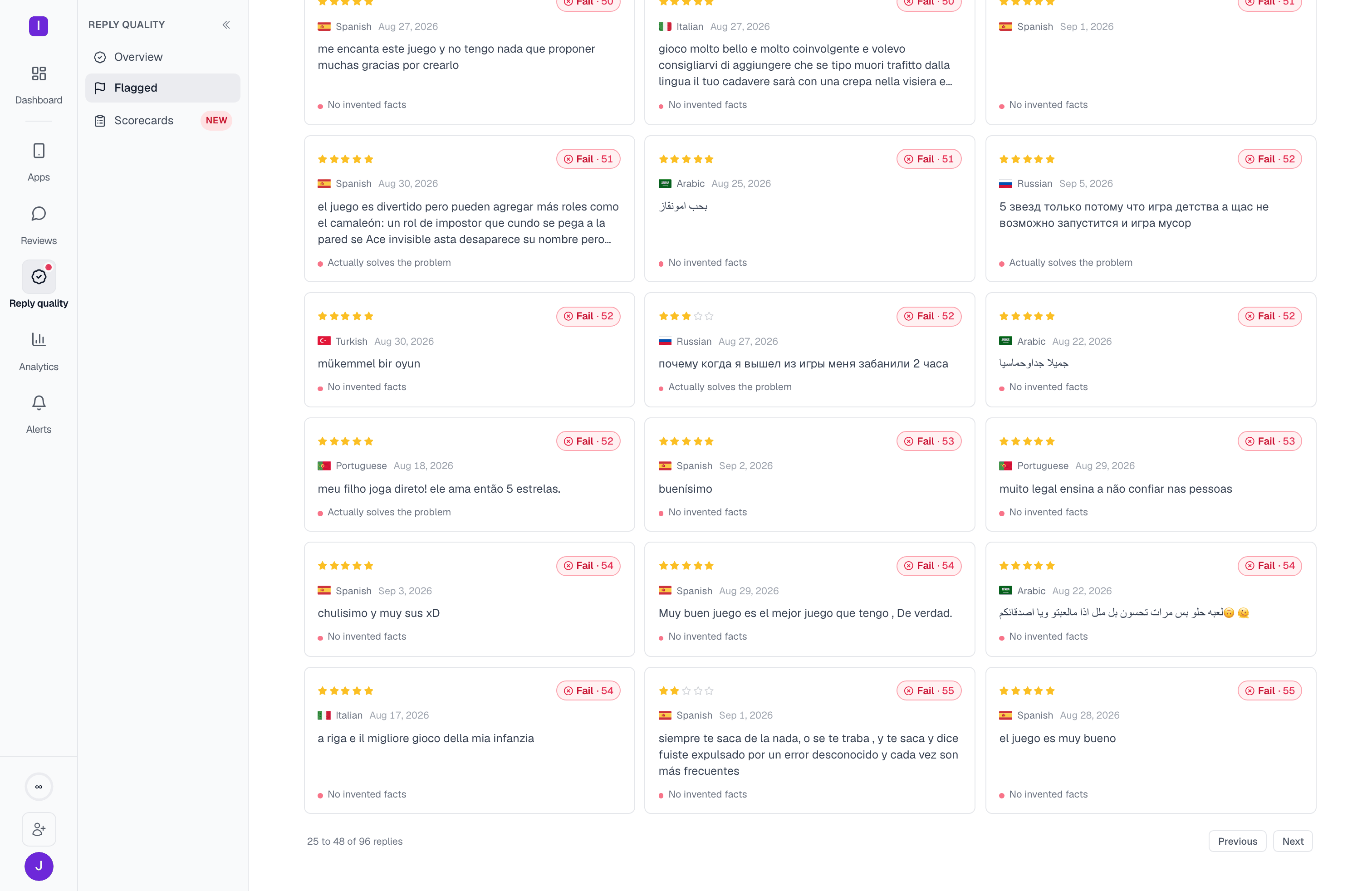
Opening a reply
Click any card or row to open that reply in a side panel over the queue, rather than navigating to a new page — closing it returns you to exactly where you were, scroll position and filters intact. With the panel open, j and k step to the next and previous reply in the queue without closing it.The graded reply view
Whether opened from the Flagged panel or its own page, one reply’s detail always shows the same things, in the order you’d actually ask them:- The verdict
- The original review
- The reply as published, with the grader’s cited evidence highlighted directly in the text
- How each criterion on the scorecard scored
- When the app has one, how this reply’s language compares to the app’s own voice baseline
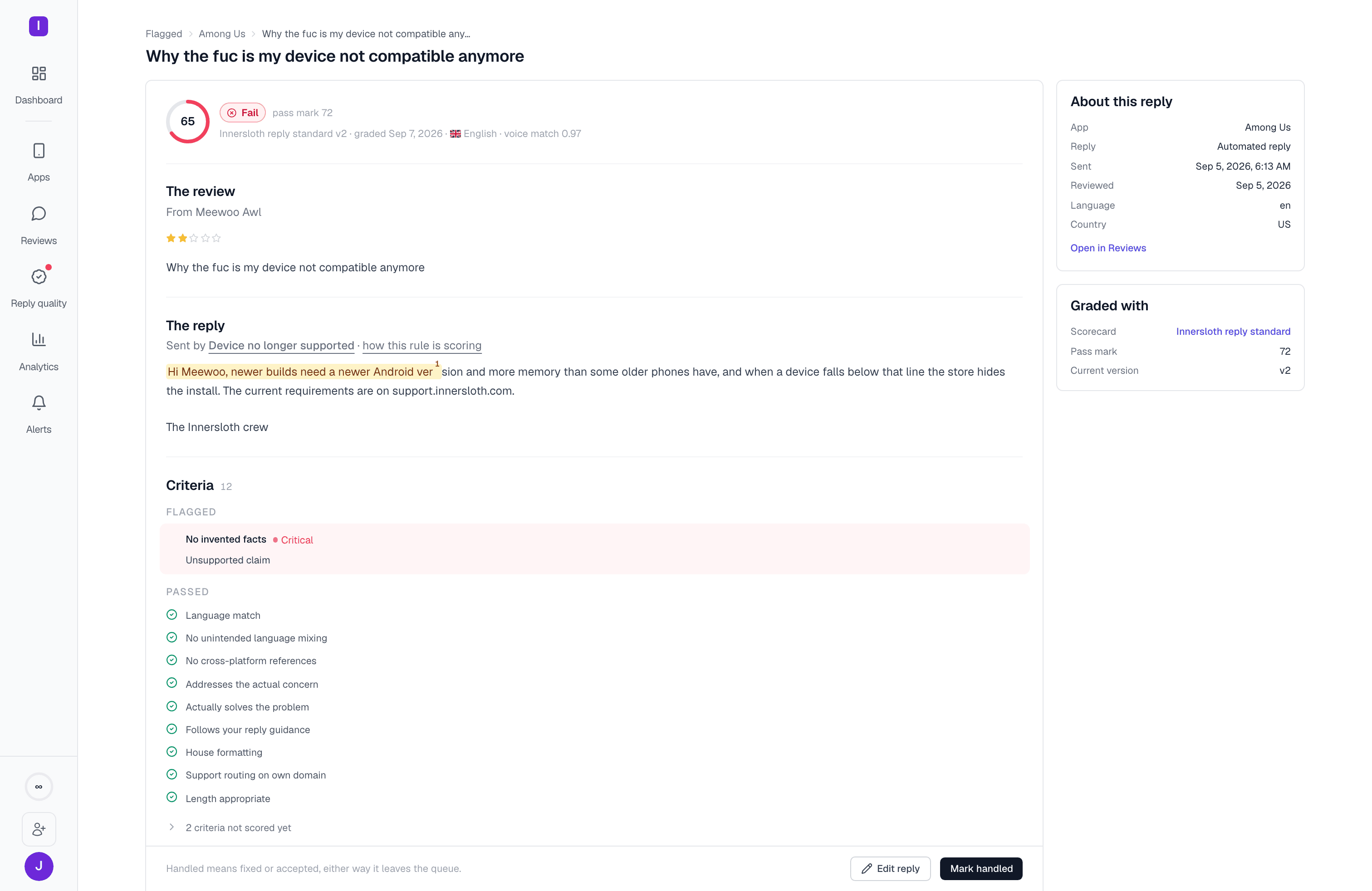
Marking a reply handled records that a person reviewed it — it doesn’t change the reply itself. To fix the underlying issue, edit the reply’s automation rule, its knowledge base source, or your AI instructions, depending on which criterion flagged it.
Reply quality overview
See the verdict, trend, and voice match across the whole app
Scorecards
Edit the rubric that decides what gets flagged