

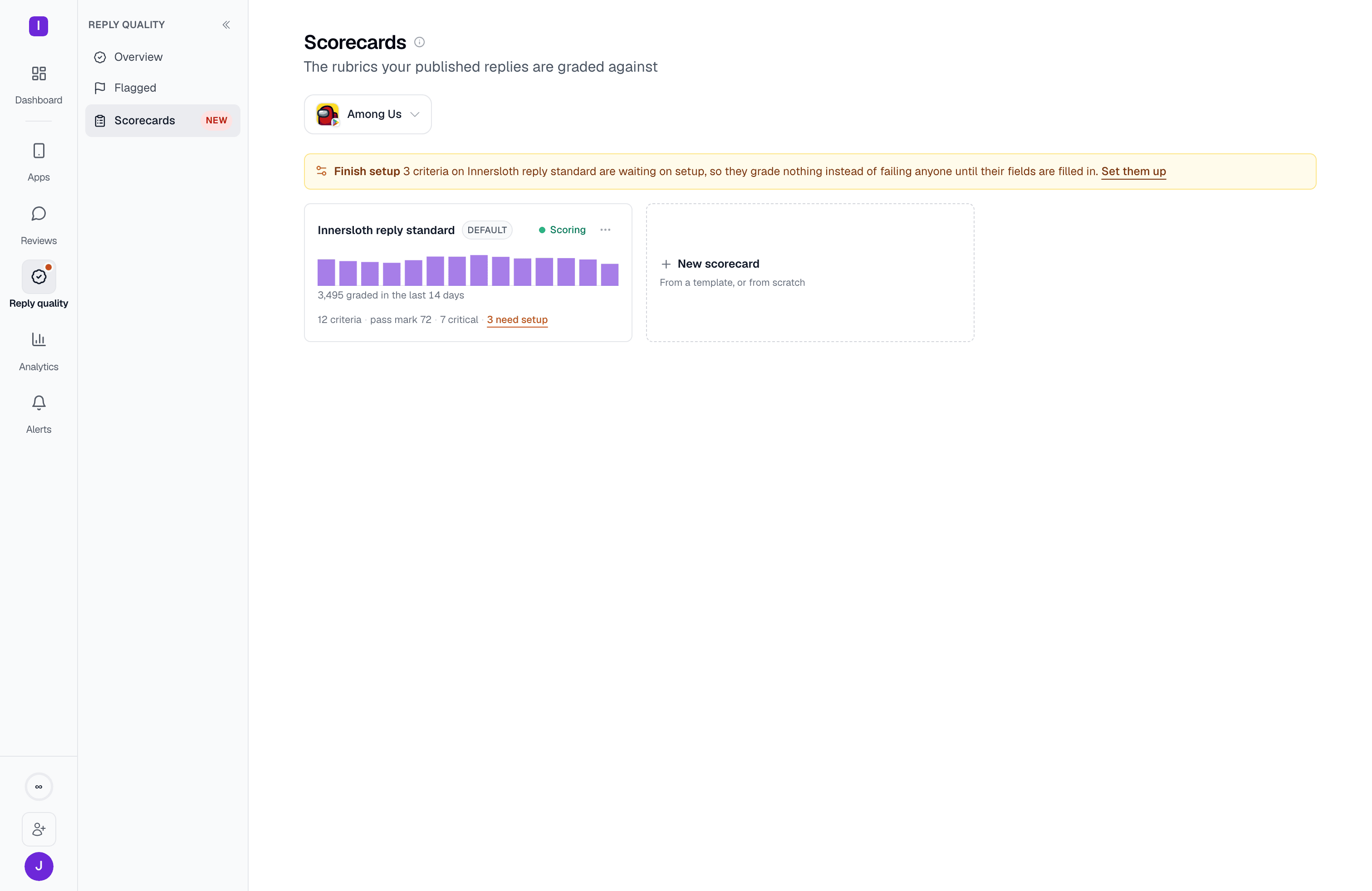
Org-level and app-specific scorecards
A scorecard can be scoped to one app, or to the whole organization. An org-level scorecard applies to every app that doesn’t have its own app-specific one, so a new app is covered automatically the moment it’s added, without anyone having to build a rubric for it by hand. The list orders app-scoped scorecards first, then org-level ones, with the default scorecard first inside each group. Only one scorecard can actively score a given app at a time: the background job that grades replies follows exactly one active monitor per app. Each card carries a scoring switch:- Turning it on moves scoring to this scorecard. If another scorecard is currently scoring the app, the switch asks first and names the outgoing scorecard, because this is a move, not an addition.
- Turning it off pauses scoring on this scorecard. Pausing is instantly reversible and destroys nothing, so it needs no confirmation.
A scorecard’s own Conditions (see below) can further narrow which replies the active monitor grades — only certain star ratings, only replies matching certain keywords, and so on. When conditions are set, every number reply quality shows for that app describes that narrower set, and the coverage line under the Overview’s tiles says so.
Creating a scorecard
Click New scorecard to open the three-step builder: Start, Checks, and Conditions. Nothing is saved until the last step.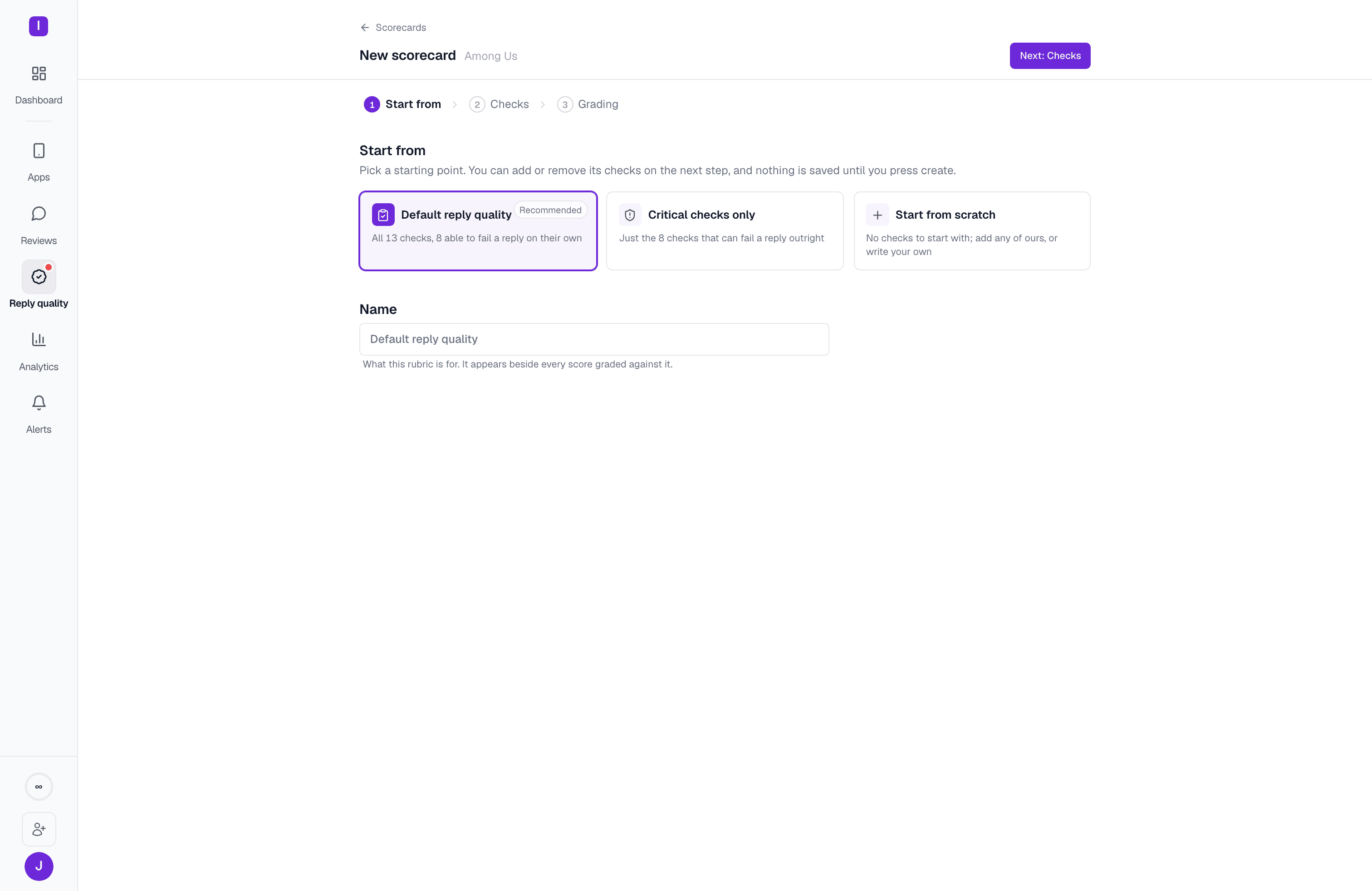
Checks is the same criteria editor used when editing an existing scorecard (below). Conditions is where you optionally narrow which replies get graded at all — skip it to grade every published reply on the app.
Editing a scorecard’s criteria
Open a scorecard and click Edit scorecard to add, remove, or configure criteria. Checks are grouped by what they protect against, in a fixed order that reflects severity rather than alphabetical order: Accuracy, Language, Your instructions, and Hygiene. Each group’s heading counts how many of its checks are grading today, so a group sitting at 0 of 1 is visible before you go looking for it.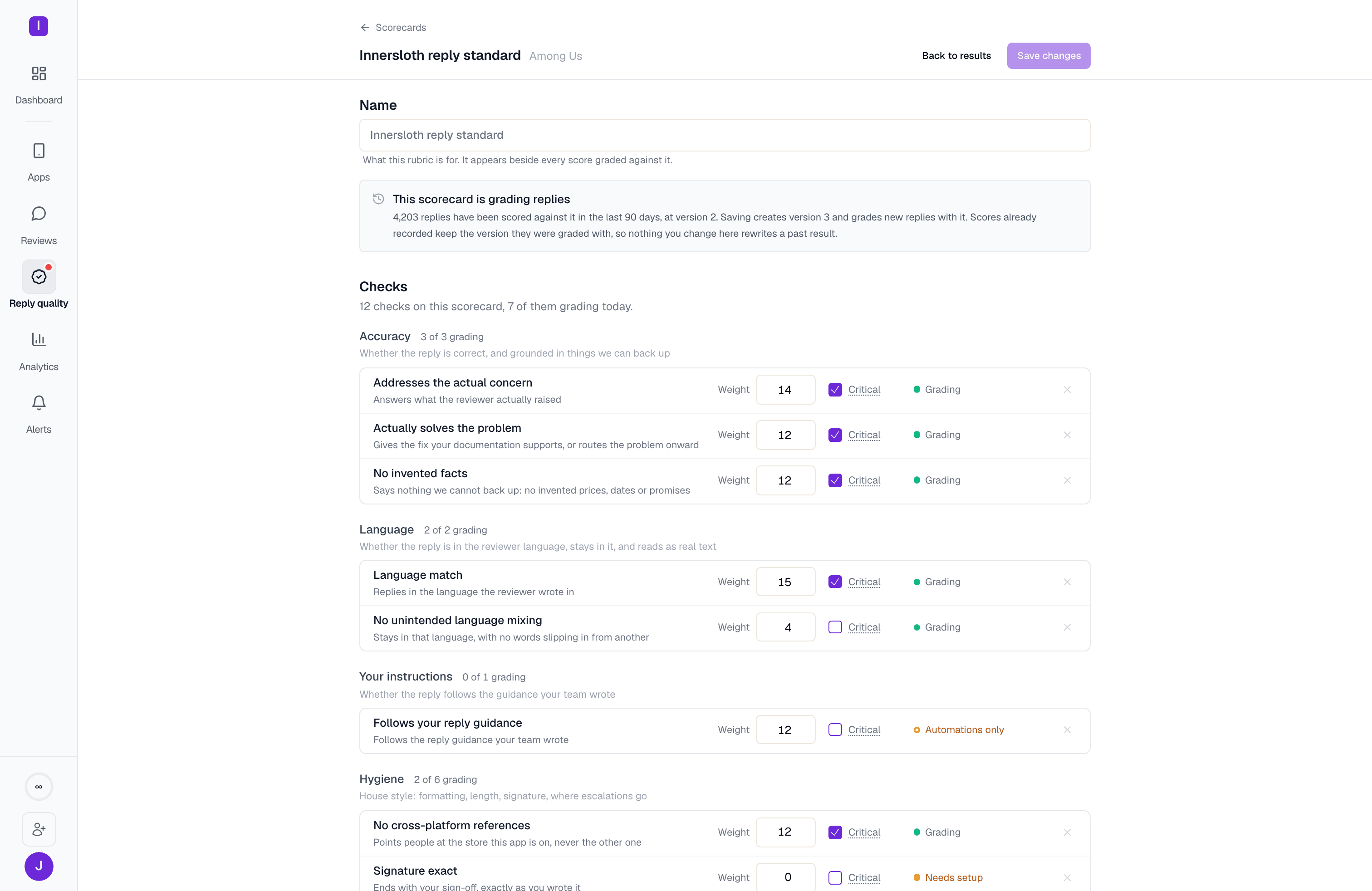
- Weight — its share of the weighted average, relative to the other checks that are scoring. Weight is also what decides whether a check counts at all: drop it to 0 and the check is still judged, but its verdict stops moving the score.
- Critical — when on, a failing verdict on this check fails the reply outright, whatever its numeric score
- A status, which is read-only and tells you whether the check is actually working:
Click Add check to pull in any of the built-in checks not already on the scorecard, or to write a custom check of your own in plain language. You can add up to 8 custom checks per scorecard; each is judged by the AI grader against the rubric you write for it. Write at least a couple of sentences — a two-word rubric gives the grader nothing to cite and won’t score anything.
Editing a scorecard that’s already grading creates a new version rather than rewriting the current one. The editor says so before you save, naming how many replies were scored at the version you’re editing. Scores already recorded keep the version they were graded with, so nothing you change here rewrites a past result.
The built-in criteria
A few checks are worth knowing about specifically:
- Actually solves the problem and Follows your reply guidance grade against your own knowledge base and AI instructions respectively. Without either configured for the app, these checks abstain rather than fail — that’s the normal first-run state, not a problem to fix.
- Signature exact and No apology or admission of fault ship with their required settings empty (the exact sign-off text, and the list of apology phrases), so both abstain on every reply until you fill them in.
- Follows your reply guidance, Support routing on own domain, and Length appropriate ship at weight 0, so they start as Reported only — they either grade subjective, org-authored prose or need a value only you can supply. Raise their weight once you’ve configured them.
Conditions: when a scorecard applies
The Conditions drawer narrows which replies the active monitor grades, by star rating, keywords in the review, topics, reply length, or by sampling a percentage of replies instead of all of them. It opens empty — nothing renders until you add a condition — with quick setups for common cases (low-star reviews only, replies about a specific problem, or a light sample) alongside a manual builder.The scorecard dashboard
Each scorecard has its own page, split into Results, Definition, and Setup. Results leads with four figures — replies graded, pass rate, median score, and how many were flagged — then a quality trend plotted against the pass mark, a criterion-by-criterion breakdown, and the last few replies graded against the rubric.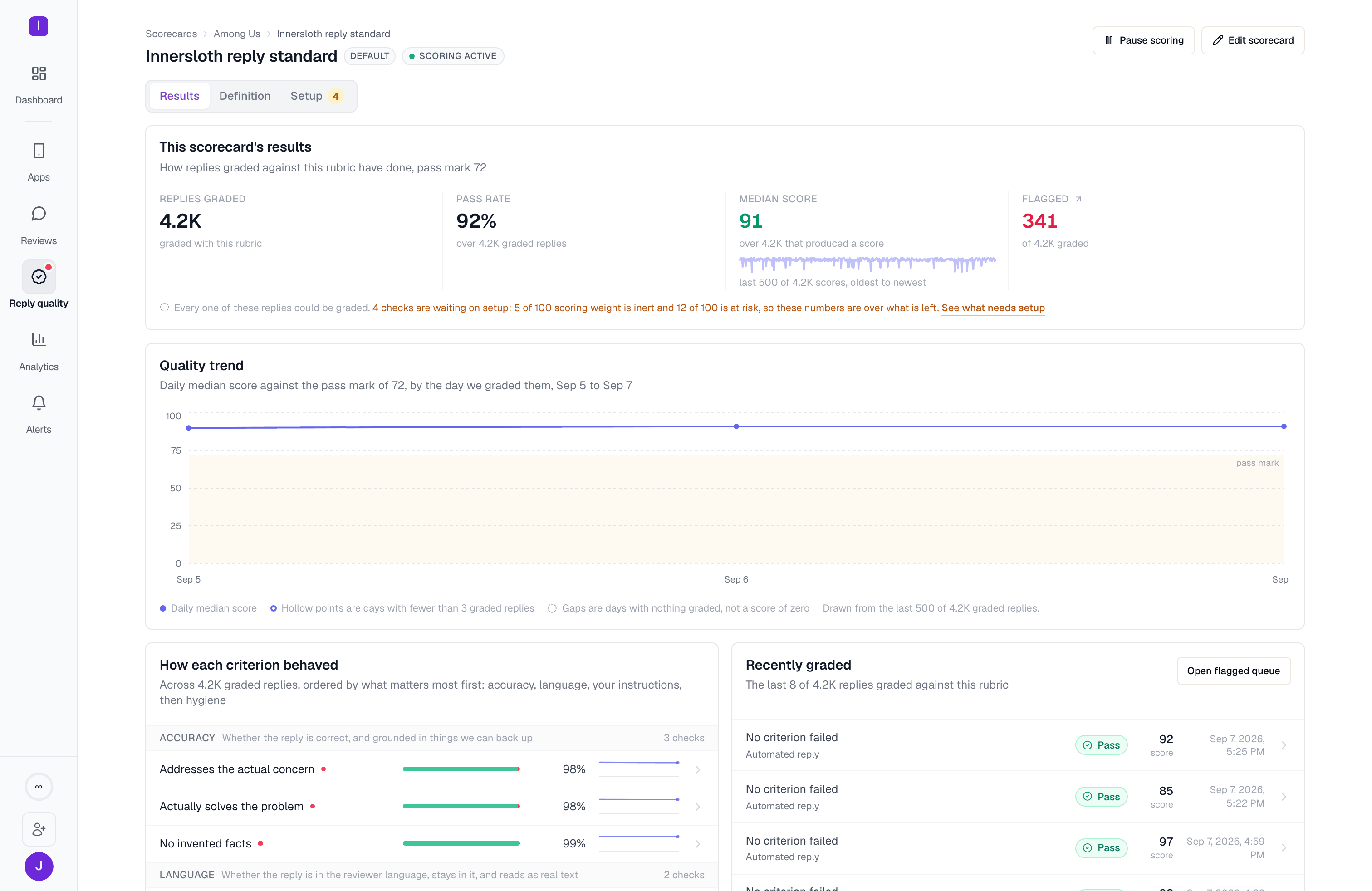
- If any check is waiting on setup, a line under the four figures says how much scoring weight is inert as a result. A healthy pass rate means less when part of the rubric graded nothing, and the Setup tab carries a count of what’s outstanding.
- On the trend, a gap is a day with nothing graded, not a score of zero, and a hollow point is a day with fewer than three graded replies. Neither is a dip in quality.
Deleting a scorecard
Deleting a scorecard deletes every score ever recorded against it — reply quality’s history for that rubric, the Flagged queue’s evidence, all of it — and that cannot be undone. If the scorecard has any recorded scores, the confirmation dialog names the exact count before it lets you proceed a second time. A scorecard with nothing graded against it yet deletes immediately.Reply quality overview
See the verdict, trend, and voice match this scorecard produces
Flagged queue
Triage the replies this scorecard flagged