

Before you start
- The inbox address of the Help Scout inbox that should get reviews, for example
support@yourcompany.helpscoutapp.com. - Someone who can open a conversation in that inbox to accept the confirmation.
- Auto reply off for these conversations. New Help Scout accounts have it off. If it is on, switch it off for these conversations.
Any AppReply plan can connect Help Scout. Ticket rules need the Pro plan. Create ticket on a single review does not.
Connect Help Scout
1
Copy the inbox address in Help Scout
In Help Scout, open Settings (the gear icon), then Inboxes, the inbox, and Edit Inbox. Copy the Inbox address.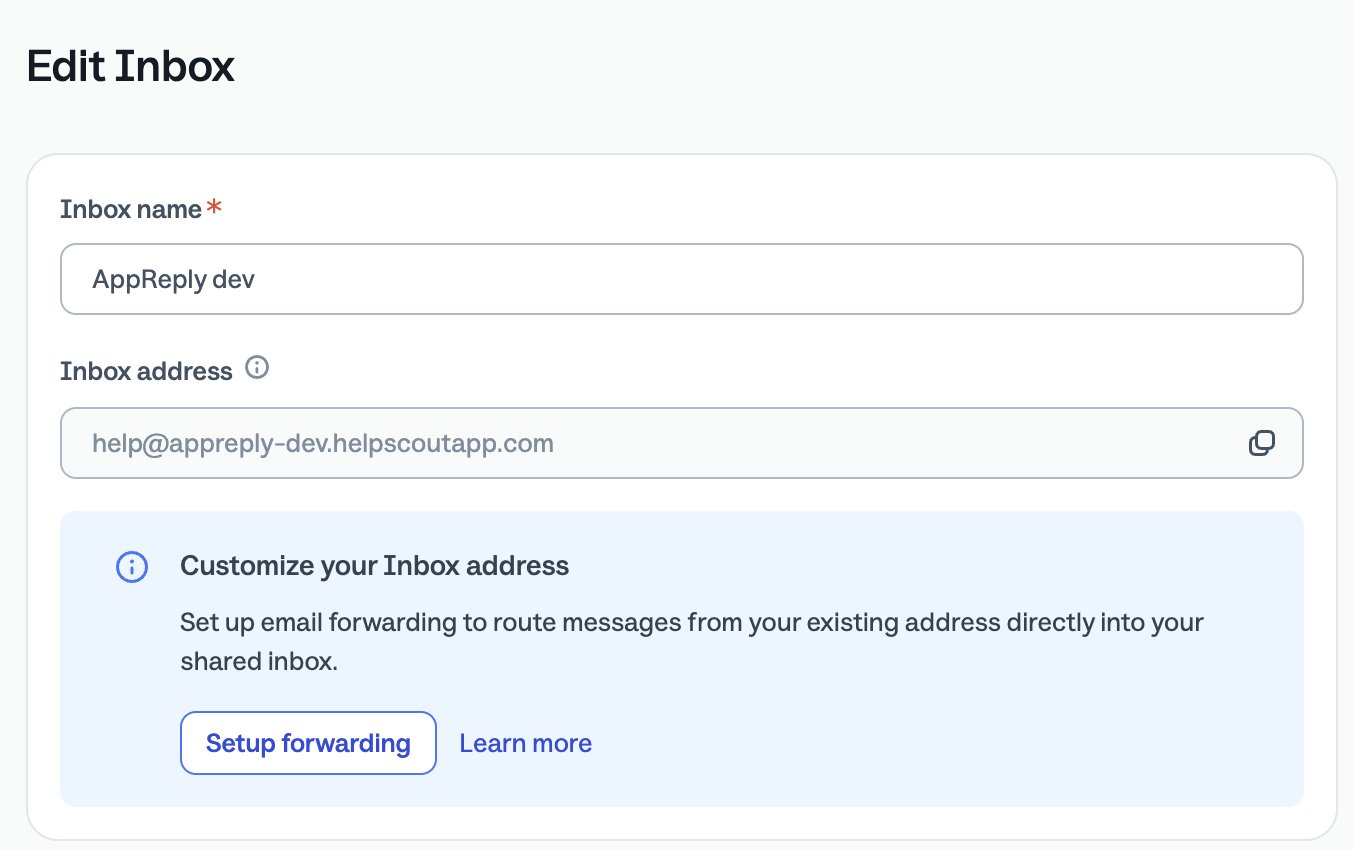
2
Open the connect window in AppReply
In AppReply, go to Integrations (in the Apps section of the sidebar) and click Connect in the Helpdesk connections section (or Connect your first helpdesk), then choose Help Scout.
3
Paste the address and send the confirmation
Paste the address into Help Scout inbox address and click Send confirmation.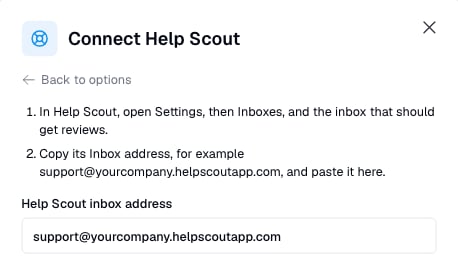
4
Accept in Help Scout
In the inbox, a conversation arrives with the subject Confirm AppReply reviews for this address. Open it and click Accept the integration.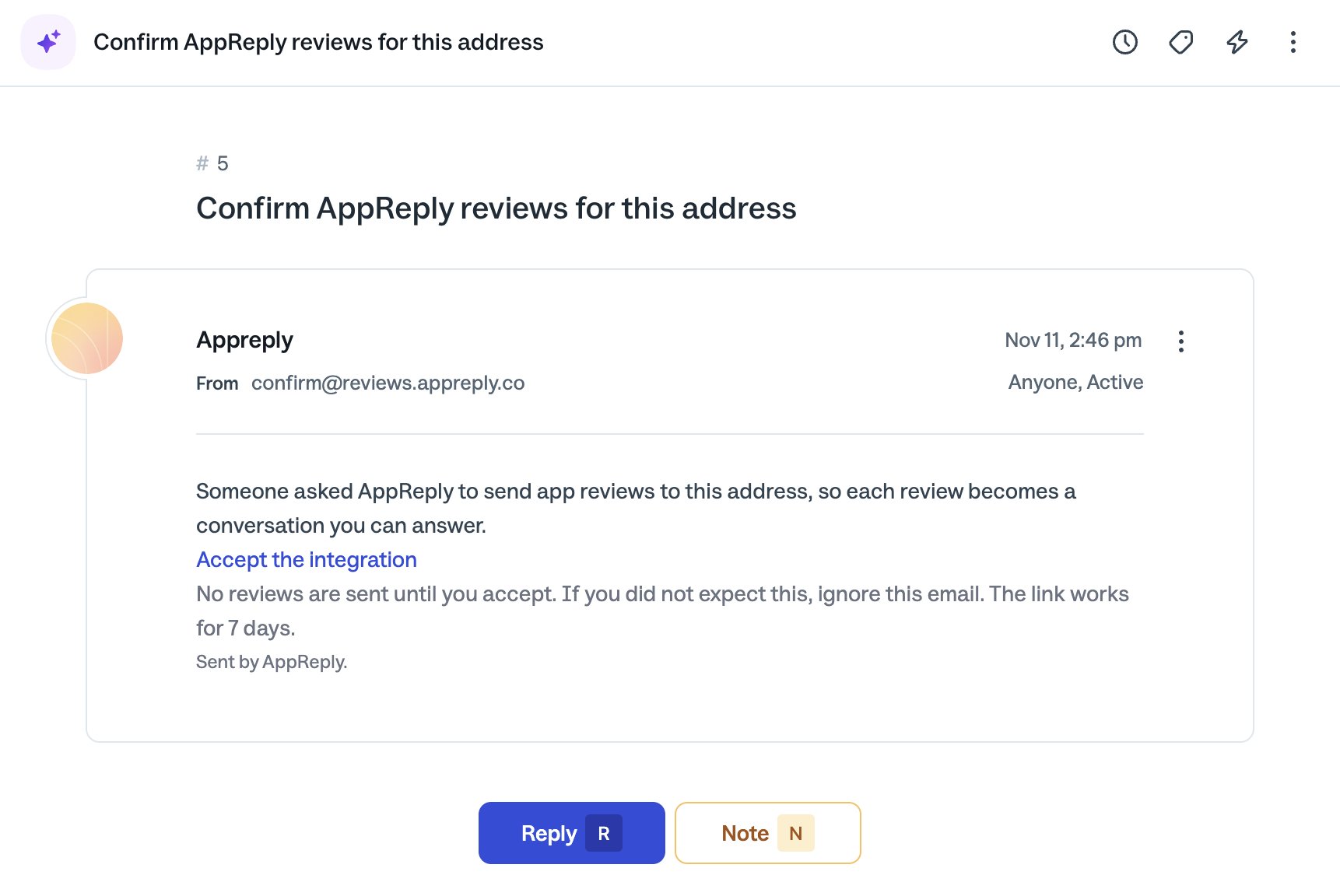
5
Check the connection
Back in AppReply, Help Scout shows Active, with its address and a Verify button.
Send reviews to Help Scout
Create a ticket rule with Help Scout as the Helpdesk connection, or click Create ticket on a single review. Each review arrives as a conversation. The customer is the reviewer’s name followed by the store, for example “Jo Lindqvist Google Play Review”.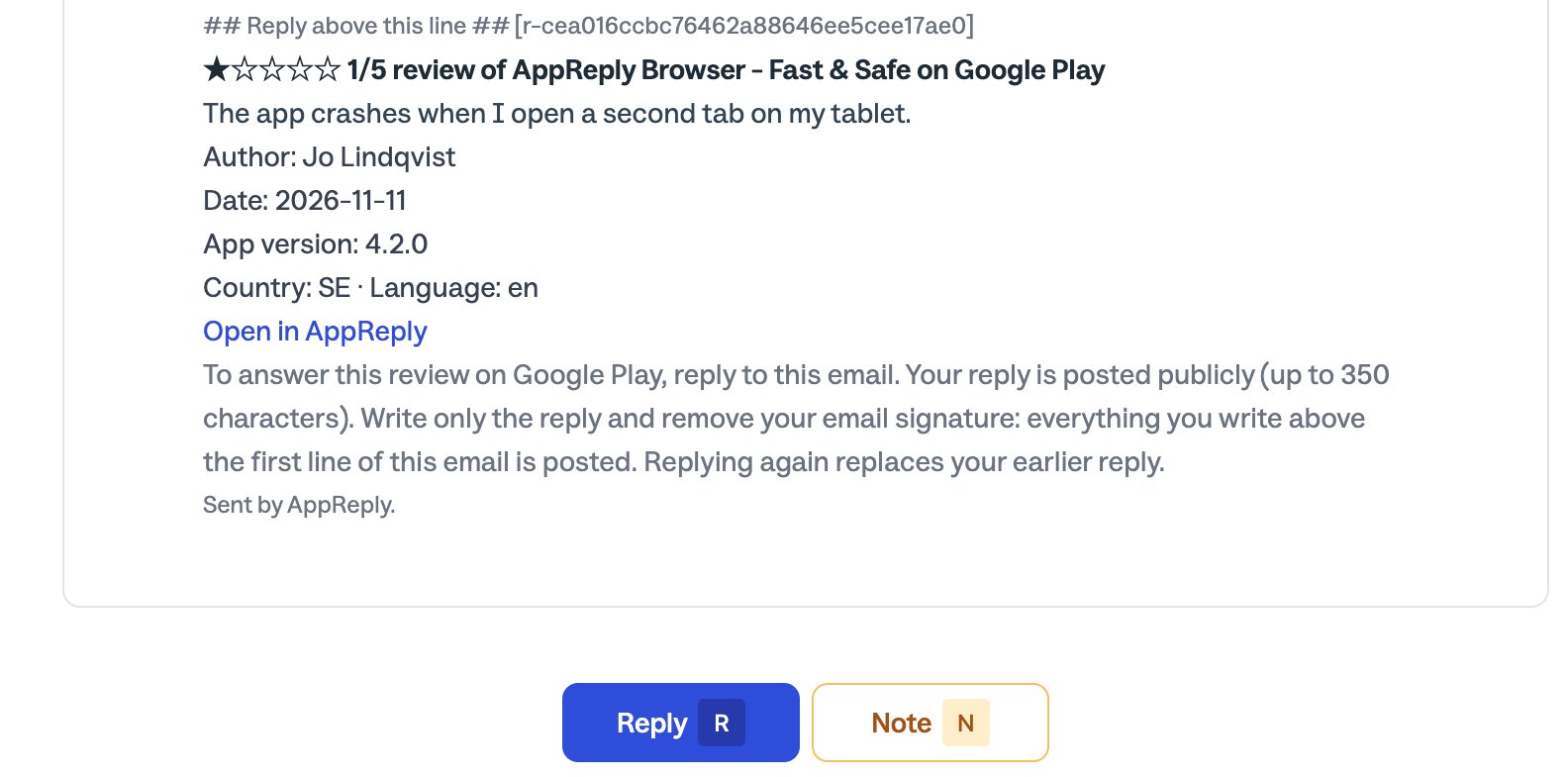
## Reply above this line ##. AppReply uses it to find your agent’s reply. Don’t delete it. For what else the email contains, see Any helpdesk by email.
Reply from the conversation
The agent presses Reply, not Note, writes the answer and sends it. AppReply posts it to the store.- The inbox signature and the rating prompt are left out. Help Scout adds the inbox signature and, when satisfaction ratings are on, “How would you rate my reply?” under the agent’s text. AppReply leaves both out of what is posted.
- Sending a reply can close the conversation, when the inbox’s default status is Closed. That does not matter to AppReply.
If a reply is not posted
AppReply’s note arrives in the same conversation as a new customer message and reopens it. It can take a couple of minutes to show up. It starts with “AppReply did not post your reply.” and says why, for example that the reply is too long for the store, or that it arrived within two minutes of the review email and looks like an automatic response. The agent replies again in that conversation with the corrected text. A reply that contains the name the review was sent under, such as “Jo Lindqvist Google Play Review”, is refused with a note that says which name to remove. A greeting template that inserts the customer’s name does that. For every reason a reply can be refused, see Notes you may get back.Errors and disconnecting
If Help Scout does not accept a review email, the card shows Error and a short message that says so, for example that a review email bounced. Check the address, then click Send again and accept the new confirmation. To disconnect, click the trash icon on the card. The card warns: “Replies to review emails already sent will stop posting.” Nothing in Help Scout is changed.What it does not do
- No status sync. AppReply does not see or change the conversation’s status in Help Scout. In AppReply, the ticket is marked Resolved once a reply is queued.
- No posting to Huawei AppGallery or RuStore by email.
- No API connection. Only replies sent from the conversation count. Notes are never posted.
Set up ticket rules
Configure which reviews become Help Scout conversations