

Before you start
You need a Salesforce admin to set up Email-to-Case, and someone to open one email in Salesforce.- Email-to-Case turned on, with On-Demand Email-to-Case, and a routing address. A routing address is the address Salesforce uses to turn incoming email into Cases. Add it and verify it in Salesforce first.
- The address to paste into AppReply. Use the routing address if it delivers to Salesforce. Otherwise use the long Email Services Address that Salesforce shows for the routing address.
- Outgoing email from Salesforce that passes SPF or DKIM. AppReply does not post a reply that fails both checks.
- No auto-response rule for these Cases, or an exception for them. An automatic reply is never posted. AppReply ignores the replies Salesforce marks as automatic. It also treats any reply that arrives within two minutes of the review email as automatic, and the first of those for a Case gets a note.
Any AppReply plan can connect Salesforce. Ticket rules need the Pro plan, as for the other helpdesks. Create ticket on a single review does not.
Connect Salesforce
1
Open the connect window
In AppReply, go to Integrations (in the Apps section of the sidebar) and click Connect in the Helpdesk connections section (or Connect your first helpdesk), then choose Salesforce.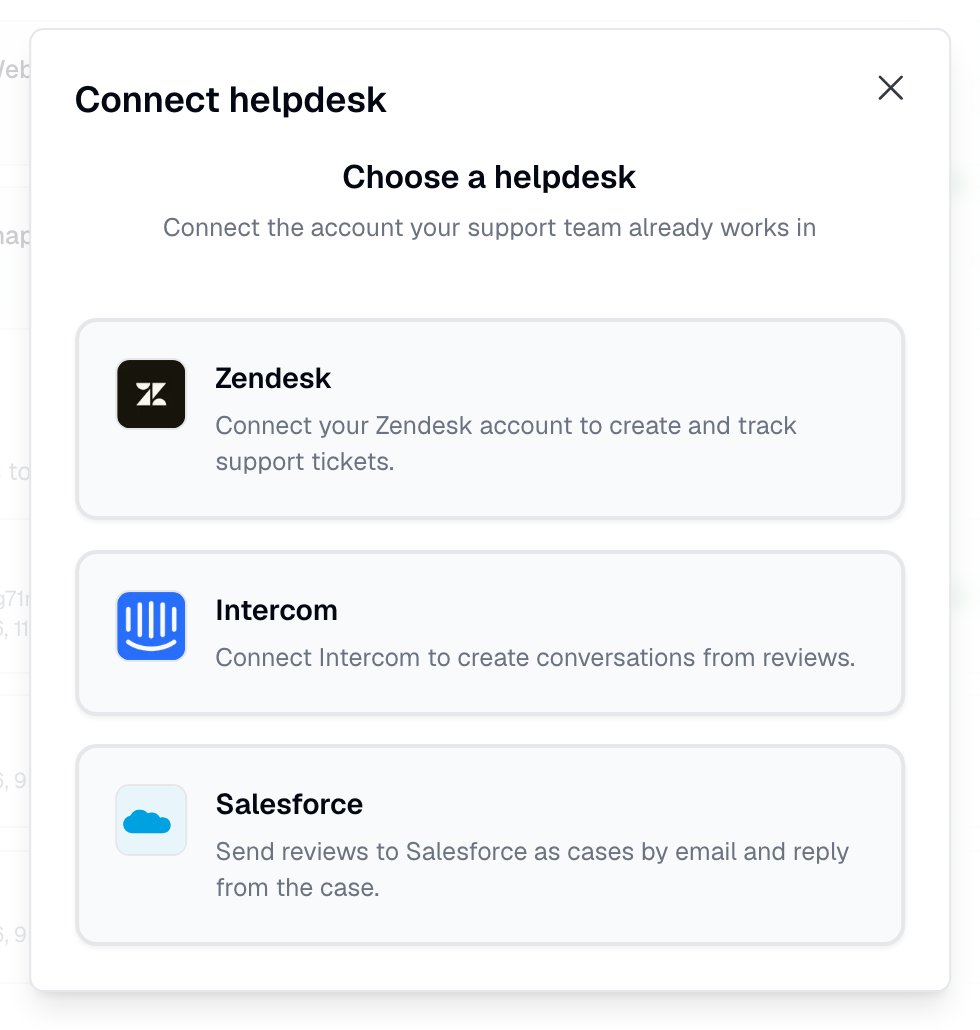
2
Paste the Email-to-Case address and send the confirmation
Paste the address from Salesforce into the Email-to-Case address field and click Send confirmation. This is the only field.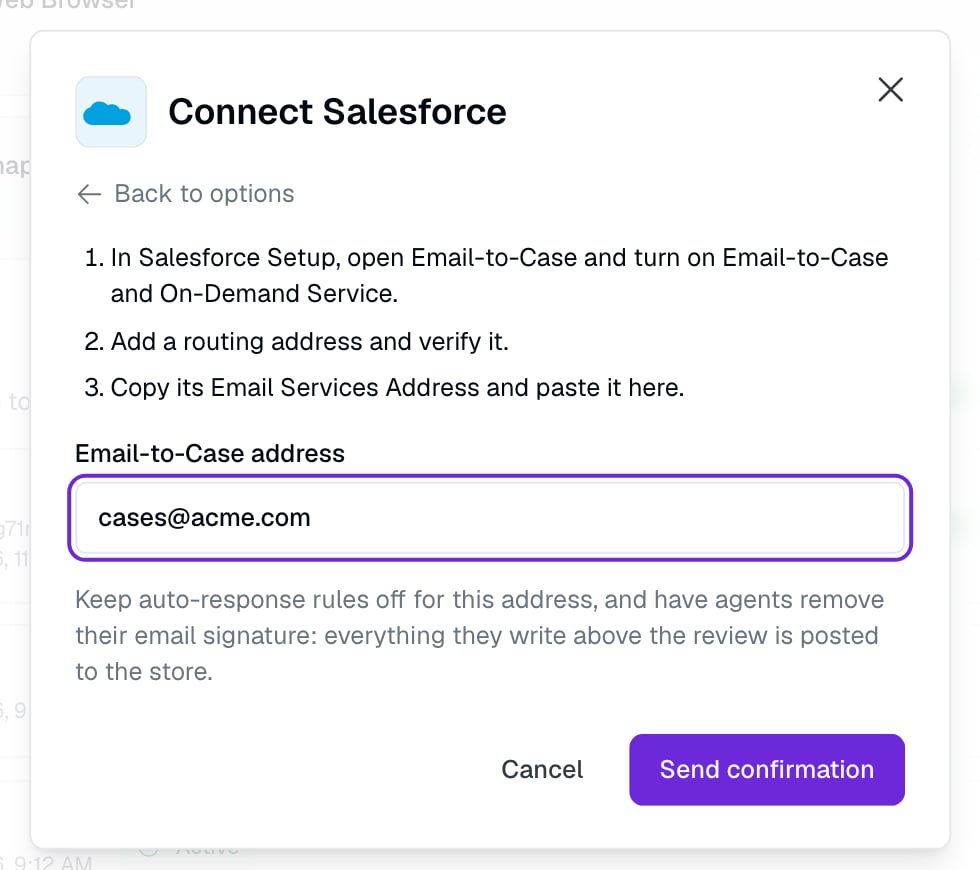
3
Accept in Salesforce
AppReply sends one confirmation email to that address. It arrives in Salesforce as a Case with the subject Confirm AppReply reviews for this address. Someone with access to Salesforce opens the link in it. A page opens that names your AppReply workspace and the address. Press Accept.Opening the link is not enough. The connection is confirmed only when you press Accept. You don’t need to be signed in to AppReply to do it. The link works for 7 days. Nothing is emailed to your address before it is confirmed.
4
Check the connection
Back in AppReply, the Salesforce connection shows an Active status. The card shows the address that reviews are sent to.
Send reviews to Salesforce
There are two ways to send a review. Both send the same email.Ticket rules
A ticket rule sends every review that matches its conditions. Go to Ticket rules on the Integrations page, click Create Rule and choose Salesforce as the Helpdesk connection. You can only pick Salesforce once it is no longer waiting for confirmation.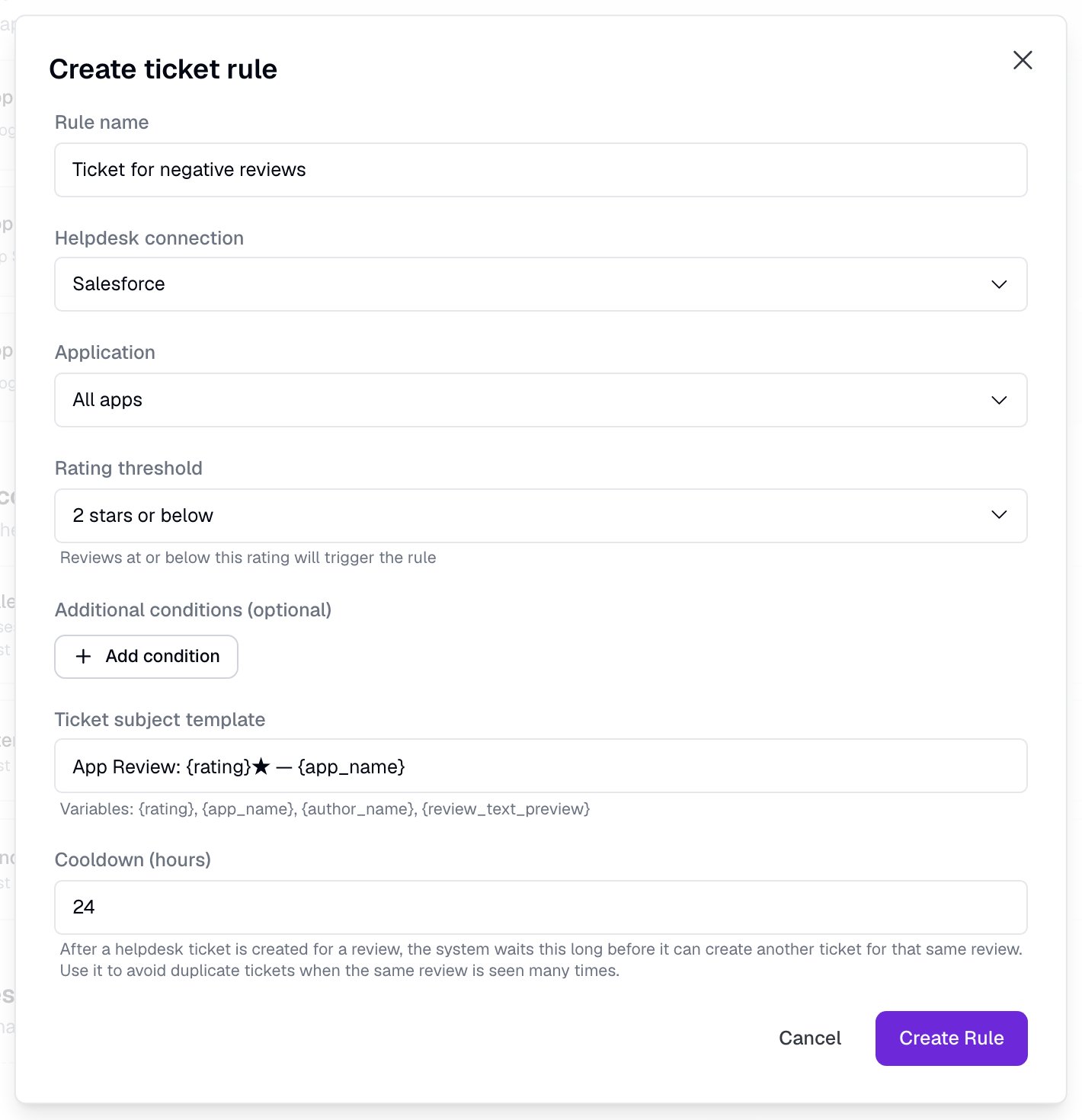
- A Salesforce rule has no priority and no tags, so those fields are not shown.
- The Ticket subject template becomes the subject of the email, so it is also the name of the Case. The form fills in a template built from the rating and the app name, with the placeholders
{rating}and{app_name}. If you clear the template, AppReply uses that same default. - Rules send reviews of your own apps only. Reviews of competitor apps you track are skipped, even when the rule applies to All apps.
Create a ticket by hand
On a review card for one of your own apps, click Create ticket. In the Create Helpdesk Ticket window, check the Subject and, if you have more than one helpdesk connected, pick Salesforce under Helpdesk. Then click Create ticket.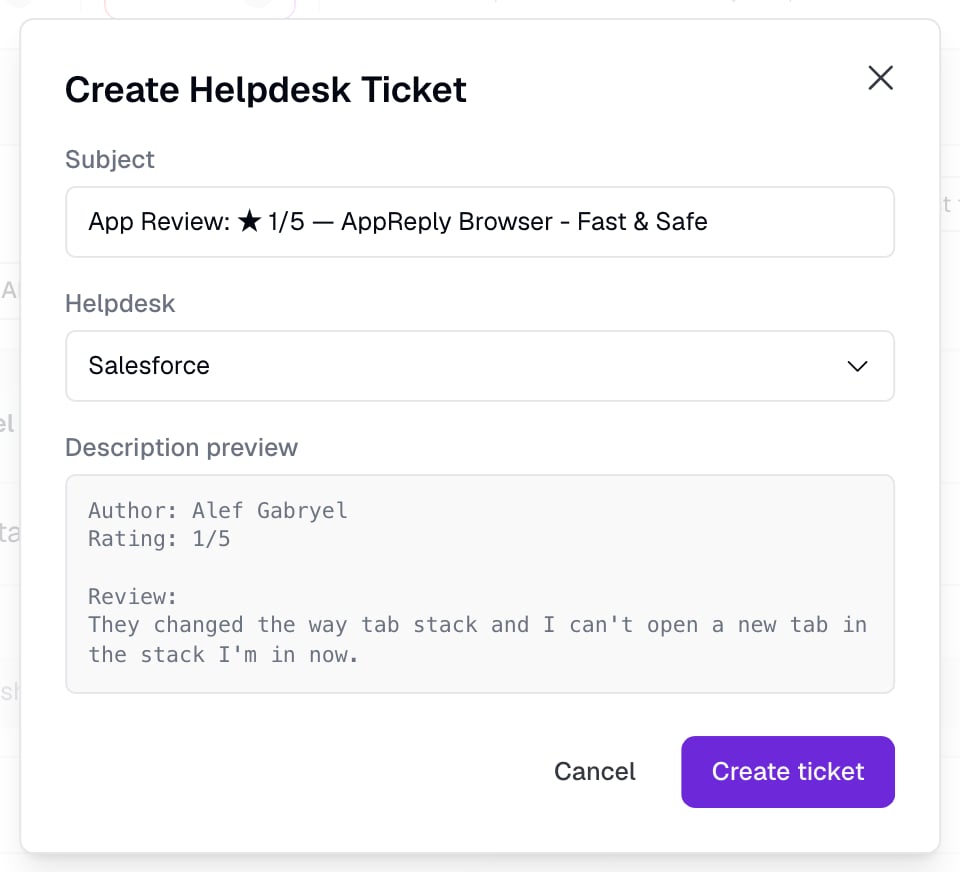
What the review email contains
Each review is one plain email. Salesforce shows it as the first email of the Case.- Sender name: the reviewer’s name and the store, for example
Jon C. Google Play review. - Subject: the rule’s subject template, or the subject from the Create Helpdesk Ticket window.
- Body: the rating, app and store, the review text and its translation if there is one, the author, the date, the app version, the country and language, and an Open in AppReply link to the review.
- Instructions for the agent: one paragraph that says how to reply, the longest reply the store takes, and that the signature must be removed.
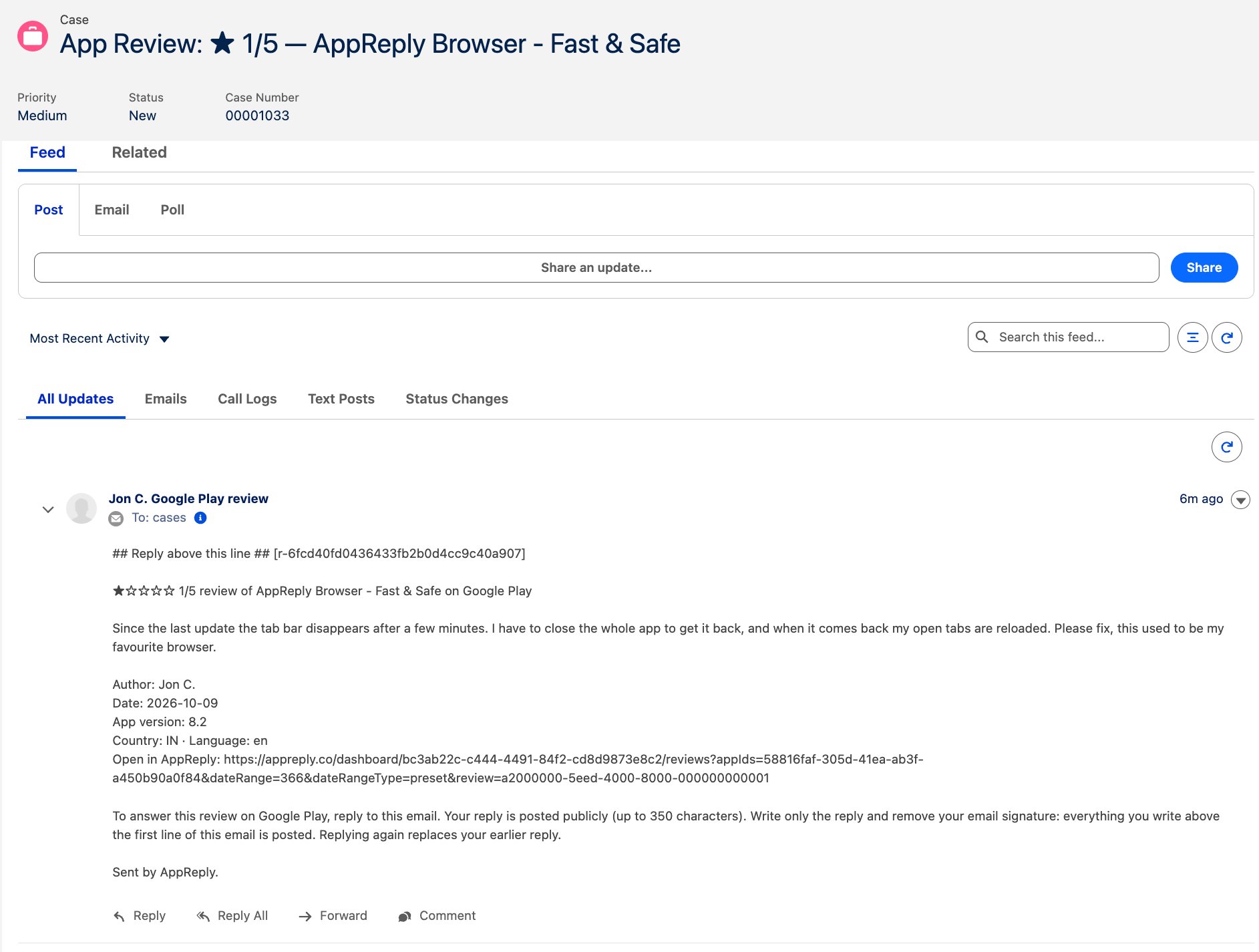
## Reply above this line ##. AppReply uses it to find your agent’s reply. Don’t delete it.
Reply from the Case
Your agent answers the review from the Case in Salesforce. They don’t need an AppReply login.1
Reply to the review email
In the Case, press Reply on the review email, the one from the reviewer.
2
Write the reply above the quoted email
Type the reply at the top of the message, above the quoted review email. Leave the quoted email in place.
3
Remove the email signature and send
Remove the signature. Everything above the quoted email is posted publicly as the store reply, so anything else in that part would be posted too. Then send the email.
- The review becomes Queued, and Replied once the store accepts the reply.
- The responder is shown as the agent’s name followed by (Salesforce), for example
Dana Reyes (Salesforce). - The ticket in AppReply is marked Resolved.
- The reply counts towards your plan’s replies for the period, like any other reply.
Reply length limits
The review email states the limit for its store. A longer reply is not posted.Edited reviews
If the author edits the rating, title or text of a review that was already sent, AppReply sends a second email. Its subject starts with [UPD] and it begins with a line that says the author edited the review. A reply that was not posted yet may have been dropped, so the agent replies again if needed. AppReply sends this email in the same thread as the first one. Whether Salesforce adds it to the same Case depends on how your org threads email by headers, which is an Email-to-Case setting. If it does not, Salesforce opens another Case.Notes you may get back
When AppReply can’t post a reply, it sends a short plain email to the same Case. It starts with “AppReply did not post your reply.” and says why. It also says to reply to the review email, not to the note. A note goes to your Email-to-Case address, so Salesforce can add it to the same Case or open another one. AppReply sends at most 5 notes for one Case a day.
AppReply does not answer automatic email such as out-of-office replies and delivery notices. It ignores them without a note.
Errors on the Integrations page
If Salesforce can’t take a review email, the connection card shows the status Error and a short message. The message is one of these:- Salesforce did not accept a review email (bounced). Check the Email-to-Case address, then verify the connection again.
- Salesforce did not accept a review email (marked as spam). Check the Email-to-Case address, then verify the connection again.
- AppReply could not email reviews to your Salesforce address. AppReply tried to send a review email several times and gave up. Check the address, then verify the connection again.
1
Check the address and the routing address in Salesforce
Make sure the Email-to-Case address on the card is the one Salesforce shows, and that the routing address is verified. If the address is wrong, click Connect and paste the right one.
2
Click Send again
On the connection card, click Send again. The status changes to Waiting for confirmation and AppReply emails a new confirmation link.
3
Press Accept in Salesforce
Open the confirmation Case, open the link and press Accept. The status goes back to Active, and AppReply tries again with the review emails that did not go out.
Disconnect Salesforce
Click the trash icon on the connection card. The card asks you to confirm and warns that replies to Cases already created will stop posting. Click Disconnect to confirm. Disconnecting removes the connection with its ticket rules and its ticket history in AppReply. Nothing in Salesforce is changed: the Cases, the routing address and your Email-to-Case settings stay as they are. Replies to Cases that were already created are no longer posted. To use Salesforce again, connect it again and press Accept once more.What it does not do
- No status sync from Salesforce. There is no API link, so AppReply does not see a Case’s status. AppReply marks its ticket Resolved when a reply is queued.
- No attachments and no internal comments. Only an email sent from the Case to the review’s address counts as a reply.
- No field mapping, no custom objects and no package to install.
- Not an escalation. Reviews arrive in AppReply, Cases are created in Salesforce and replies flow back into the review. There is no “escalate this review to support” button.
Troubleshooting
Use the Email-to-Case address from Salesforce, not an AppReply address
Use the Email-to-Case address from Salesforce, not an AppReply address
AppReply refuses addresses on its own domains. Paste the routing address or the Email Services Address that Salesforce shows. If you see “Enter a valid Email-to-Case address”, check the address for typos and spaces.
Too many confirmation emails were sent
Too many confirmation emails were sent
You can send up to 3 confirmation emails an hour and 10 a day for each workspace. Wait, then click Send again.
The confirmation email never arrives as a Case
The confirmation email never arrives as a Case
Check that Email-to-Case is on and that the routing address is verified in Salesforce. If you pasted the routing address, try the long Email Services Address instead. Then click Send again on the card.
The link says it is no longer valid
The link says it is no longer valid
The link expires after 7 days, and it stops working if you change the address after the email was sent. Click Send again on the connection card and use the newest email.
The connection still says Waiting for confirmation after I pressed Accept
The connection still says Waiting for confirmation after I pressed Accept
Reload the Integrations page. If the status does not change, send the confirmation again and make sure you pressed Accept on the page that opens from the link. Opening the link does not confirm it.
Cases are not being created
Cases are not being created
Check that the Salesforce connection shows Active, that your ticket rules are on and that their conditions match. Rules need the Pro plan and only look at reviews of your own apps that arrived in the last 2 hours. For an older review, use Create ticket. If the card shows an error, see Errors on the Integrations page.
The agent replied, but nothing was posted
The agent replied, but nothing was posted
Look in the Case for a note from AppReply. It says why, and the table above explains what to do. If there is no note, check that the agent replied to the review email from the reviewer, wrote above the quoted email, and did not reply to an out-of-office or other automatic message.
The reply posted with my email signature
The reply posted with my email signature
Everything above the quoted email is posted. Remove the signature before sending. To change a posted reply, reply to the review email again. Huawei AppGallery and RuStore don’t allow that.
The edited review opened a second Case
The edited review opened a second Case
The [UPD] email goes to the same thread, and Salesforce adds it to the first Case only when your org threads email by headers. That is an Email-to-Case setting. Answer the newest email, the one that starts with [UPD].
Set up ticket rules
Configure which reviews become Salesforce Cases