> ## Documentation Index
> Fetch the complete documentation index at: https://docs.appreply.co/llms.txt
> Use this file to discover all available pages before exploring further.
# Review feed
> Browse, filter, and manage reviews from all connected app stores in one place
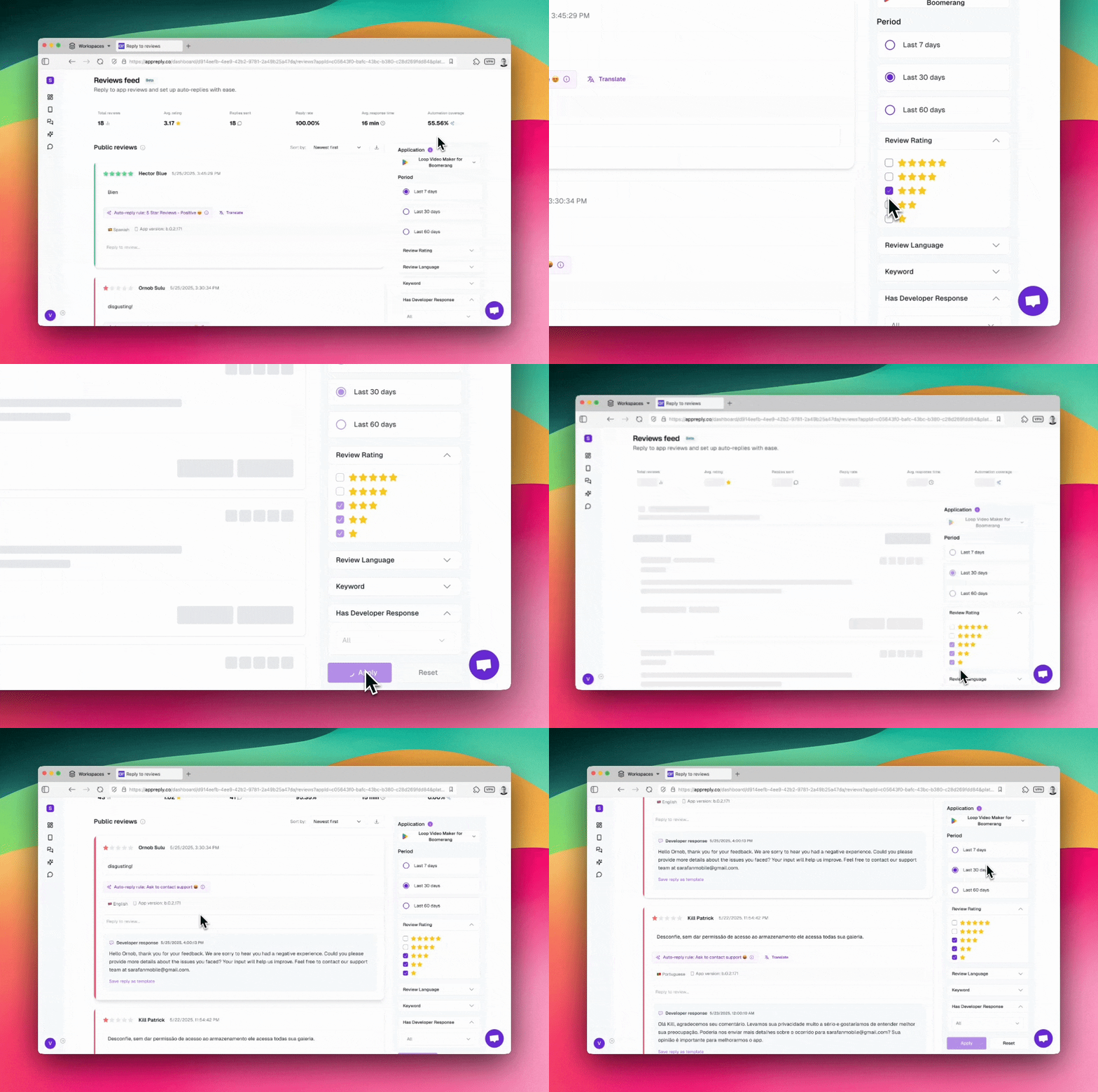
The review feed shows all your app store reviews in a single, filterable list. You can filter by date, rating, language, response status, and keywords to find the reviews that need your attention.
 ## Supported platforms
The feed displays reviews from all five supported app stores:
* Google Play
* App Store (iOS)
* Samsung Galaxy Store
* Huawei AppGallery
* RuStore
Reviews from all platforms appear in the same feed, so you can manage everything from one place.
## Interface layout
The review feed has four main sections.
**Header controls** let you switch between connected apps (or select multiple apps to see all their reviews together), view metrics for your current filter set, and download reviews as CSV on paid plans.
**Filtering sidebar** gives you controls for date range, star rating, language, keyword search, and response status. All filters combine as an intersection, so adding more filters narrows your results.
**Review stream** is the main list of review cards. Each card is expandable and includes the response tools, status indicators, and quick action buttons.
**Pagination controls** at the bottom let you navigate between pages and adjust how many reviews show per page (10 to 100).
## Multi-app selection
You can select multiple apps in the header and see reviews from all of them in one combined feed. This is useful when you manage several apps and want a single view of recent feedback across your portfolio.
## Filtering
### Date range
Pick a date range to focus on a specific time period. There are 9 preset options:
* Today
* Yesterday
* Last 3 days
* Last 7 days
* Last 30 days
* Last 60 days
* This month
* Last month
* This year
You can also set a custom date range by picking specific start and end dates.
### Rating
Filter by one or more star ratings (1 through 5). You can select multiple ratings at once. For example, selecting 1 and 2 stars shows only negative reviews.
Start with 1-2 star unresponded reviews for the highest impact on user experience and app store rankings.
### Language
Filter reviews by language to focus on specific markets. You can select one or more languages from the list of detected review languages.
### Keyword search
Search for specific words or phrases in review text. Use quotes for exact phrase matching (e.g., "login bug"). Space-separated terms match any occurrence.
### Response status
Filter by reply state to manage your workflow:
* **All**: show every review
* **With response**: reviews that have a published reply
* **Without response**: reviews with no reply yet
* **Pending approval**: reviews with a response waiting for team approval
### Platform filtering
To filter by platform, select or deselect specific apps in the header. Each app is tied to its platform, so selecting only your Google Play apps effectively filters to Google Play reviews.
Combining many filters creates an intersection. A very specific combination may return no results even when individual filters show data.
## Sorting
You can sort the review feed using 8 options:
| Sort option | Description |
| -------------- | -------------------------------------------- |
| Newest first | Most recent reviews on top (default) |
| Oldest first | Earliest reviews on top |
| Positive first | 5-star reviews on top, descending |
| Negative first | 1-star reviews on top, ascending |
| Long first | Longest review text on top |
| Short first | Shortest review text on top |
| Most helpful | Highest like count on top (Google Play only) |
| Least helpful | Lowest like count on top (Google Play only) |
## Review cards
Each review card shows:
* **Star rating** (1-5)
* **Review text** (full content, never truncated)
* **App version** the reviewer was using
* **Device** information
* **Language** with a country flag
* **Country** of the reviewer
* **Date** the review was posted
* **Like count** (Google Play only, based on "helpful" votes)
* **Update history indicator** when the reviewer has edited their review
### Reply states
Each review card shows its current response status:
| Status | Meaning |
| ---------------- | --------------------------------------------------- |
| Replied | Response has been published to the store |
| Queued | Response is waiting to be sent |
| Processing | Response is being generated by AI |
| Failed | The send attempt failed |
| Pending approval | Response is waiting for a team member to approve it |
### Review history
When a user edits their review, you can see the previous versions along with the dates of each edit. This helps you understand how a user's sentiment changed over time.
### Similar reviews (Pro plan)
Right-click or use the context menu on any review card to find semantically similar reviews. This uses vector similarity search to surface reviews about the same topic or issue, even if they use different wording.
## Featured reviews (Pro plan)
A separate tab in the feed shows featured and highlighted reviews from Google Play and App Store. These are the reviews that app stores surface most prominently to potential users.
## Topic filtering from AI summary
When viewing the AI summary for your current filter set, you can click any detected theme or topic to filter the review feed down to reviews matching that topic. This lets you quickly drill into specific areas of feedback.
Generate and send responses using AI tools
See patterns and trends in your filtered reviews
## Supported platforms
The feed displays reviews from all five supported app stores:
* Google Play
* App Store (iOS)
* Samsung Galaxy Store
* Huawei AppGallery
* RuStore
Reviews from all platforms appear in the same feed, so you can manage everything from one place.
## Interface layout
The review feed has four main sections.
**Header controls** let you switch between connected apps (or select multiple apps to see all their reviews together), view metrics for your current filter set, and download reviews as CSV on paid plans.
**Filtering sidebar** gives you controls for date range, star rating, language, keyword search, and response status. All filters combine as an intersection, so adding more filters narrows your results.
**Review stream** is the main list of review cards. Each card is expandable and includes the response tools, status indicators, and quick action buttons.
**Pagination controls** at the bottom let you navigate between pages and adjust how many reviews show per page (10 to 100).
## Multi-app selection
You can select multiple apps in the header and see reviews from all of them in one combined feed. This is useful when you manage several apps and want a single view of recent feedback across your portfolio.
## Filtering
### Date range
Pick a date range to focus on a specific time period. There are 9 preset options:
* Today
* Yesterday
* Last 3 days
* Last 7 days
* Last 30 days
* Last 60 days
* This month
* Last month
* This year
You can also set a custom date range by picking specific start and end dates.
### Rating
Filter by one or more star ratings (1 through 5). You can select multiple ratings at once. For example, selecting 1 and 2 stars shows only negative reviews.
Start with 1-2 star unresponded reviews for the highest impact on user experience and app store rankings.
### Language
Filter reviews by language to focus on specific markets. You can select one or more languages from the list of detected review languages.
### Keyword search
Search for specific words or phrases in review text. Use quotes for exact phrase matching (e.g., "login bug"). Space-separated terms match any occurrence.
### Response status
Filter by reply state to manage your workflow:
* **All**: show every review
* **With response**: reviews that have a published reply
* **Without response**: reviews with no reply yet
* **Pending approval**: reviews with a response waiting for team approval
### Platform filtering
To filter by platform, select or deselect specific apps in the header. Each app is tied to its platform, so selecting only your Google Play apps effectively filters to Google Play reviews.
Combining many filters creates an intersection. A very specific combination may return no results even when individual filters show data.
## Sorting
You can sort the review feed using 8 options:
| Sort option | Description |
| -------------- | -------------------------------------------- |
| Newest first | Most recent reviews on top (default) |
| Oldest first | Earliest reviews on top |
| Positive first | 5-star reviews on top, descending |
| Negative first | 1-star reviews on top, ascending |
| Long first | Longest review text on top |
| Short first | Shortest review text on top |
| Most helpful | Highest like count on top (Google Play only) |
| Least helpful | Lowest like count on top (Google Play only) |
## Review cards
Each review card shows:
* **Star rating** (1-5)
* **Review text** (full content, never truncated)
* **App version** the reviewer was using
* **Device** information
* **Language** with a country flag
* **Country** of the reviewer
* **Date** the review was posted
* **Like count** (Google Play only, based on "helpful" votes)
* **Update history indicator** when the reviewer has edited their review
### Reply states
Each review card shows its current response status:
| Status | Meaning |
| ---------------- | --------------------------------------------------- |
| Replied | Response has been published to the store |
| Queued | Response is waiting to be sent |
| Processing | Response is being generated by AI |
| Failed | The send attempt failed |
| Pending approval | Response is waiting for a team member to approve it |
### Review history
When a user edits their review, you can see the previous versions along with the dates of each edit. This helps you understand how a user's sentiment changed over time.
### Similar reviews (Pro plan)
Right-click or use the context menu on any review card to find semantically similar reviews. This uses vector similarity search to surface reviews about the same topic or issue, even if they use different wording.
## Featured reviews (Pro plan)
A separate tab in the feed shows featured and highlighted reviews from Google Play and App Store. These are the reviews that app stores surface most prominently to potential users.
## Topic filtering from AI summary
When viewing the AI summary for your current filter set, you can click any detected theme or topic to filter the review feed down to reviews matching that topic. This lets you quickly drill into specific areas of feedback.
Generate and send responses using AI tools
See patterns and trends in your filtered reviews