> ## Documentation Index
> Fetch the complete documentation index at: https://docs.appreply.co/llms.txt
> Use this file to discover all available pages before exploring further.
# Manual AI replies
> Generate, edit, and send review responses using AI tools
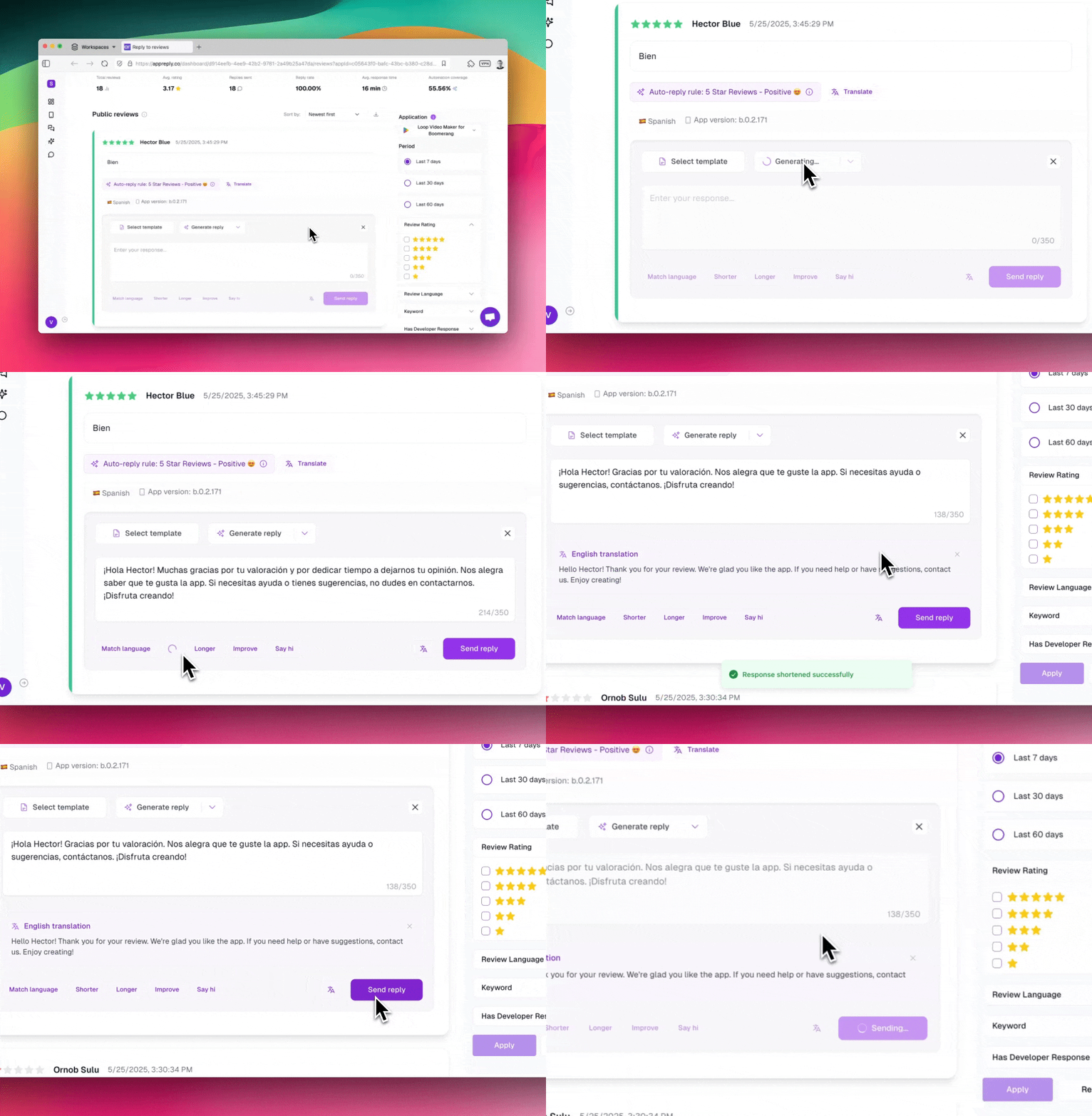
The manual reply interface lets you write or generate responses to individual reviews. You can use AI to draft replies, refine them with enhancement actions, and send them directly to the app store.
 ## Opening the reply workspace
Click anywhere in the reply area below any review to open the response interface. You'll see the text editor, AI generation options, and enhancement tools.
To send responses, you need an active app store integration. The system checks integration status before allowing submission.
## Platform character limits
Each app store has a different maximum reply length. The character counter in the editor updates automatically based on which platform the review is from.
| Platform | Character limit |
| -------------------- | --------------- |
| Google Play | 350 |
| App Store | 2,000 |
| Samsung Galaxy Store | 700 |
| Huawei AppGallery | 800 |
| RuStore | 2,000 |
## AI response generation
The Generate dropdown offers three built-in options, plus any custom AI instructions you've created.
**Generate Reply** creates a balanced, professional response. The AI reads the review content and your app's context to write a personalized reply. This works well for most situations: general feedback, neutral reviews, and maintaining a consistent tone.
**Ask to Contact Support** generates a response that guides the user to your support channels. Use this for bug reports, account issues, or technical problems that need investigation beyond what a public reply can address.
**Ask to Increase Rating** creates a tactful response for situations where you've resolved the issues a reviewer mentioned. Use this when bugs have been fixed, requested features have been added, or complaints are about problems that no longer exist.
### Custom AI instructions
Any AI instructions you've created in your organization settings also appear in the Generate dropdown. These let you define specific tones, templates, or response strategies that the AI follows when generating replies. They appear alongside the three default options.
The AI analyzes the actual review content, your app's context, and your organization's AI instructions to generate relevant replies rather than generic templates.
## Suggested replies (Pro plan)
When you open a review, AppReply shows 1-2 similar past responses that performed well. These are found using semantic similarity search across your response history. Click one to load it into the editor as a starting point, then edit or regenerate from there.
## Knowledge base
If your organization has uploaded documents (FAQs, product guides, support articles), the AI references them when generating replies. After generation, you'll see which documents were used and their relevance score. This helps the AI give accurate, specific answers based on your actual product information.
## Response actions
After generating or writing a reply, you can refine it with these actions:
| Action | What it does |
| ------------ | -------------------------------------------------------------- |
| Shorten | Reduces the response length |
| Lengthen | Expands the response with more detail |
| Improve | Enhances quality using patterns from past successful responses |
| Add greeting | Prepends a greeting to the response |
| Translate | Translates the response to the reviewer's language |
## Keyboard shortcuts
| Shortcut | Action |
| ---------------- | ----------------- |
| Cmd/Ctrl + Enter | Send the response |
## Writing effective responses
Different review types call for different approaches.
**Negative reviews (1-2 stars)**: Acknowledge what the user experienced without being defensive. Apologize genuinely, provide clear next steps, and invite further communication through support channels. If you've fixed their issue since the review, mention those improvements.
**Neutral reviews (3 stars)**: Thank them for the feedback, address specific concerns, and highlight recent improvements. These users can often be converted to higher ratings with the right response.
**Positive reviews (4-5 stars)**: Express genuine appreciation, acknowledge the specific features they mentioned, and share relevant upcoming improvements. Consider encouraging them to share their experience.
Across all review types, be specific by referencing actual review content. Users notice the difference between a personalized response and a generic template.
## Quality checks
The system validates your response before sending. It checks character count compliance, verifies your app store integration is active, and confirms the response can be delivered. A complete response history is maintained for each review, showing all sent responses with timestamps and delivery status.
Organize and manage your response templates
Handle international reviews with auto-translation
## Opening the reply workspace
Click anywhere in the reply area below any review to open the response interface. You'll see the text editor, AI generation options, and enhancement tools.
To send responses, you need an active app store integration. The system checks integration status before allowing submission.
## Platform character limits
Each app store has a different maximum reply length. The character counter in the editor updates automatically based on which platform the review is from.
| Platform | Character limit |
| -------------------- | --------------- |
| Google Play | 350 |
| App Store | 2,000 |
| Samsung Galaxy Store | 700 |
| Huawei AppGallery | 800 |
| RuStore | 2,000 |
## AI response generation
The Generate dropdown offers three built-in options, plus any custom AI instructions you've created.
**Generate Reply** creates a balanced, professional response. The AI reads the review content and your app's context to write a personalized reply. This works well for most situations: general feedback, neutral reviews, and maintaining a consistent tone.
**Ask to Contact Support** generates a response that guides the user to your support channels. Use this for bug reports, account issues, or technical problems that need investigation beyond what a public reply can address.
**Ask to Increase Rating** creates a tactful response for situations where you've resolved the issues a reviewer mentioned. Use this when bugs have been fixed, requested features have been added, or complaints are about problems that no longer exist.
### Custom AI instructions
Any AI instructions you've created in your organization settings also appear in the Generate dropdown. These let you define specific tones, templates, or response strategies that the AI follows when generating replies. They appear alongside the three default options.
The AI analyzes the actual review content, your app's context, and your organization's AI instructions to generate relevant replies rather than generic templates.
## Suggested replies (Pro plan)
When you open a review, AppReply shows 1-2 similar past responses that performed well. These are found using semantic similarity search across your response history. Click one to load it into the editor as a starting point, then edit or regenerate from there.
## Knowledge base
If your organization has uploaded documents (FAQs, product guides, support articles), the AI references them when generating replies. After generation, you'll see which documents were used and their relevance score. This helps the AI give accurate, specific answers based on your actual product information.
## Response actions
After generating or writing a reply, you can refine it with these actions:
| Action | What it does |
| ------------ | -------------------------------------------------------------- |
| Shorten | Reduces the response length |
| Lengthen | Expands the response with more detail |
| Improve | Enhances quality using patterns from past successful responses |
| Add greeting | Prepends a greeting to the response |
| Translate | Translates the response to the reviewer's language |
## Keyboard shortcuts
| Shortcut | Action |
| ---------------- | ----------------- |
| Cmd/Ctrl + Enter | Send the response |
## Writing effective responses
Different review types call for different approaches.
**Negative reviews (1-2 stars)**: Acknowledge what the user experienced without being defensive. Apologize genuinely, provide clear next steps, and invite further communication through support channels. If you've fixed their issue since the review, mention those improvements.
**Neutral reviews (3 stars)**: Thank them for the feedback, address specific concerns, and highlight recent improvements. These users can often be converted to higher ratings with the right response.
**Positive reviews (4-5 stars)**: Express genuine appreciation, acknowledge the specific features they mentioned, and share relevant upcoming improvements. Consider encouraging them to share their experience.
Across all review types, be specific by referencing actual review content. Users notice the difference between a personalized response and a generic template.
## Quality checks
The system validates your response before sending. It checks character count compliance, verifies your app store integration is active, and confirms the response can be delivered. A complete response history is maintained for each review, showing all sent responses with timestamps and delivery status.
Organize and manage your response templates
Handle international reviews with auto-translation