> ## Documentation Index
> Fetch the complete documentation index at: https://docs.appreply.co/llms.txt
> Use this file to discover all available pages before exploring further.
# Integrating Google Play Console
> Connect your Google Play Console to AppReply using OAuth or a service account to manage and reply to reviews.
AppReply connects to Google Play through the official API to read and reply to your app's reviews. There are two ways to set up the connection: OAuth (quick sign-in) or a service account (manual key upload).
When you click **Integrate** on a Google Play app, you will see both options:
* **Connect with Google** (Beta): Sign in with your Google account. No JSON key file needed.
* **Use Service Account** (Advanced): Create a service account in Google Cloud Console and upload the JSON key.
## Method 1: OAuth (beta)
OAuth is the faster way to connect. You sign in with your Google account, grant permission, and you are done.
### Prerequisites
* A Google account with access to [Google Play Console](https://play.google.com/console)
* The account must have **"View app information (read only)"** and **"Reply to reviews"** permissions for the apps you want to manage
### Steps
1. Log in to [AppReply](https://appreply.co)
2. Go to **Applications**
3. Click the three dots next to your app and select **Integrate**
4. Click **Connect with Google** (labeled "Beta")
A browser popup will open with Google's sign-in page. Select the Google account that has access to your Play Console.
Google will ask you to grant AppReply permission to manage your Play Console reviews. Review the permissions and click **Allow**.
After you grant permission, AppReply will verify that your account can access the app's reviews. This usually takes a few seconds.
* If verification succeeds, you will see a green confirmation and your reviews will begin syncing.
* If verification is pending, you will see an amber **Verify** button on the app card. Click it to retry verification.
Pending verification means AppReply saved your OAuth token but has not yet confirmed review access. This can happen if the Google account does not have the right Play Console permissions. Check your permissions and click Verify again.
### Troubleshooting OAuth
* **Popup blocked**: Make sure your browser allows popups from appreply.co. The OAuth sign-in opens in a popup window.
* **Wrong account**: If you signed in with the wrong Google account, disconnect and reconnect. The sign-in flow will let you pick a different account.
* **Verification stays pending**: Your Google account may not have "Reply to reviews" permission in Play Console. Ask the Play Console account owner to grant this permission under **Users and permissions**.
***
## Method 2: Service account
Service accounts are the traditional way to connect. This method requires a few more steps but works well for teams that manage API access through Google Cloud.
If you've previously used **AppFollow, ASODesk, AppTweak**, or any other review management tool, you can upload the same Google Play service account JSON key file to finish integration.
### Prerequisites
* Access to [Google Cloud Console](https://console.cloud.google.com)
* `Owner` or `Admin` access to your [Google Play Console](https://play.google.com/console)
* Your app published on Google Play Store
### Steps
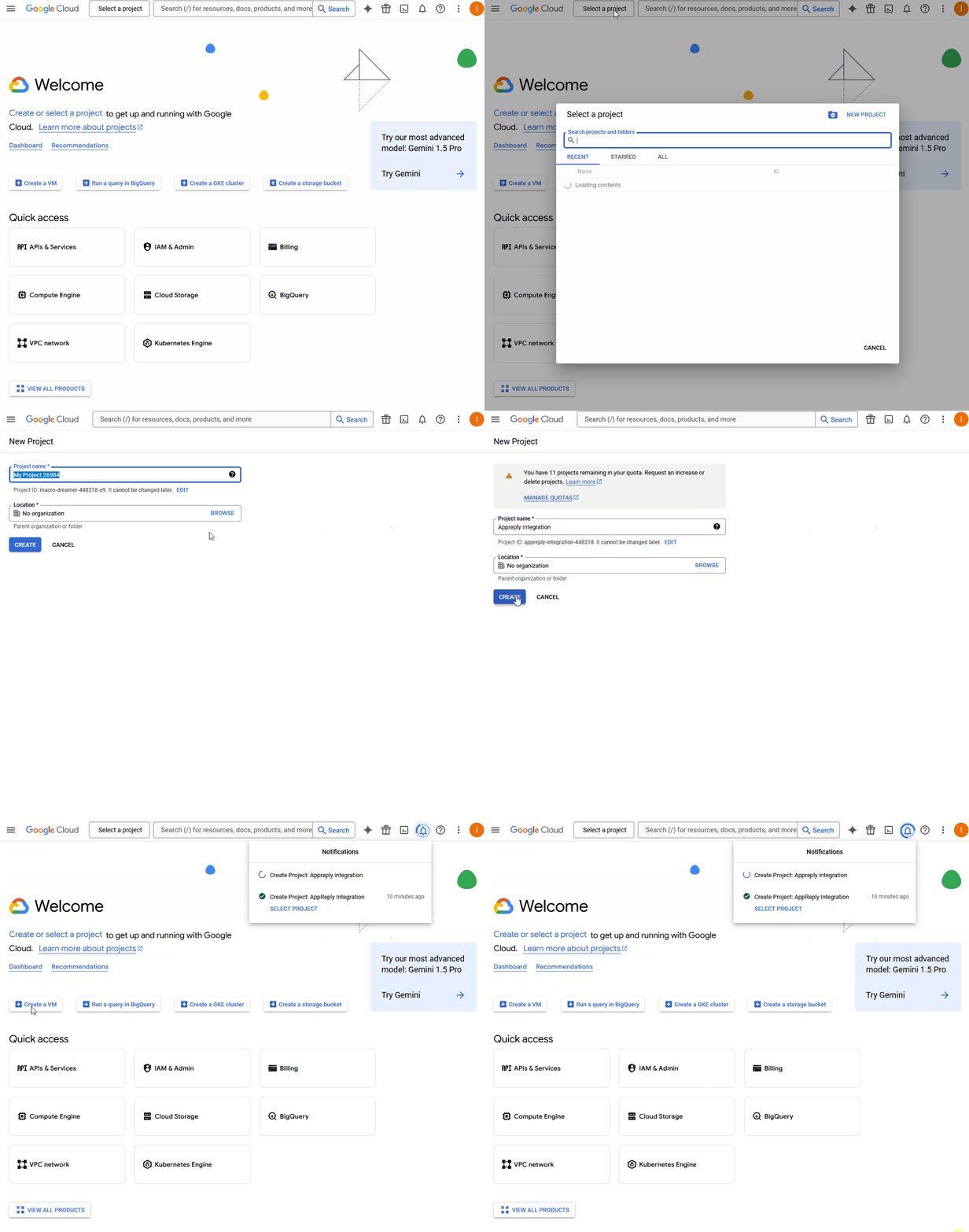 1. Go to [Google Cloud Console](https://console.cloud.google.com)
2. Click "Select a project" → "New Project"
3. Name your project (e.g., "AppReply Integration")
4. Click "Create"
1. Go to [Google Cloud Console](https://console.cloud.google.com)
2. Click "Select a project" → "New Project"
3. Name your project (e.g., "AppReply Integration")
4. Click "Create"
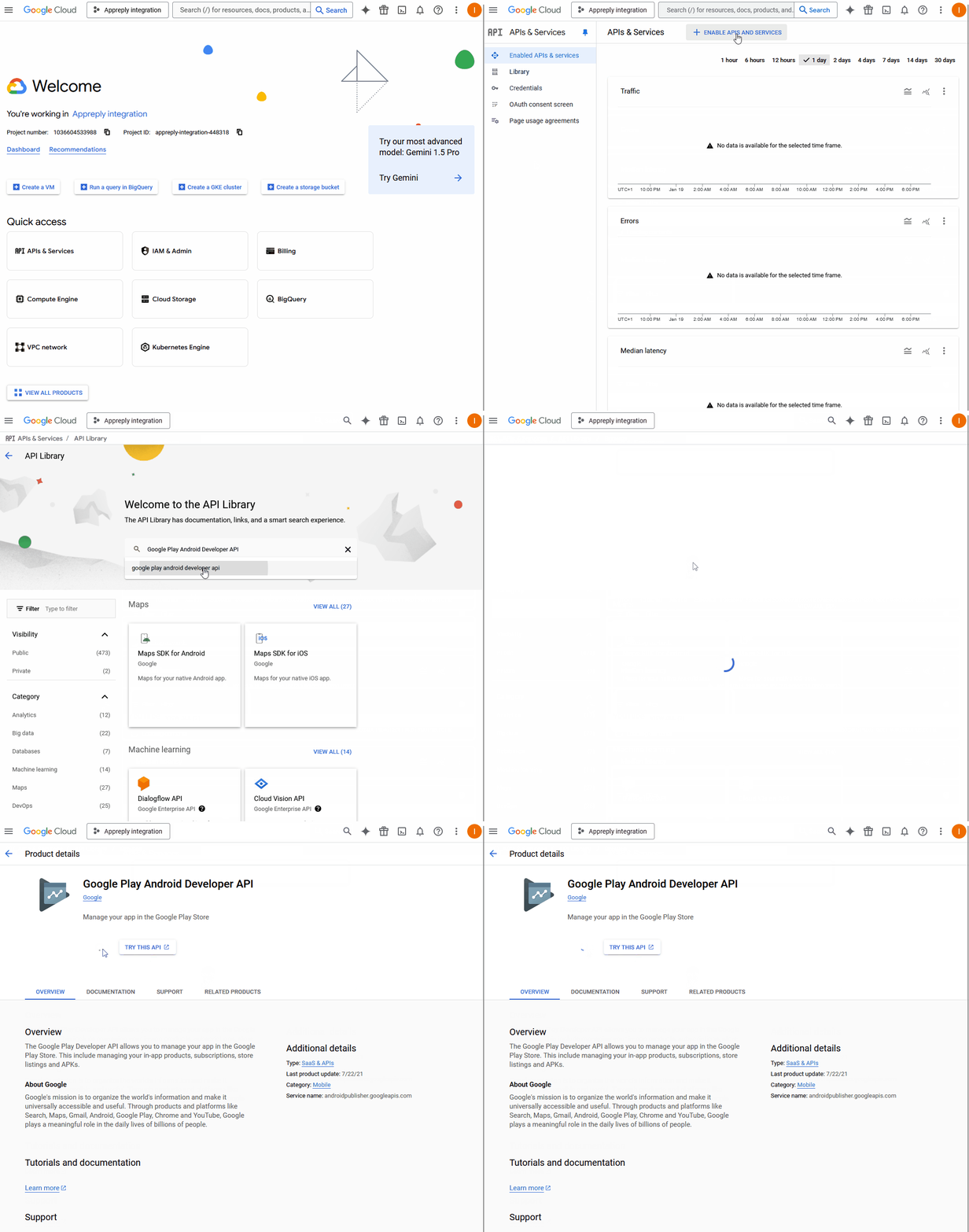 1. In your new project, go to "APIs & Services" → "Library"
2. Search for and enable "Google Play Android Developer API"
1. In your new project, go to "APIs & Services" → "Library"
2. Search for and enable "Google Play Android Developer API"
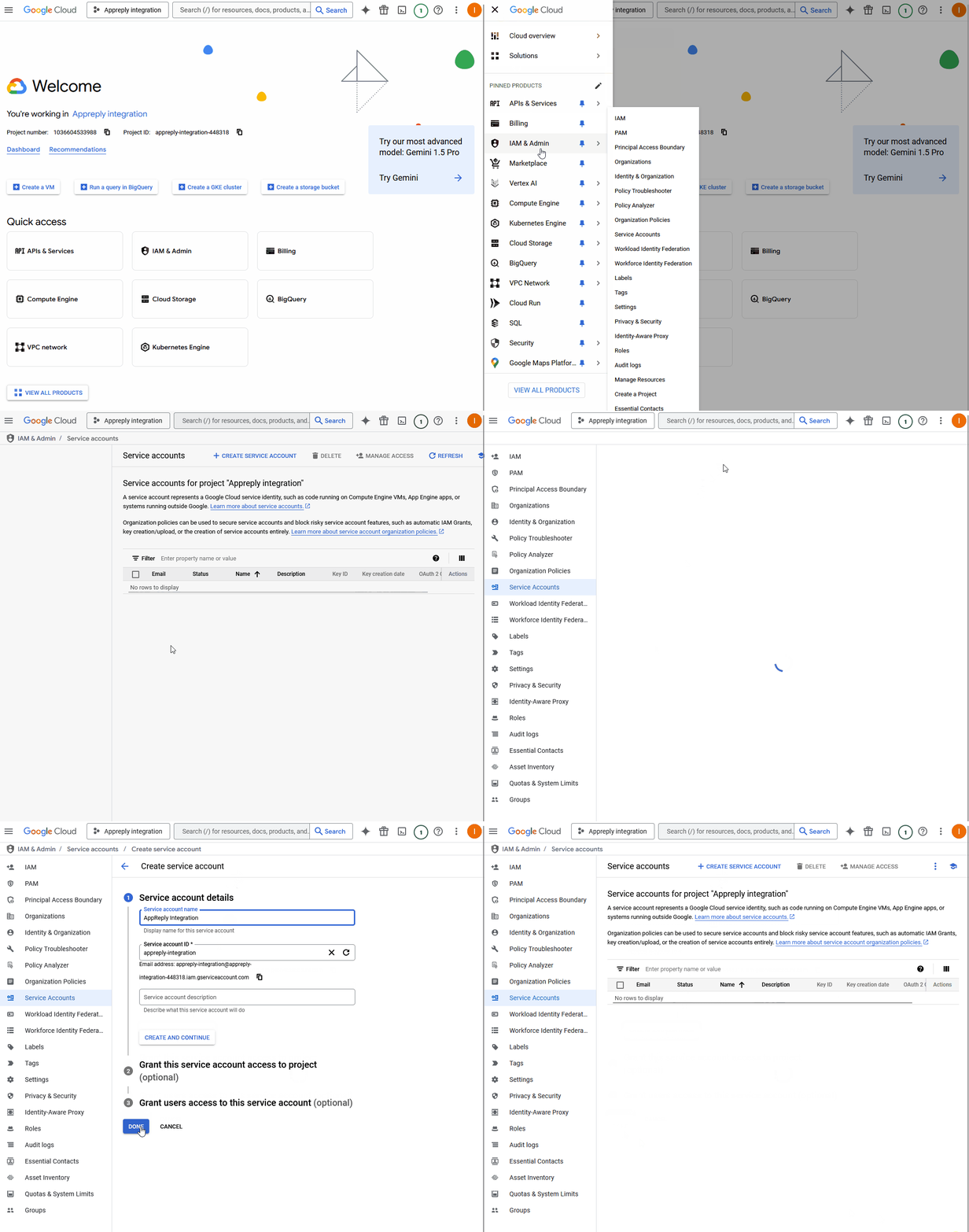 1. Go to "IAM & Admin" → "Service Accounts"
2. Click "Create Service Account"
3. Fill in the details:
* Name: "AppReply Integration"
* ID: Will be auto-generated
* Description: "Service account for AppReply.co integration"
4. Click "Create and Continue"
5. Skip role assignment (roles will be set in Play Console)
6. Click "Done"
1. Go to "IAM & Admin" → "Service Accounts"
2. Click "Create Service Account"
3. Fill in the details:
* Name: "AppReply Integration"
* ID: Will be auto-generated
* Description: "Service account for AppReply.co integration"
4. Click "Create and Continue"
5. Skip role assignment (roles will be set in Play Console)
6. Click "Done"
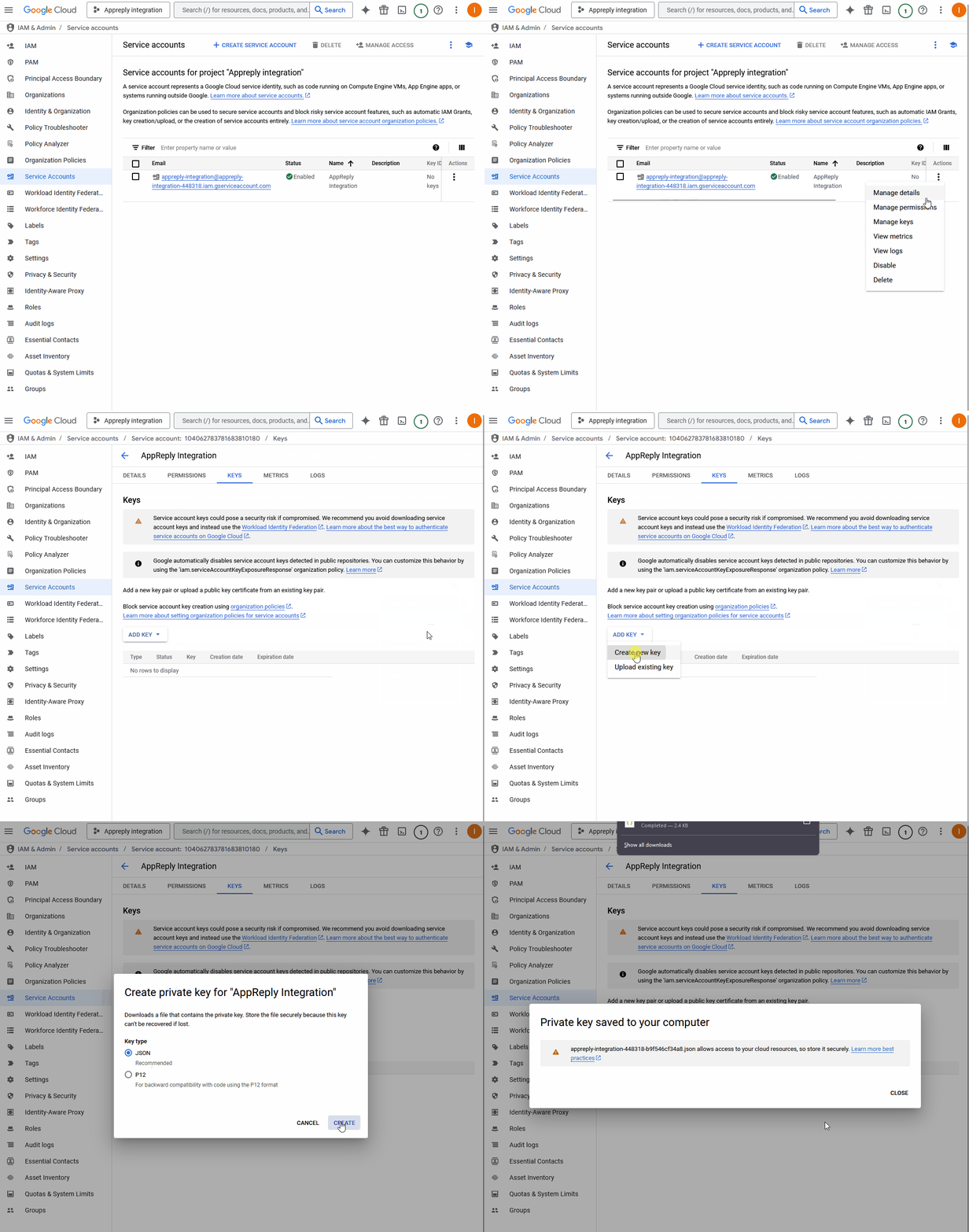 1. Find your new service account in the list
2. Click the three dots (⋮) → "Manage keys"
3. Click "Add Key" → "Create new key"
4. Select "JSON" format
5. Click "Create" to download the key file
* Keep this file secure - it contains sensitive credentials
* You'll need to upload this file to AppReply.co
1. Find your new service account in the list
2. Click the three dots (⋮) → "Manage keys"
3. Click "Add Key" → "Create new key"
4. Select "JSON" format
5. Click "Create" to download the key file
* Keep this file secure - it contains sensitive credentials
* You'll need to upload this file to AppReply.co
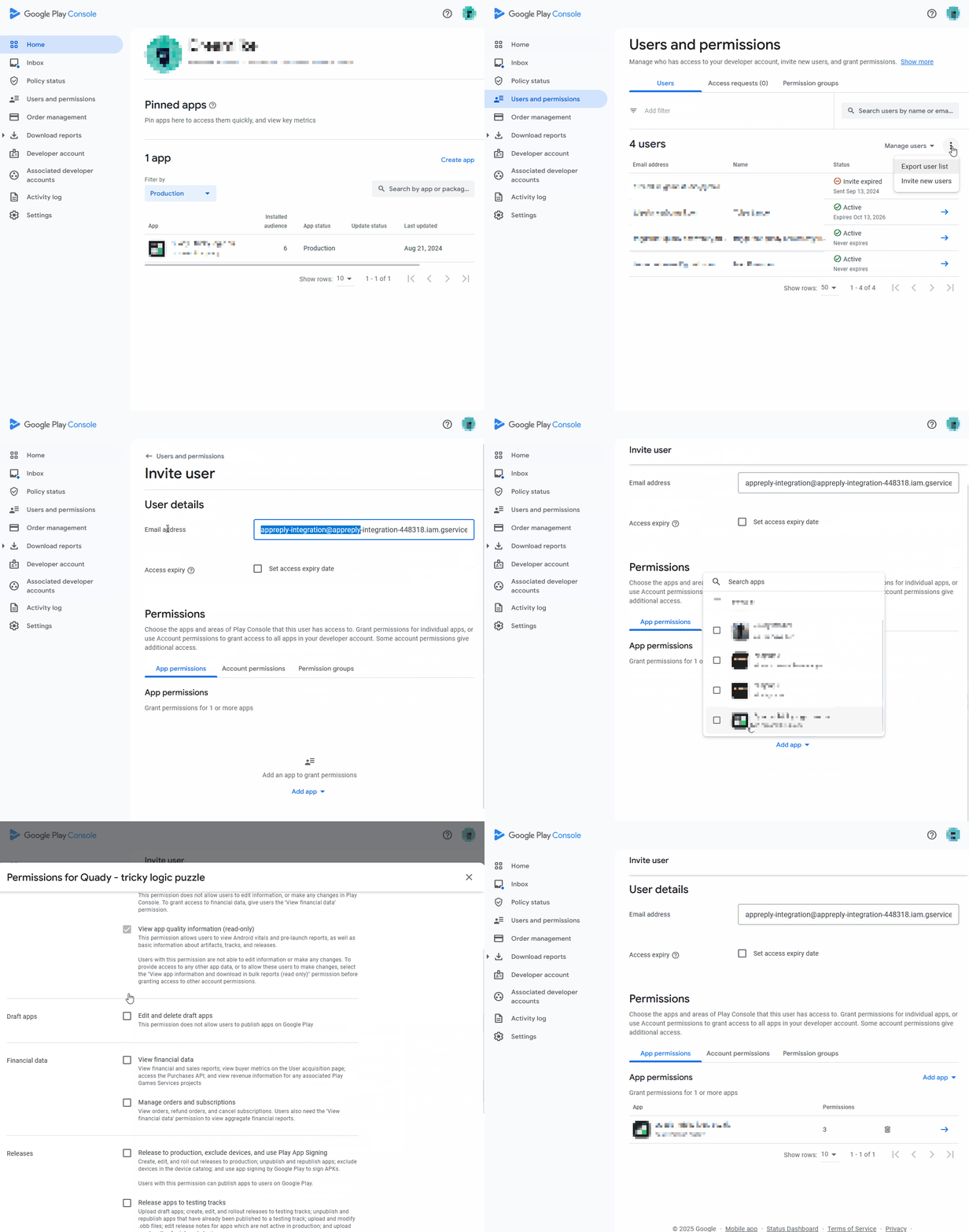 1. Open [Google Play Console](https://play.google.com/console)
2. Go to "Users and permissions" (left sidebar)
3. Click the three dots (⋮) → "Add new users"
4. Insert service account generated email address
5. Configure permissions:
* Select "App permissions" → "View app information (read only)"
* Enable "Reply to reviews" permission
* Select your apps or "Select all current and future apps"
6. Click "Invite user" to save changes
1. Open [Google Play Console](https://play.google.com/console)
2. Go to "Users and permissions" (left sidebar)
3. Click the three dots (⋮) → "Add new users"
4. Insert service account generated email address
5. Configure permissions:
* Select "App permissions" → "View app information (read only)"
* Enable "Reply to reviews" permission
* Select your apps or "Select all current and future apps"
6. Click "Invite user" to save changes
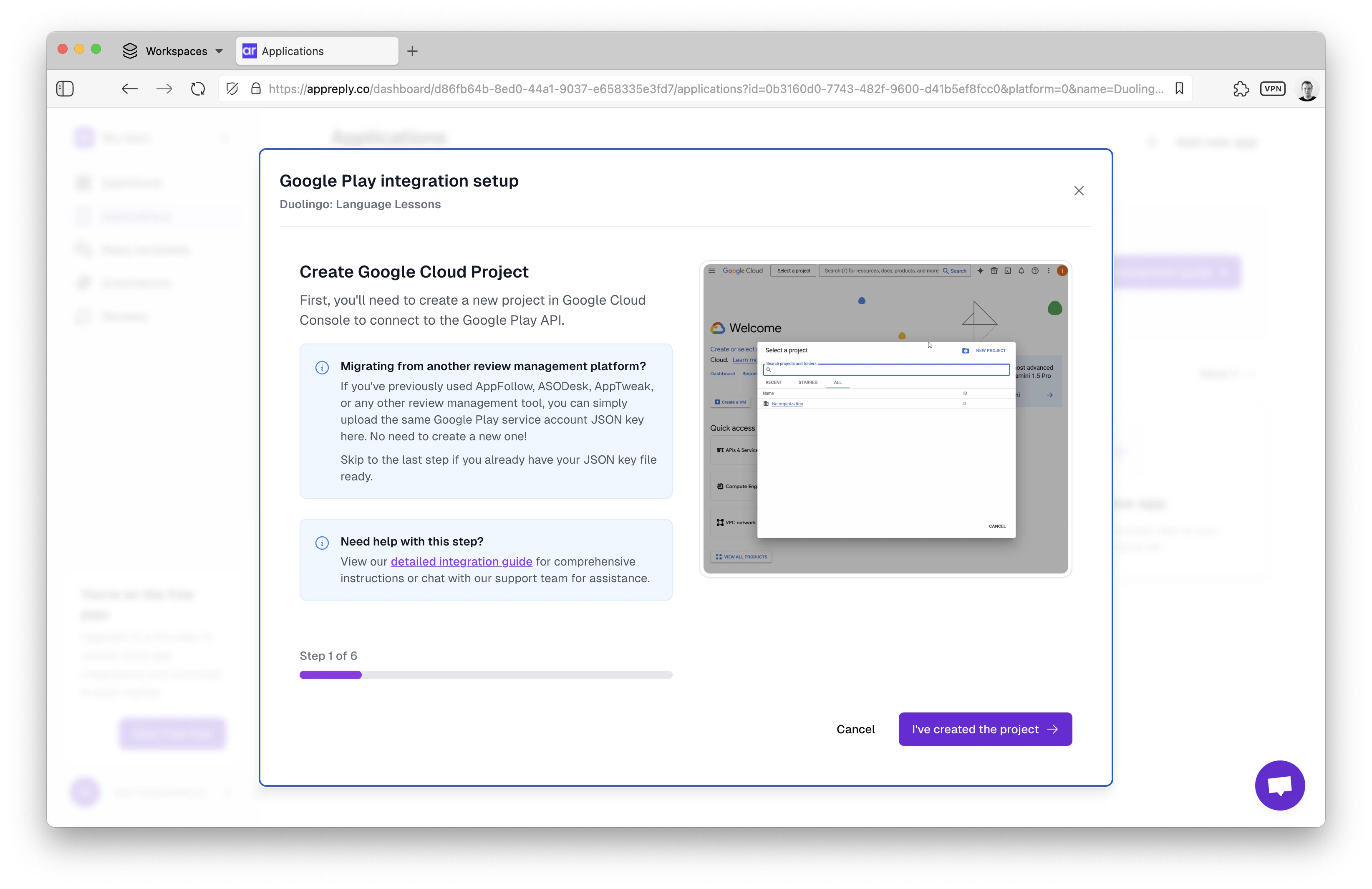 1. Log in to [AppReply](https://appreply.co)
2. Go to **Applications**
3. Click the three dots next to the app and select **Integrate**
4. Click **Use Service Account**
5. Upload the JSON key file you downloaded earlier
6. Click **Integrate**
### Troubleshooting service accounts
* **API not enabled**: Make sure the "Google Play Android Developer API" is enabled in your Google Cloud project.
* **Permission errors**: Verify the service account has "Reply to reviews" permission in Play Console under **Users and permissions**.
* **Connection failed**: Check that the JSON key file is the correct one and has not been revoked.
## Verification
After completing either integration method, AppReply will:
1. Verify your credentials
2. Test the connection to Google Play
3. Begin syncing your reviews (usually within 5-15 minutes)
## Security notes
* Your credentials are encrypted before being stored
* Both OAuth and service accounts only need minimal permissions to function
* You can revoke access at any time in Google Play Console (for service accounts) or your Google account settings (for OAuth)
## Need help?
* Click the chat bubble in the bottom right corner of your dashboard
* Email: [help@appreply.co](mailto:help@appreply.co)
* Response time: usually within 24 hours during business hours
* Include screenshots of your Play Console settings for faster assistance
1. Log in to [AppReply](https://appreply.co)
2. Go to **Applications**
3. Click the three dots next to the app and select **Integrate**
4. Click **Use Service Account**
5. Upload the JSON key file you downloaded earlier
6. Click **Integrate**
### Troubleshooting service accounts
* **API not enabled**: Make sure the "Google Play Android Developer API" is enabled in your Google Cloud project.
* **Permission errors**: Verify the service account has "Reply to reviews" permission in Play Console under **Users and permissions**.
* **Connection failed**: Check that the JSON key file is the correct one and has not been revoked.
## Verification
After completing either integration method, AppReply will:
1. Verify your credentials
2. Test the connection to Google Play
3. Begin syncing your reviews (usually within 5-15 minutes)
## Security notes
* Your credentials are encrypted before being stored
* Both OAuth and service accounts only need minimal permissions to function
* You can revoke access at any time in Google Play Console (for service accounts) or your Google account settings (for OAuth)
## Need help?
* Click the chat bubble in the bottom right corner of your dashboard
* Email: [help@appreply.co](mailto:help@appreply.co)
* Response time: usually within 24 hours during business hours
* Include screenshots of your Play Console settings for faster assistance