> ## Documentation Index
> Fetch the complete documentation index at: https://docs.appreply.co/llms.txt
> Use this file to discover all available pages before exploring further.
# Automations
> Transform your app support with AI-powered auto-replies that work 24/7
Picture this: It's 3 AM, and a user from Tokyo just left a frustrated 1-star review about a crash in your app. By the time you wake up, AppReply has already sent a personalized, empathetic response in Japanese, acknowledged the issue, and guided them to your support channel.
**This is the magic of Automations** – your digital support team that never sleeps, never gets frustrated, and speaks every language your users do.
Save 7+ hours weekly by automating responses to common feedback patterns while maintaining that personal touch your users expect.
## Organize your auto-reply rules by category
Your automation rules live in five intuitive categories that mirror real support workflows. No more hunting through endless lists – everything has its place.
Freshly created rules land here until you assign them to a group. Think of it as your inbox for automations.
**Best for:** Testing new rules before categorizing them properly.
Celebrate your champions! Auto-respond to 4-5 star reviews with gratitude, feature announcements, or gentle requests for app store ratings.
**Best for:** Thank you messages, feature updates, cross-promotion to other apps.
Turn satisfied users into advocates. Perfect for users who love your app but gave 3 stars due to minor issues you've since fixed.
**Best for:** Rating update requests, showcasing recent improvements, feature highlights.
Address billing questions, subscription confusion, and pricing concerns with clear, helpful responses that reduce churn.
**Best for:** Subscription explanations, billing support, feature value communication.
Your crisis response team. Handle 1-2 star reviews with empathy, quick triage, and paths to resolution.
**Best for:** Bug reports, feature requests, user experience issues, damage control.
Drag and drop rules between groups to keep things tidy, or create new groups on the fly to mirror your support workflow.
## Create new automation
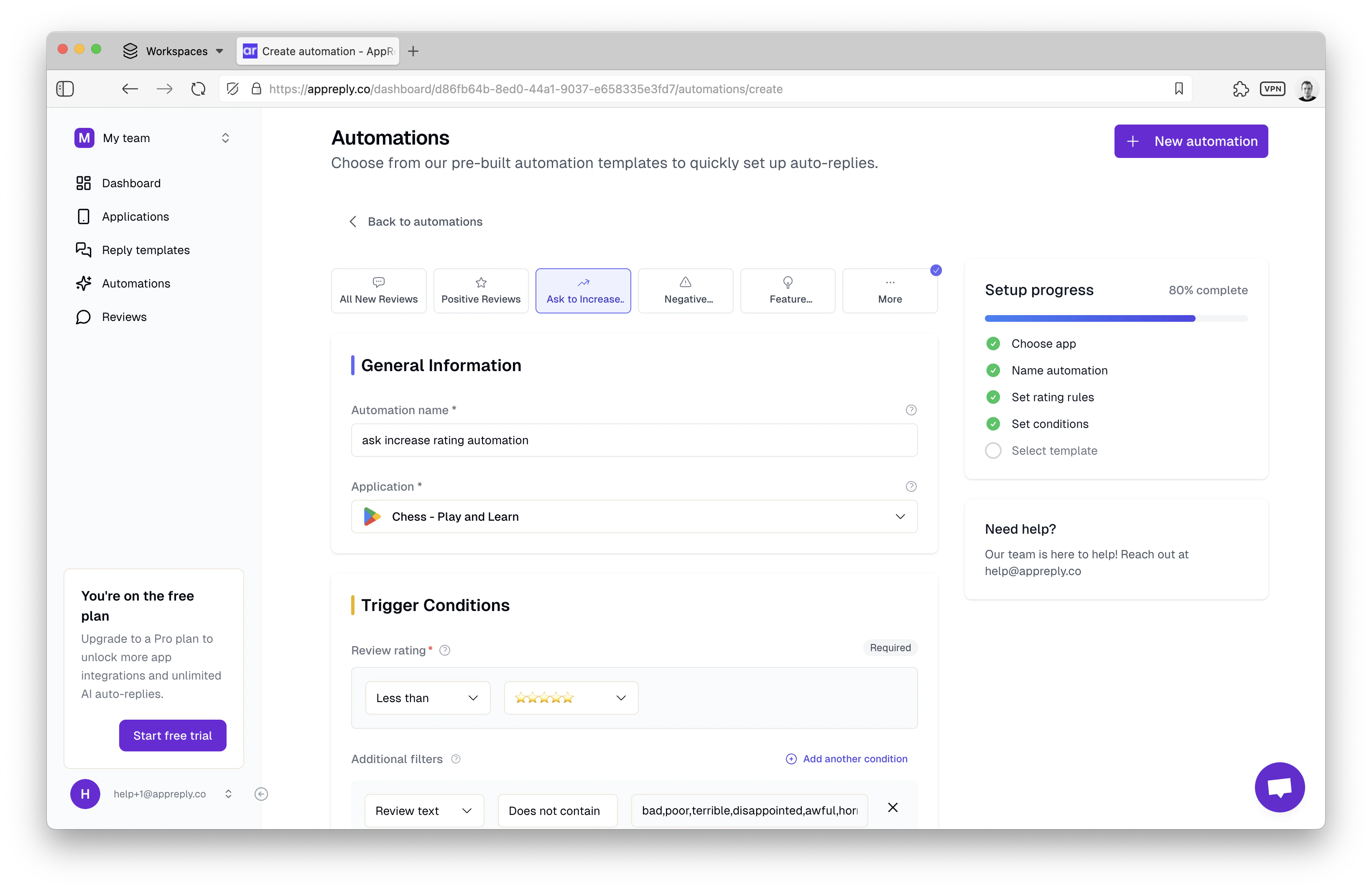
Ready to automate? Click **New Automation** at the top or hit the **+** icon beside any group:
Use clear names like "1-star crash reports" or "5-star thank you" so you instantly know its purpose.
**Naming convention ideas:**
* `[Rating] - [Topic] - [Action]`
* `[Platform] - [Issue Type] - [Response Type]`
* `[Language] - [User Type] - [Goal]`
Select which app this automation will monitor. Each app can have its own unique automation strategy.
Switch a rule on or off without deleting it. Perfect for testing or seasonal adjustments.
## Define trigger conditions
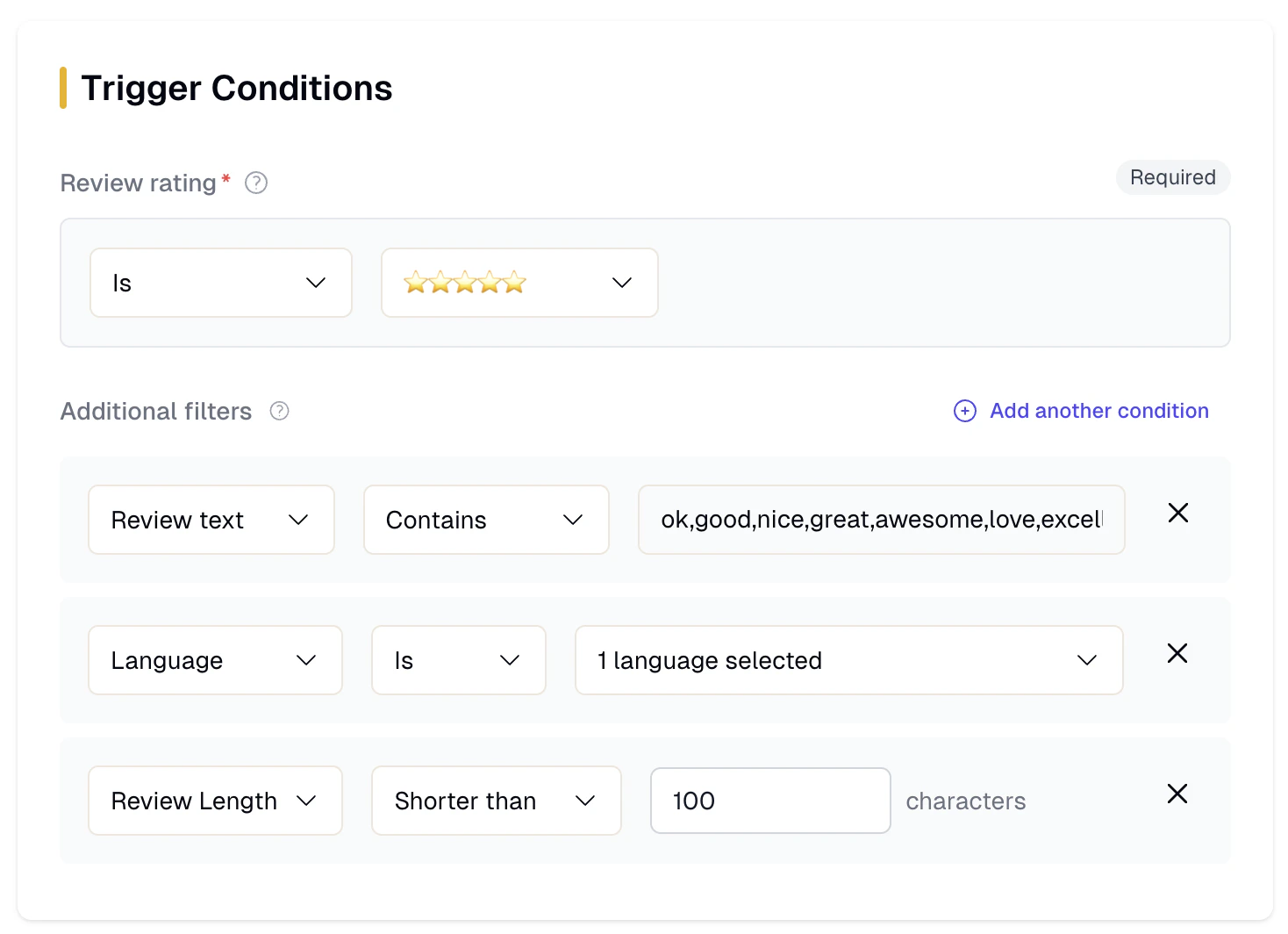
Craft precise filters to target exactly the reviews you care about. This is where the magic happens – create laser-focused rules that catch exactly what you want to handle:
**Choose comparisons for star ratings:**
* **"is exactly"** → Perfect for targeting specific ratings (e.g., exactly 5 stars for thank you messages)
* **"is less than 3 stars"** → Catch all negative feedback that needs immediate attention
* **"is more than 3 stars"** → Focus on positive users for upselling opportunities
* **"is not 1 star"** → Avoid the most frustrated users (handle these manually for better control)
Be specific! "Less than 4 stars" catches both 1-star rage and 3-star "pretty good" reviews – they need very different responses.
**Match or exclude keywords with surgical precision:**
* **Contains:** `"bug"`, `"crash"`, `"love"`, `"amazing"`
* **Does not contain:** `"free"`, `"trial"`, `"refund"`
* **Combine conditions:** `"subscription" AND "cancel"` for billing issues
**Smart keyword strategies:**
* Use multiple short keywords rather than long phrases
* Include common misspellings (`"recieve"` and `"receive"`)
* Consider synonyms (`"bug"`, `"glitch"`, `"broken"`)
**Fine-tune by language and review detail:**
* **Language is English** → Your primary market
* **Language is not English** → Route to AI translation
* **Review is longer than 100 characters** → Detailed feedback worth personalized responses
* **Review is shorter than 50 characters** → Quick ratings that need brief acknowledgments
Use **Add another condition** to chain AND logic – build complex rules without the complexity.
**Combine conditions for surgical precision:** `5 stars + contains "feature request" + English + longer than 80 characters` = engaged power users worth special attention.
## Choose your response method
Two powerful ways to reply, each perfect for different scenarios:
### Template-Based Responses
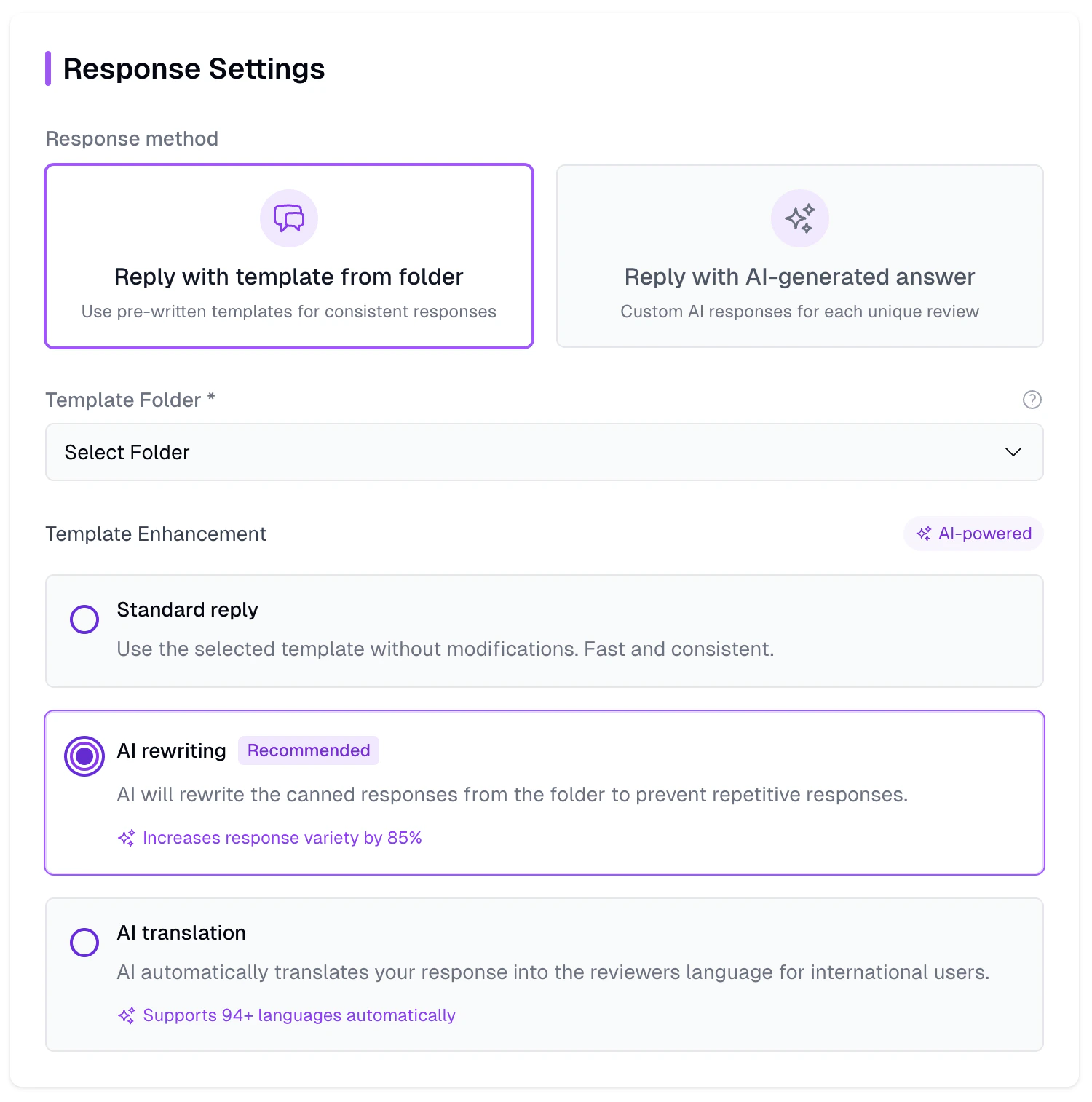
Select a prewritten folder of canned responses for lightning-fast consistency. Choose how AI enhances your templates:
Use your template verbatim—predictable and consistent.
**Best for:** Legal disclaimers, specific instructions, formal communications.
Our AI rewrites your canned messages each time, boosting variety by up to 85% while preserving your core message.
**Best for:** Thank you notes, apologies, general responses that benefit from freshness.
Automatically translate your template into the reviewer's language, supporting 94+ languages.
**Best for:** Global apps, non-English markets, inclusive customer service.
### AI-Generated Responses
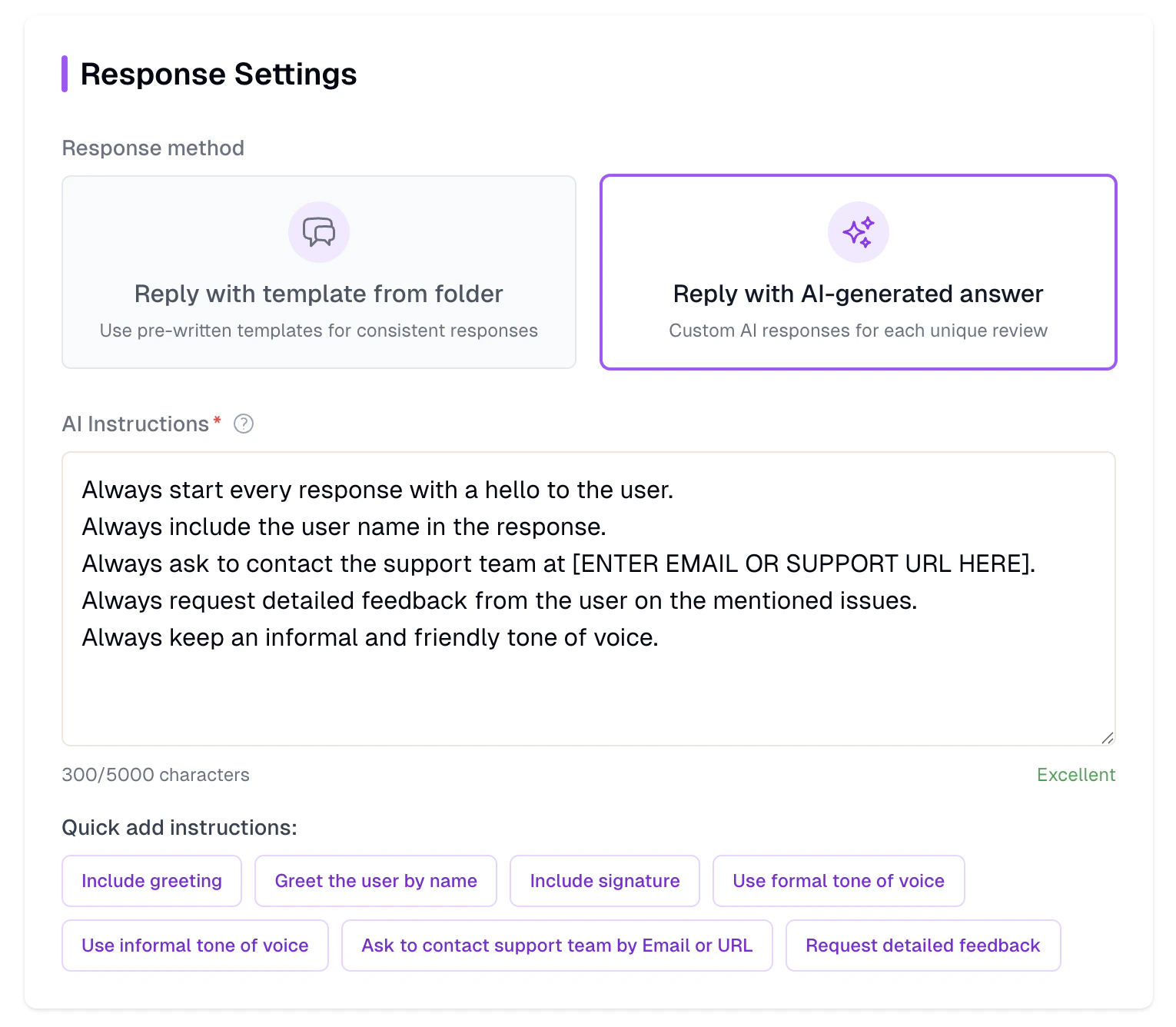
Let AI craft custom replies from scratch, tailored uniquely to each review:
Give detailed guidance (up to 5,000 characters) to control tone, style, and content.
**Example instruction:**
```
"Be empathetic and professional. Thank the user for their feedback.
Address their specific concern mentioned in the review.
If it's a bug report, acknowledge the issue and mention our team
is investigating. Always end with an invitation to contact support
for immediate help. Use a friendly but not overly casual tone."
```
Fine-tune on the fly with preset options:
* 🤝 **Include greeting**
* 📝 **Use formal tone**
* 💼 **Request detailed feedback**
* 🔧 **Offer support contact**
* 🎯 **Address specific issues**
* 📱 **Mention app updates**
**Be specific in your instructions.** Vague prompts like "be helpful" produce generic responses. Detailed guidance creates responses that sound authentically from your team.
## Launch & iterate
Once your conditions and response methods are set, hit **Save Automation**. Your rule is now live, responding automatically as new reviews appear.
Create your automation in **disabled mode** first. Monitor the **Reviews Feed** to see which reviews would have matched your conditions.
Begin with specific conditions (like "exactly 5 stars + contains 'love'") before broadening to catch more reviews.
You can **Edit** by clicking the rule's name, **Disable** without losing its configuration, or **Delete** when you outgrow a rule.
Once comfortable, create automations for different scenarios, languages, and user segments.
## Pro tips & best practices
Focus first on automations that handle your most common support requests:
* **5-star thank you messages** (high volume, low risk)
* **Common bug reports** with known solutions
* **Subscription/billing questions** with standard answers
Adopt consistent prefixes for easy scanning:
* `POS_` for positive feedback automations
* `NEG_` for negative feedback handling
* `BILL_` for billing and subscription issues
* `TECH_` for technical support responses
**Automate thoughtfully, but review regularly:**
* Run new rules in disabled mode and review matches in your feed before enabling auto-replies
* Check automated responses weekly for quality and accuracy
* Look for reviews that matched unexpectedly or slipped through
**Templates + AI Rewriting + Translation = human-like, varied, localized replies with minimal setup:**
* Use AI Rewriting to avoid robotic repetition
* Enable Translation to serve global users in their language
* Provide clear paths to human support when needed
**Align automation groups with your team's support queues:**
* `"Critical Bugs"` for immediate escalation
* `"Payment Questions"` for billing team
* `"Feature Requests"` for product team review
**Free tier limitation:** You can create unlimited automations but only have 3 active at once. Upgrade to unlock unlimited active automations plus advanced AI features.
## Troubleshooting common issues
**Check your conditions:**
* Are they too specific? Try broadening keyword matches
* Is the app integration working? Verify in App Settings
* Are you testing with the right review criteria?
**Debug tip:** Use the preview feature to see exactly which reviews match your conditions.
**Refine your targeting:**
* Add negative keywords (`does not contain "fake"`)
* Use more specific rating conditions
* Combine multiple conditions with AND logic
* Test thoroughly before enabling
**Enhance with AI:**
* Enable AI Rewriting for templates
* Provide more detailed AI instructions
* Include context-specific guidance
* Test different instruction variations
***
That's it! Automations in AppReply empower you to be everywhere at once, responding to every review like a dedicated support team that never sleeps, never gets frustrated, and speaks every language your users do.
Create response templates that power your automations
Monitor and manage all your app reviews in one place
 Ready to automate? Click **New Automation** at the top or hit the **+** icon beside any group:
 Craft precise filters to target exactly the reviews you care about. This is where the magic happens – create laser-focused rules that catch exactly what you want to handle:
 Select a prewritten folder of canned responses for lightning-fast consistency. Choose how AI enhances your templates:
 Let AI craft custom replies from scratch, tailored uniquely to each review: