> ## Documentation Index
> Fetch the complete documentation index at: https://docs.appreply.co/llms.txt
> Use this file to discover all available pages before exploring further.
# Applications
> Connect and manage all your mobile apps for automated review management
Your Applications dashboard is where you connect your mobile apps and manage their integrations. Add apps from Google Play, App Store, Samsung Galaxy Store, Huawei AppGallery, or RuStore to start managing reviews.
**Start here first.** Before creating automations or templates, you need to add and integrate your apps. This unlocks review fetching, replies, and automation.
## Quick integration overview
Connect your apps in minutes. Each platform has its own integration method:
Connect via OAuth or upload a service account JSON key.
Use App Store Connect API keys to integrate iOS apps.
Use Samsung Seller Portal API credentials to connect.
Connect with Huawei AppGallery Connect API credentials.
Use RuStore Console API credentials to connect.
**Migrating from another platform?** If you have used AppFollow, ASODesk, AppTweak, or any other review management tool, you can upload the same Google Play service account JSON key. No need to create new credentials.
## Add your first app
When you first visit Applications, you'll see an inviting setup screen that guides you toward your first integration:
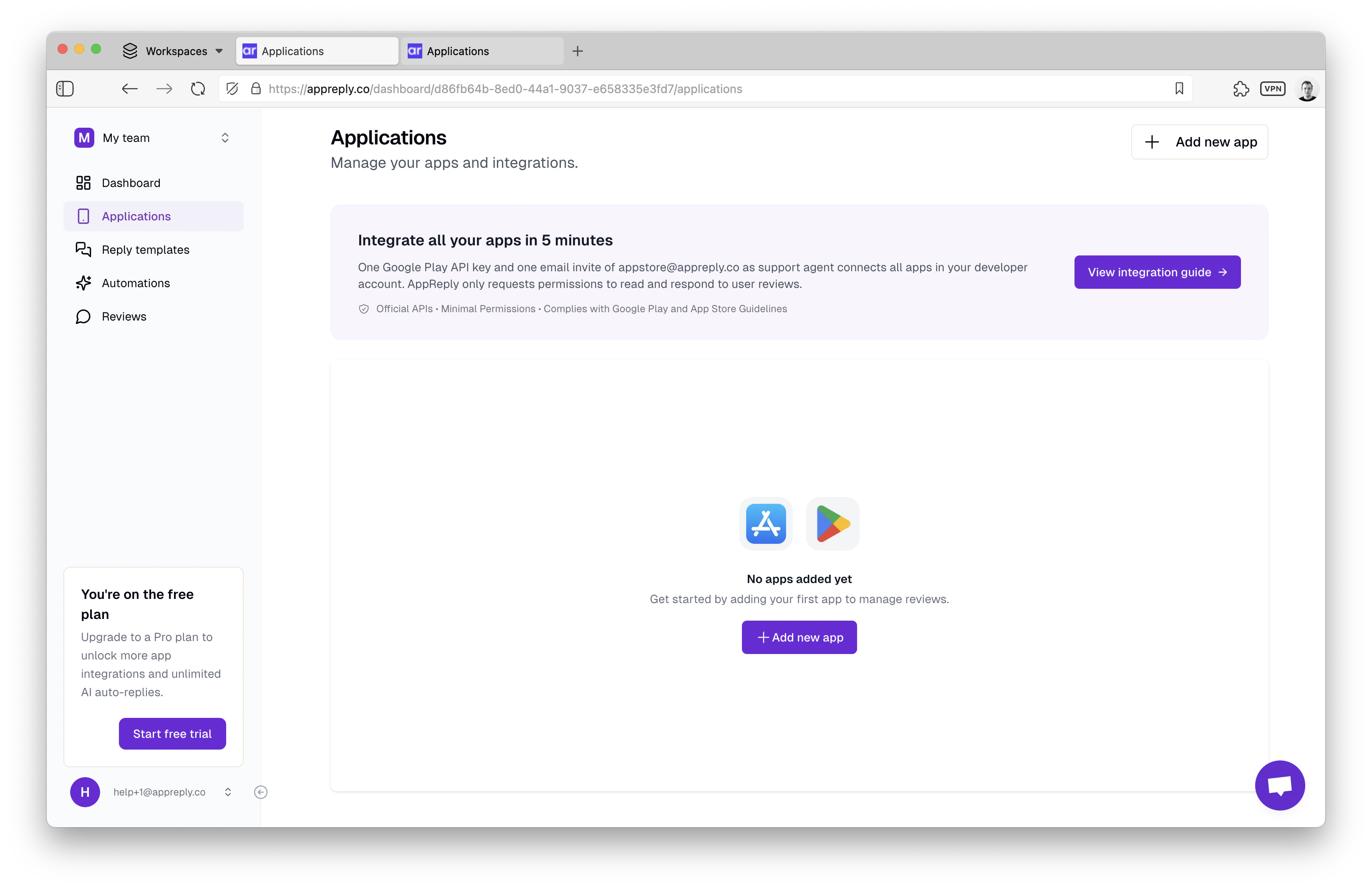 Start by clicking the prominent **Add new app** button to open the app selection modal.
You have several options to add your app:
* **Smart search**: Type your app name to search across Google Play and App Store. You can select up to 5 apps at once from the search results.
* **Direct URL**: Paste your app's store URL for instant recognition.
* **Add from other stores**: For Samsung Galaxy Store, Huawei AppGallery, and RuStore, use the manual entry option. Enter the app ID and name directly.
Review your selection and click **Submit** to add the app to your dashboard.
## Finding and adding apps
The app search works across both platforms simultaneously:
Start by clicking the prominent **Add new app** button to open the app selection modal.
You have several options to add your app:
* **Smart search**: Type your app name to search across Google Play and App Store. You can select up to 5 apps at once from the search results.
* **Direct URL**: Paste your app's store URL for instant recognition.
* **Add from other stores**: For Samsung Galaxy Store, Huawei AppGallery, and RuStore, use the manual entry option. Enter the app ID and name directly.
Review your selection and click **Submit** to add the app to your dashboard.
## Finding and adding apps
The app search works across both platforms simultaneously:
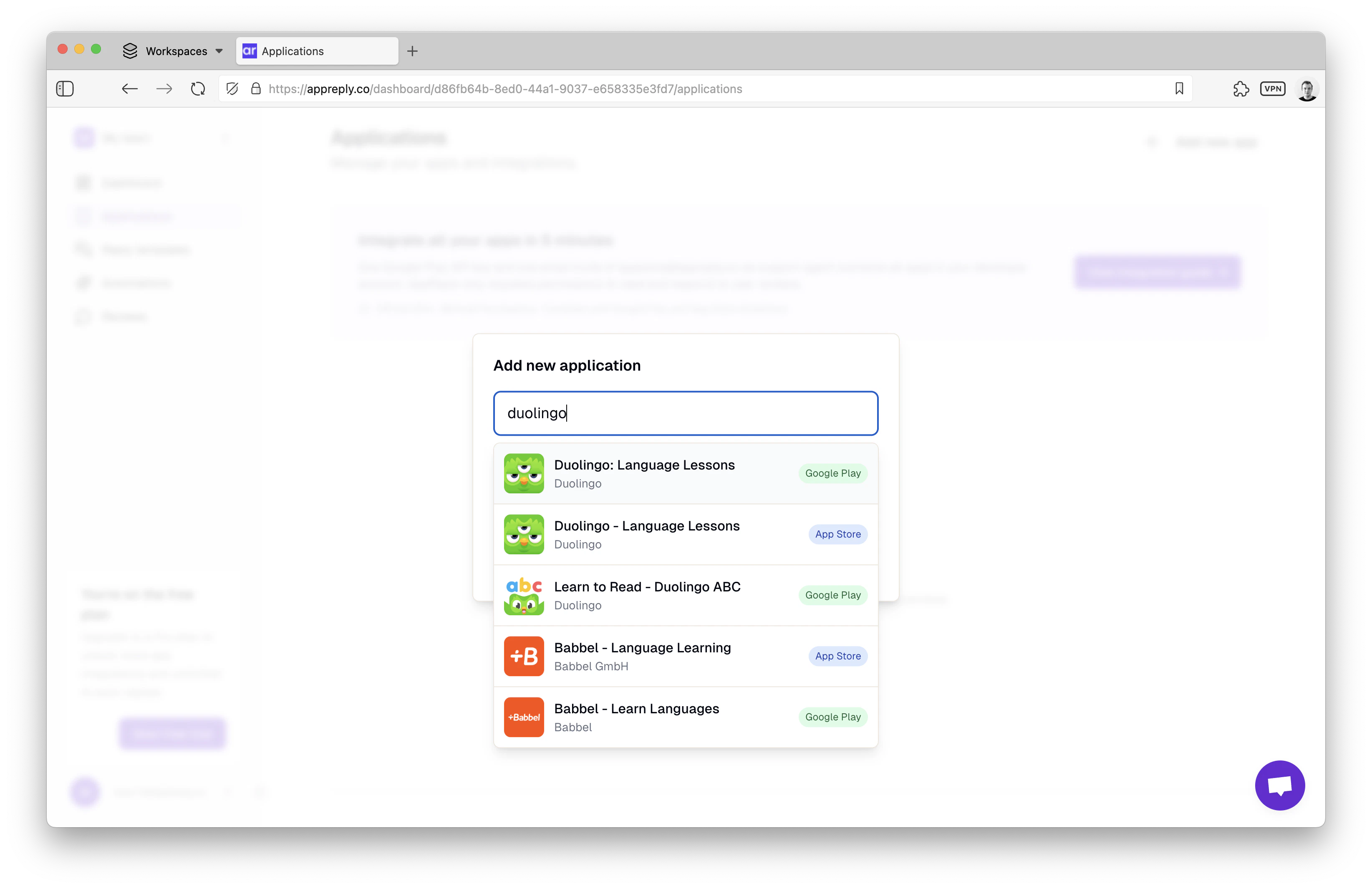 **Type your app name** and see results from both Google Play and App Store:
* Searches app titles and developer names
* Shows app icons and platform badges
* Requires minimum 3 characters for accurate results
* Updates results in real-time as you type
Perfect for when you know your app name but want to see all platform options.
**Paste your store URL** for instant app recognition:
```
Google Play: https://play.google.com/store/apps/details?id=com.yourapp
App Store: https://apps.apple.com/us/app/yourapp/id123456789
```
AppReply automatically extracts app information from the URL and adds it to your dashboard.
**Type your app name** and see results from both Google Play and App Store:
* Searches app titles and developer names
* Shows app icons and platform badges
* Requires minimum 3 characters for accurate results
* Updates results in real-time as you type
Perfect for when you know your app name but want to see all platform options.
**Paste your store URL** for instant app recognition:
```
Google Play: https://play.google.com/store/apps/details?id=com.yourapp
App Store: https://apps.apple.com/us/app/yourapp/id123456789
```
AppReply automatically extracts app information from the URL and adds it to your dashboard.
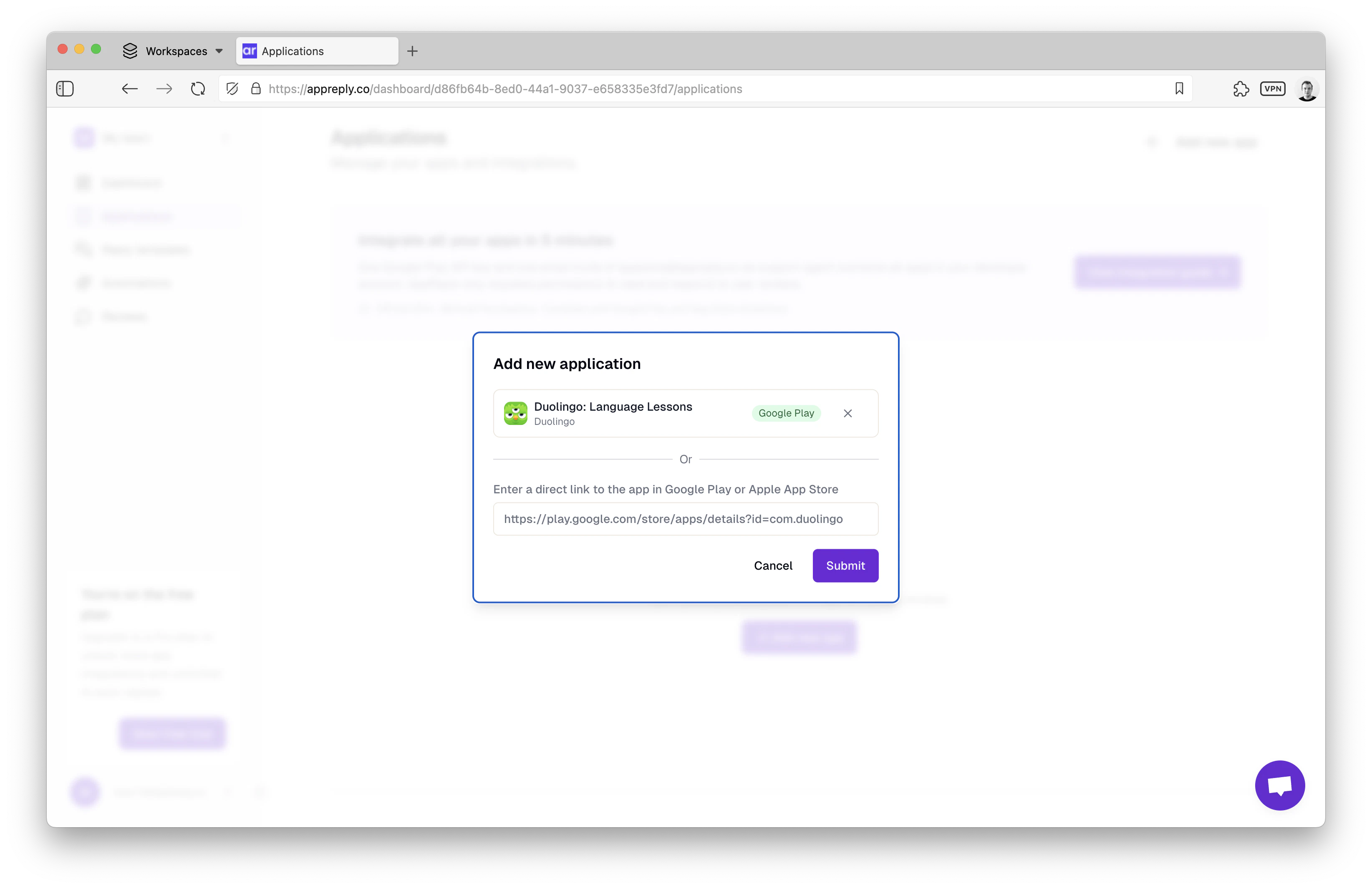 Once selected, you'll see a preview of your app with the platform badge and developer information before confirming.
## Your apps dashboard
After adding apps, your dashboard shows all your apps in a grid layout:
Once selected, you'll see a preview of your app with the platform badge and developer information before confirming.
## Your apps dashboard
After adding apps, your dashboard shows all your apps in a grid layout:
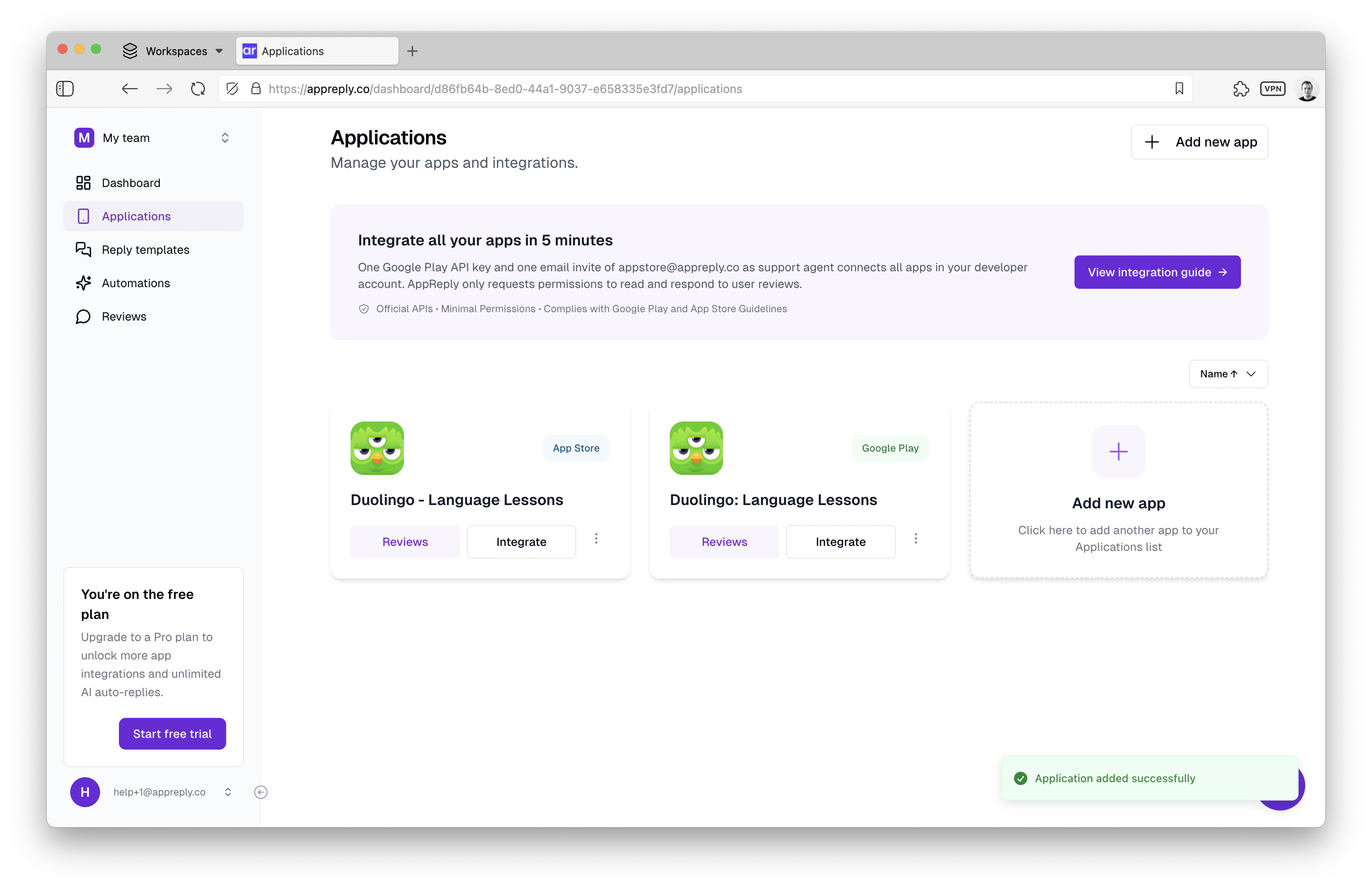 Each app card shows its platform badge (Google Play, App Store, Samsung, Huawei, or RuStore), integration status, and quick action buttons. If you have apps across multiple platforms, filter tabs appear at the top of the dashboard so you can view apps by platform.
* **App icon and name** for easy identification
* **Platform badge** showing which store the app belongs to
* **Developer name** for verification
* **Integration status** indicator
* **Reviews**: Jump directly to your review feed for this app
* **Integrate**: Complete the integration setup (if pending)
* **Automate**: Create or manage automation rules
* **Menu**: Access additional options like app deletion
* **Integrated**: Green checkmark shows successful connection
* **Pending**: Orange warning indicates integration needed
* **Error**: Red indicator shows connection issues requiring attention
## Platform-specific integration
Each platform has its own integration process. Click through to the full guide for step-by-step instructions.
Two connection methods are available:
* **OAuth (Beta)**: Sign in with your Google account. No JSON key file needed.
* **Service account**: Create a service account in Google Cloud Console, download the JSON key, and upload it in AppReply.
The service account method uses a 6-step guided wizard with animated tutorials for each step.
See the complete setup instructions
Connect using App Store Connect API keys:
* Create an Individual API key (Team keys are not supported)
* Assign the **Customer Support** role
* Upload your Key ID and .p8 private key file
See the complete setup instructions
Connect using Samsung Seller Portal API credentials:
* Generate API credentials in your Samsung Seller Portal
* Provide your service account ID and private key
* AppReply handles JWT authentication automatically
See the complete setup instructions
Connect using Huawei AppGallery Connect API credentials:
* Create API client credentials in AppGallery Connect
* Provide your client ID and client secret
* Note: Huawei uses regional API domains, so your apps must be grouped by region
See the complete setup instructions
Connect using RuStore Console API credentials:
* Generate API credentials in your RuStore Console
* Provide your credentials in AppReply
* AppReply handles RSA-SHA512 authentication automatically
See the complete setup instructions
## Integration validation
AppReply automatically validates your credentials before completing integration:
**For Google Play:** Service account or OAuth token has valid permissions, can access Play Developer API, and has "Reply to reviews" permission for your apps.
**For App Store:** API key is valid and active, has Customer Support role, and can access App Store Connect API.
**For Samsung, Huawei, and RuStore:** API credentials are valid and can authenticate with the respective store APIs.
**Google Play:** Service account not added to Play Console, missing "Reply to reviews" permission, or invalid JSON key file.
**App Store:** Using Team API key instead of Individual, insufficient permissions, or expired API key.
**Samsung/Huawei/RuStore:** Invalid credentials, missing API permissions, or incorrect app ID format. See each platform's integration guide for specific troubleshooting.
* **Minimal permissions**: AppReply only requests access to read and respond to reviews
* **Encrypted storage**: All credentials stored securely in Supabase Vault
* **Official APIs**: Uses Google Play API and App Store Connect API
* **Compliance**: Fully compliant with Google Play and App Store guidelines
## Managing multiple apps
As your app portfolio grows, AppReply scales with you:
**Keep everything organized:**
* **Sort by name or platform** for easy browsing
* **Filter by integration status** to identify pending setups
* **Bulk actions** for managing multiple apps
* **Team access** with role-based permissions
**Stay on top of your apps:**
* **Integration health checks** alert you to connection issues
* **Review volume indicators** show activity levels
* **Automation status** displays active rules per app
* **Quick access** to reviews and automation settings
**Grow with your portfolio:**
* **App limits by plan**: Free (1 app), Standard (5), Pro (50), Unlimited (no limit). Batch creation lets you add up to 5 apps at a time.
* **Team collaboration** with shared access
* **Cross-app automation** for consistent responses
* **Centralized analytics** across your entire portfolio
## Migration from other tools
**Switching from another platform?** You can reuse your existing API credentials.
If you're migrating from existing review management tools:
Find your Google Play service account JSON key or App Store Connect API credentials from your current tool.
Use the same credentials in AppReply's integration flow - no need to create new ones.
Ensure your existing credentials have "Reply to reviews" permissions enabled.
AppReply will validate your credentials and confirm successful connection.
**Supported migration sources:**
* AppFollow
* ASODesk
* AppTweak
* AppBot
* AppFigures
* Custom integrations using Google Play API
## Best practices for app management
* **Add all your apps** at once for comprehensive coverage
* **Integrate immediately** after adding to avoid delays
* **Test integration** by checking the Reviews section
* **Invite team members** early for collaborative management
* **Monitor integration health** in the dashboard
* **Rotate credentials** periodically for security
* **Update permissions** when adding new apps
* **Review team access** regularly
* **Use consistent naming** across platforms
* **Group related apps** for easier management
* **Set up cross-app automations** for consistent responses
* **Monitor review volume** to identify trending apps
## Troubleshooting common issues
**Integration keeps failing?**
1. **Verify credentials**: Ensure your API keys/JSON files are correct and not expired
2. **Check permissions**: Confirm "Reply to reviews" access in your developer console
3. **Review platform requirements**: Double-check Individual vs Team API key requirements
4. **Contact support**: Our team can help diagnose specific integration issues
**Can't find your app in search?**
1. **Try the direct URL method** instead of search
2. **Check app visibility** in your developer console
3. **Verify publication status** - app must be published on the store
4. **Search with exact app name** or developer name
**Getting permission denied errors?**
1. **Google Play**: Add service account to Play Console with "Reply to reviews" permission
2. **App Store**: Ensure API key has Customer Support role minimum
3. **Check expiration**: Verify your credentials haven't expired
4. **Re-upload credentials** if recently updated in developer console
***
**Ready to connect your apps?** Start with your highest-volume app to see immediate impact, then add the rest of your portfolio for complete coverage.
Manage all your app reviews in one unified dashboard
Create smart auto-replies that work around the clock
Each app card shows its platform badge (Google Play, App Store, Samsung, Huawei, or RuStore), integration status, and quick action buttons. If you have apps across multiple platforms, filter tabs appear at the top of the dashboard so you can view apps by platform.
* **App icon and name** for easy identification
* **Platform badge** showing which store the app belongs to
* **Developer name** for verification
* **Integration status** indicator
* **Reviews**: Jump directly to your review feed for this app
* **Integrate**: Complete the integration setup (if pending)
* **Automate**: Create or manage automation rules
* **Menu**: Access additional options like app deletion
* **Integrated**: Green checkmark shows successful connection
* **Pending**: Orange warning indicates integration needed
* **Error**: Red indicator shows connection issues requiring attention
## Platform-specific integration
Each platform has its own integration process. Click through to the full guide for step-by-step instructions.
Two connection methods are available:
* **OAuth (Beta)**: Sign in with your Google account. No JSON key file needed.
* **Service account**: Create a service account in Google Cloud Console, download the JSON key, and upload it in AppReply.
The service account method uses a 6-step guided wizard with animated tutorials for each step.
See the complete setup instructions
Connect using App Store Connect API keys:
* Create an Individual API key (Team keys are not supported)
* Assign the **Customer Support** role
* Upload your Key ID and .p8 private key file
See the complete setup instructions
Connect using Samsung Seller Portal API credentials:
* Generate API credentials in your Samsung Seller Portal
* Provide your service account ID and private key
* AppReply handles JWT authentication automatically
See the complete setup instructions
Connect using Huawei AppGallery Connect API credentials:
* Create API client credentials in AppGallery Connect
* Provide your client ID and client secret
* Note: Huawei uses regional API domains, so your apps must be grouped by region
See the complete setup instructions
Connect using RuStore Console API credentials:
* Generate API credentials in your RuStore Console
* Provide your credentials in AppReply
* AppReply handles RSA-SHA512 authentication automatically
See the complete setup instructions
## Integration validation
AppReply automatically validates your credentials before completing integration:
**For Google Play:** Service account or OAuth token has valid permissions, can access Play Developer API, and has "Reply to reviews" permission for your apps.
**For App Store:** API key is valid and active, has Customer Support role, and can access App Store Connect API.
**For Samsung, Huawei, and RuStore:** API credentials are valid and can authenticate with the respective store APIs.
**Google Play:** Service account not added to Play Console, missing "Reply to reviews" permission, or invalid JSON key file.
**App Store:** Using Team API key instead of Individual, insufficient permissions, or expired API key.
**Samsung/Huawei/RuStore:** Invalid credentials, missing API permissions, or incorrect app ID format. See each platform's integration guide for specific troubleshooting.
* **Minimal permissions**: AppReply only requests access to read and respond to reviews
* **Encrypted storage**: All credentials stored securely in Supabase Vault
* **Official APIs**: Uses Google Play API and App Store Connect API
* **Compliance**: Fully compliant with Google Play and App Store guidelines
## Managing multiple apps
As your app portfolio grows, AppReply scales with you:
**Keep everything organized:**
* **Sort by name or platform** for easy browsing
* **Filter by integration status** to identify pending setups
* **Bulk actions** for managing multiple apps
* **Team access** with role-based permissions
**Stay on top of your apps:**
* **Integration health checks** alert you to connection issues
* **Review volume indicators** show activity levels
* **Automation status** displays active rules per app
* **Quick access** to reviews and automation settings
**Grow with your portfolio:**
* **App limits by plan**: Free (1 app), Standard (5), Pro (50), Unlimited (no limit). Batch creation lets you add up to 5 apps at a time.
* **Team collaboration** with shared access
* **Cross-app automation** for consistent responses
* **Centralized analytics** across your entire portfolio
## Migration from other tools
**Switching from another platform?** You can reuse your existing API credentials.
If you're migrating from existing review management tools:
Find your Google Play service account JSON key or App Store Connect API credentials from your current tool.
Use the same credentials in AppReply's integration flow - no need to create new ones.
Ensure your existing credentials have "Reply to reviews" permissions enabled.
AppReply will validate your credentials and confirm successful connection.
**Supported migration sources:**
* AppFollow
* ASODesk
* AppTweak
* AppBot
* AppFigures
* Custom integrations using Google Play API
## Best practices for app management
* **Add all your apps** at once for comprehensive coverage
* **Integrate immediately** after adding to avoid delays
* **Test integration** by checking the Reviews section
* **Invite team members** early for collaborative management
* **Monitor integration health** in the dashboard
* **Rotate credentials** periodically for security
* **Update permissions** when adding new apps
* **Review team access** regularly
* **Use consistent naming** across platforms
* **Group related apps** for easier management
* **Set up cross-app automations** for consistent responses
* **Monitor review volume** to identify trending apps
## Troubleshooting common issues
**Integration keeps failing?**
1. **Verify credentials**: Ensure your API keys/JSON files are correct and not expired
2. **Check permissions**: Confirm "Reply to reviews" access in your developer console
3. **Review platform requirements**: Double-check Individual vs Team API key requirements
4. **Contact support**: Our team can help diagnose specific integration issues
**Can't find your app in search?**
1. **Try the direct URL method** instead of search
2. **Check app visibility** in your developer console
3. **Verify publication status** - app must be published on the store
4. **Search with exact app name** or developer name
**Getting permission denied errors?**
1. **Google Play**: Add service account to Play Console with "Reply to reviews" permission
2. **App Store**: Ensure API key has Customer Support role minimum
3. **Check expiration**: Verify your credentials haven't expired
4. **Re-upload credentials** if recently updated in developer console
***
**Ready to connect your apps?** Start with your highest-volume app to see immediate impact, then add the rest of your portfolio for complete coverage.
Manage all your app reviews in one unified dashboard
Create smart auto-replies that work around the clock