> ## Documentation Index
> Fetch the complete documentation index at: https://docs.appreply.co/llms.txt
> Use this file to discover all available pages before exploring further.
# AI Instructions
> Customize how AI writes your manual review replies with reusable, organization‑scoped guidance — by app or globally.
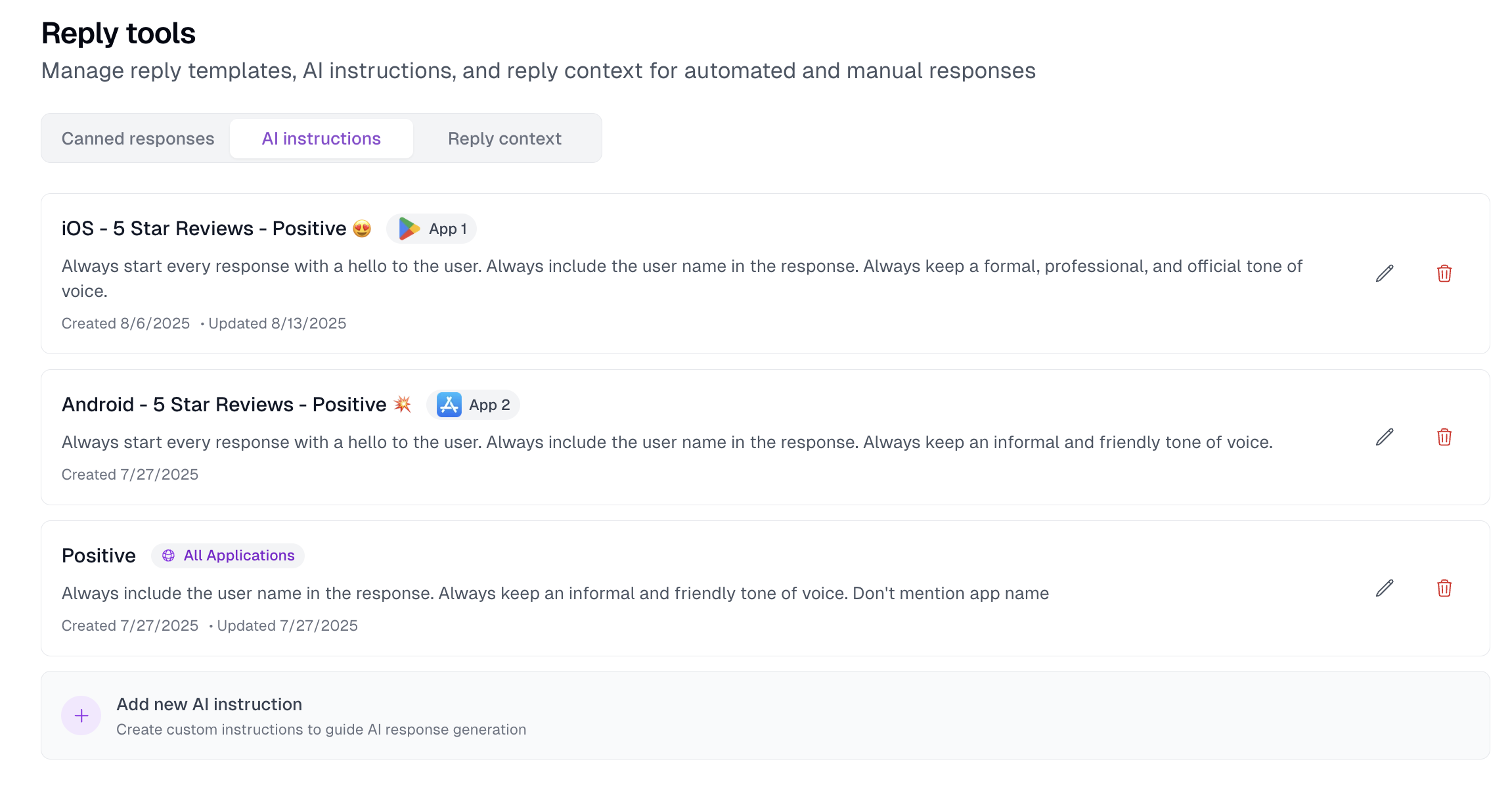 ### What are AI Instructions?
AI Instructions are reusable guidance the AI follows when generating manual responses to reviews.
They help enforce tone, structure, signatures, and brand rules across your team’s manual replies.
* Applies to: [Manual AI Replies](/review-management/manual-ai-replies)
* Configure auto‑replies separately: [Automations](/auto-replies/overview)
AI Instructions affect manual AI‑assisted replies. They do not alter automated reply rules configured in [Automations](/auto-replies/overview).
### Where to find it
Dashboard → Templates → AI Instructions
If you see a banner prompting you to “Create AI instructions,” it hides automatically as soon as you add your first instruction.
### Global vs App‑specific
* Global: available for every app in the organization
* App‑specific: only visible when replying for that app
Choose scope via “Apply to Application.” To manage your apps, see [Applications](/essentials/applications).
### Create an AI Instruction
Go to Dashboard → Templates → AI Instructions.
Or select the “Add new AI instruction” card.
### What are AI Instructions?
AI Instructions are reusable guidance the AI follows when generating manual responses to reviews.
They help enforce tone, structure, signatures, and brand rules across your team’s manual replies.
* Applies to: [Manual AI Replies](/review-management/manual-ai-replies)
* Configure auto‑replies separately: [Automations](/auto-replies/overview)
AI Instructions affect manual AI‑assisted replies. They do not alter automated reply rules configured in [Automations](/auto-replies/overview).
### Where to find it
Dashboard → Templates → AI Instructions
If you see a banner prompting you to “Create AI instructions,” it hides automatically as soon as you add your first instruction.
### Global vs App‑specific
* Global: available for every app in the organization
* App‑specific: only visible when replying for that app
Choose scope via “Apply to Application.” To manage your apps, see [Applications](/essentials/applications).
### Create an AI Instruction
Go to Dashboard → Templates → AI Instructions.
Or select the “Add new AI instruction” card.
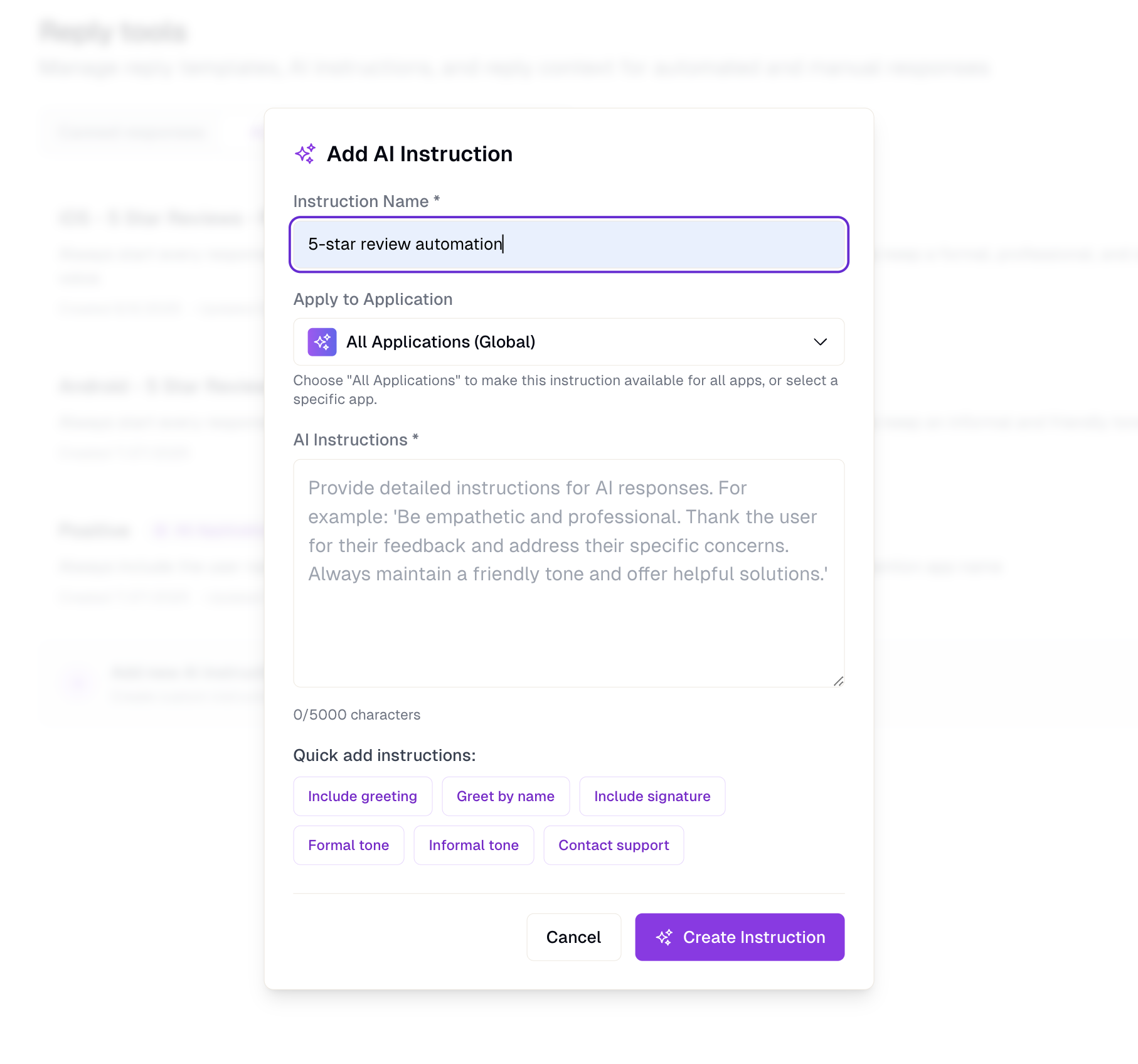 * Instruction Name (e.g., “Professional with Signature”)
* Apply to Application: a specific app or “All Applications (Global)”
* AI Instructions: detailed guidance the AI should follow
Include greeting, Greet by name, Include signature, Formal tone, Informal tone, Contact support.
Click Create Instruction.
### Edit or Delete
* Edit: use the pencil icon on the instruction card
* Delete: use the trash icon and confirm
Each card shows created/updated dates for quick auditing.
### Best practices
* Be explicit about tone and structure
* Include required sign‑offs or legal notes
* Reference dynamic details clearly (e.g., “Address the user by first name when available”)
* Prefer multiple focused instructions over one catch‑all
Maximum 5,000 characters. A live counter and quality indicator (Too short / Minimal / Good / Excellent) help you calibrate.
* Instruction Name (e.g., “Professional with Signature”)
* Apply to Application: a specific app or “All Applications (Global)”
* AI Instructions: detailed guidance the AI should follow
Include greeting, Greet by name, Include signature, Formal tone, Informal tone, Contact support.
Click Create Instruction.
### Edit or Delete
* Edit: use the pencil icon on the instruction card
* Delete: use the trash icon and confirm
Each card shows created/updated dates for quick auditing.
### Best practices
* Be explicit about tone and structure
* Include required sign‑offs or legal notes
* Reference dynamic details clearly (e.g., “Address the user by first name when available”)
* Prefer multiple focused instructions over one catch‑all
Maximum 5,000 characters. A live counter and quality indicator (Too short / Minimal / Good / Excellent) help you calibrate.