> ## Documentation Index
> Fetch the complete documentation index at: https://docs.appreply.co/llms.txt
> Use this file to discover all available pages before exploring further.
# Automation triggers
> Master precise targeting with conditions that catch exactly the reviews you want to handle
Triggers are the brain of your automation rules – they determine which reviews get automatic responses and which ones don't. Think of them as smart filters that evaluate every incoming review against your criteria.
**The secret to great automations:** Start specific, then expand. It's easier to broaden a narrow rule than to fix an overly broad one that's responding to the wrong reviews.
## Trigger conditions
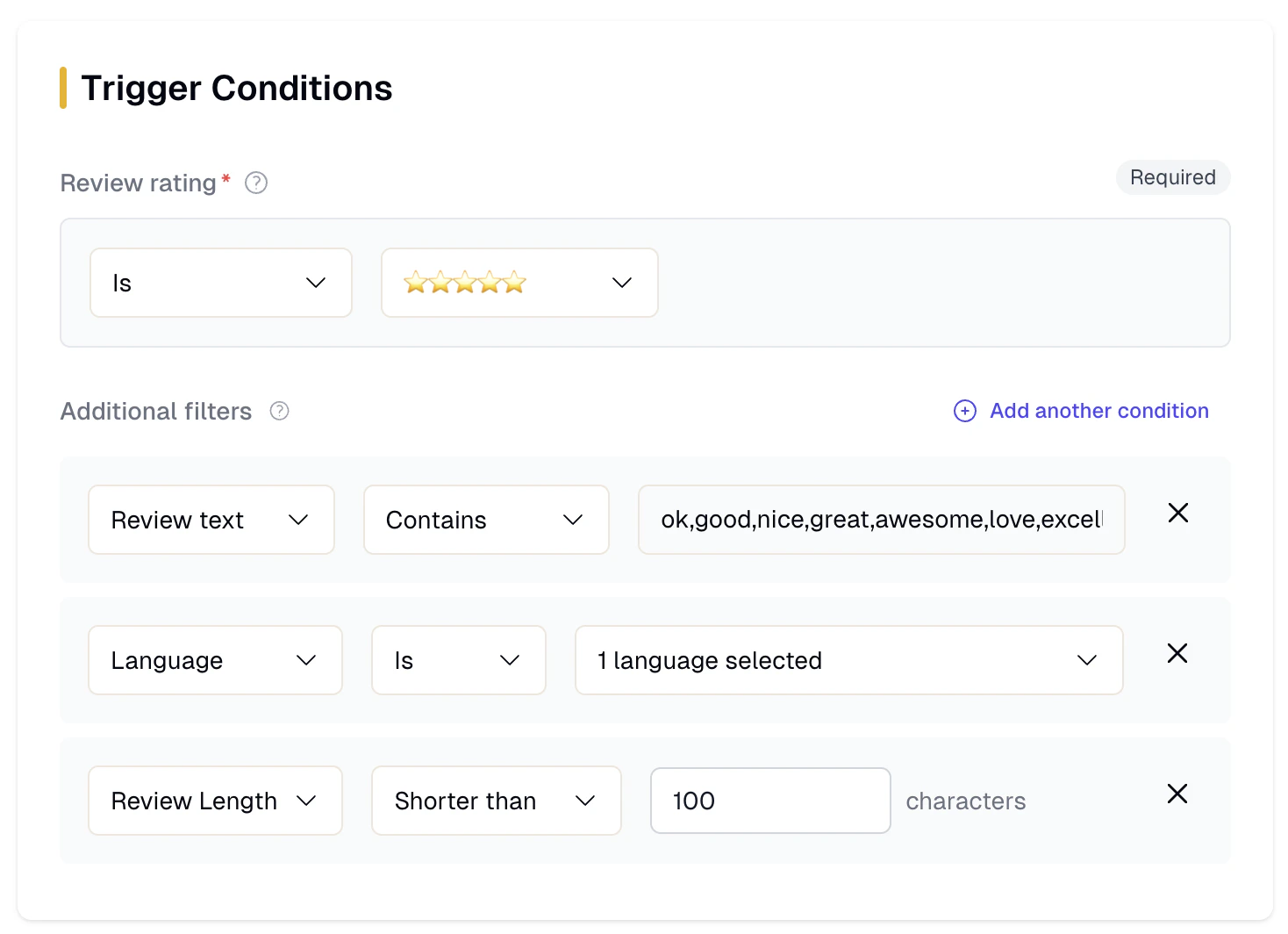 Every automation starts with a rating condition – this is your primary filter for targeting reviews:
**"is exactly"** – Perfect for specific scenarios
* `is exactly 5 stars` → Thank your biggest fans
* `is exactly 1 star` → Handle crisis situations with care
* `is exactly 3 stars` → Target neutral reviews for improvement opportunities
Be careful with "exactly 1 star" rules – these users are often extremely frustrated and may benefit from manual, personalized responses.
**"more than" / "less than"** – Cast wider nets for related review types
* `is more than 3 stars` → Catch all positive sentiment (4-5 stars)
* `is less than 3 stars` → Handle all negative feedback (1-2 stars)
* `is more than 1 star` → Avoid the most frustrated users while catching improvable feedback
"More than 3 stars" includes both 4 and 5-star reviews, perfect for general positive response automations.
**"is not"** – Useful for excluding specific ratings
* `is not 5 stars` → Target all reviews that aren't perfect
* `is not 1 star` → Avoid extreme negative reviews
* `is not 3 stars` → Focus on clearly positive or negative feedback
### Rating strategy examples
**Condition:** `is exactly 5 stars`
**Use case:** Thank users who love your app, potentially ask for referrals or feature requests.
**Risk level:** ⭐ Low – Happy users appreciate acknowledgment
**Condition:** `is exactly 3 stars`
**Use case:** Users who like your app but have specific concerns worth addressing.
**Risk level:** ⭐⭐ Medium – These users can often be converted to higher ratings
**Condition:** `is less than 3 stars`
**Use case:** All negative feedback requiring immediate, empathetic response.
**Risk level:** ⭐⭐⭐ High – Frustrated users need careful, personalized handling
## Text conditions
Target reviews based on their content with keyword matching:
### Contains vs. Does not contain
**Perfect for identifying specific topics:**
```
contains "bug" → Technical issues requiring dev team attention
contains "love" → Positive sentiment worth celebrating
contains "subscription" → Billing-related questions
contains "crash" → Critical stability issues
contains "update" → Feature requests or update feedback
```
**Pro tips:**
* Use multiple automations for different keywords rather than one complex rule
* Include common misspellings: `"recieve"` and `"receive"`
* Consider synonyms: `"bug"`, `"glitch"`, `"broken"`, `"error"`
**Great for excluding irrelevant reviews:**
```
does not contain "free" → Avoid users only interested in free features
does not contain "fake" → Skip suspected fake reviews
does not contain "competitor" → Ignore comparative reviews
does not contain "trial" → Focus on committed users
```
**Common exclusions:**
* Spam indicators: `"fake"`, `"bot"`, `"paid"`
* Competitor mentions: Brand names, `"better than"`, `"switch to"`
* Price complaints: `"expensive"`, `"cost"`, `"cheap"`
### Advanced text targeting
**Group related keywords:**
* **Bug reports:** `"crash"`, `"freeze"`, `"error"`, `"broken"`
* **Feature requests:** `"add"`, `"wish"`, `"would like"`, `"feature"`
* **Positive sentiment:** `"love"`, `"amazing"`, `"perfect"`, `"excellent"`
* **Billing issues:** `"charge"`, `"subscription"`, `"cancel"`, `"refund"`
**Emotion-based targeting:**
* **Frustrated:** `"frustrated"`, `"annoying"`, `"terrible"`
* **Excited:** `"awesome"`, `"incredible"`, `"blown away"`
* **Confused:** `"confusing"`, `"don't understand"`, `"how do"`
* **Grateful:** `"thank you"`, `"appreciate"`, `"helpful"`
## Language conditions
Serve your global user base by targeting specific languages:
**"Language is English"** – Target your primary market
* Use your best templates and most detailed responses
* Perfect for testing new automations before global rollout
* Ideal when you have specific English-only offers or content
**"Language is \[Specific Language]"** – Serve key markets
* `Language is Spanish` → Dedicated Spanish market support
* `Language is German` → GDPR-compliant responses for EU users
* `Language is Japanese` → Cultural context-aware responses
**"Language is not English"** – Handle all international reviews
* Pair with AI Translation for automatic localization
* Use simpler templates that translate well
* Great for ensuring no user is left without a response
### Language strategy examples
Create detailed automations for English reviews first, then add simpler international versions:
1. `5 stars + English + contains "love"` → Detailed thank you with feature previews
2. `5 stars + not English` → Simple thank you with AI translation
Customize responses for key markets:
* **German users:** Include GDPR compliance mentions in data-related responses
* **Japanese users:** Use more formal, respectful language structures
* **Spanish users:** Include cultural context and community references
## Review length conditions
Fine-tune based on how much detail users provide:
**"shorter than X characters"** – Quick ratings with minimal text
* `shorter than 50 characters` → Brief ratings like "Good app" or "⭐⭐⭐⭐⭐"
* Perfect for simple thank you messages
* Often just emoji or very brief sentiment
**Best response strategy:** Short, sweet acknowledgments
**"longer than X characters"** – Engaged users with specific feedback
* `longer than 200 characters` → Detailed feedback worth personalized responses
* `longer than 100 characters` → Moderate detail, specific concerns
* These users are more invested and expect thoughtful replies
**Best response strategy:** Address specific points mentioned
**"exactly X characters"** – Rarely used, mainly for testing
* Useful for testing automation targeting
* Can catch specific template lengths
* Generally not recommended for production rules
### Length-based strategy
**Match response effort to user investment:**
* Short reviews (\< 50 chars) → Brief, friendly acknowledgment
* Medium reviews (50-200 chars) → Standard template responses
* Long reviews (200+ chars) → Detailed, personalized replies
**Use length to identify valuable feedback:**
* Combine `longer than 100 characters` + `contains "feature"`
* Target users who provide actionable feedback
* Prioritize responses to detailed suggestions
## Featured review condition
Target reviews that are highlighted or featured in app store listings.
**"Featured review is"** targets reviews currently shown as featured in the store listing.
These reviews are the most visible to potential users browsing your app page. Create specific, well-crafted responses for them since they have an outsized impact on download decisions.
**Use case:** Pair with AI-generated responses and detailed instructions to make sure your reply to a featured review is polished and addresses the reviewer's points directly.
**"Featured review is not"** targets all non-featured reviews.
Use this to apply different response strategies to regular reviews versus those highlighted by the store.
Featured reviews change over time as the app store rotates them. If a review loses its featured status after your automation already responded, the response remains in place.
## Combining conditions (AND logic)
The real power comes from combining multiple conditions with AND logic:
### Example combinations
**Conditions:**
* `5 stars`
* `contains "feature"`
* `English`
* `longer than 80 characters`
**Result:** Happy users providing detailed feature feedback – perfect candidates for beta programs or surveys.
**Conditions:**
* `less than 3 stars`
* `language is not English`
* `contains "bug"`
**Result:** Non-English users reporting bugs – needs immediate AI translation and escalation.
**Conditions:**
* `exactly 3 stars`
* `does not contain "price"`
* `longer than 50 characters`
**Result:** Neutral users with specific (non-price) concerns that can be addressed.
### Strategy framework
Choose your primary rating target based on the business goal.
Use text conditions to target specific types of feedback.
Decide if you want language-specific responses or global coverage.
Use length conditions to match response effort to user investment.
## Testing your conditions
**Always test before going live!** Create automations in disabled mode first, then check the Reviews Feed to see which reviews would have matched your conditions.
### Debug checklist
**Your conditions might be too specific:**
* Remove one condition at a time to see which is limiting matches
* Check for typos in keywords
* Consider synonyms and alternative phrasings
* Verify your apps are properly connected
**Your conditions might be too broad:**
* Add exclusion keywords (`does not contain`)
* Narrow the rating range
* Add language or length restrictions
* Split into multiple, more specific automations
**Your conditions need refinement:**
* Review actual matched reviews in your feed
* Add negative keywords to exclude unwanted matches
* Use more specific keywords
* Consider the context of keyword usage
***
Master these trigger conditions, and you'll create automations that respond to exactly the right reviews at exactly the right time. Next, learn how to craft the perfect responses in the [Actions](/auto-replies/actions) guide.
Master template-based and AI-generated responses
Create response templates that power your automations
Every automation starts with a rating condition – this is your primary filter for targeting reviews:
**"is exactly"** – Perfect for specific scenarios
* `is exactly 5 stars` → Thank your biggest fans
* `is exactly 1 star` → Handle crisis situations with care
* `is exactly 3 stars` → Target neutral reviews for improvement opportunities
Be careful with "exactly 1 star" rules – these users are often extremely frustrated and may benefit from manual, personalized responses.
**"more than" / "less than"** – Cast wider nets for related review types
* `is more than 3 stars` → Catch all positive sentiment (4-5 stars)
* `is less than 3 stars` → Handle all negative feedback (1-2 stars)
* `is more than 1 star` → Avoid the most frustrated users while catching improvable feedback
"More than 3 stars" includes both 4 and 5-star reviews, perfect for general positive response automations.
**"is not"** – Useful for excluding specific ratings
* `is not 5 stars` → Target all reviews that aren't perfect
* `is not 1 star` → Avoid extreme negative reviews
* `is not 3 stars` → Focus on clearly positive or negative feedback
### Rating strategy examples
**Condition:** `is exactly 5 stars`
**Use case:** Thank users who love your app, potentially ask for referrals or feature requests.
**Risk level:** ⭐ Low – Happy users appreciate acknowledgment
**Condition:** `is exactly 3 stars`
**Use case:** Users who like your app but have specific concerns worth addressing.
**Risk level:** ⭐⭐ Medium – These users can often be converted to higher ratings
**Condition:** `is less than 3 stars`
**Use case:** All negative feedback requiring immediate, empathetic response.
**Risk level:** ⭐⭐⭐ High – Frustrated users need careful, personalized handling
## Text conditions
Target reviews based on their content with keyword matching:
### Contains vs. Does not contain
**Perfect for identifying specific topics:**
```
contains "bug" → Technical issues requiring dev team attention
contains "love" → Positive sentiment worth celebrating
contains "subscription" → Billing-related questions
contains "crash" → Critical stability issues
contains "update" → Feature requests or update feedback
```
**Pro tips:**
* Use multiple automations for different keywords rather than one complex rule
* Include common misspellings: `"recieve"` and `"receive"`
* Consider synonyms: `"bug"`, `"glitch"`, `"broken"`, `"error"`
**Great for excluding irrelevant reviews:**
```
does not contain "free" → Avoid users only interested in free features
does not contain "fake" → Skip suspected fake reviews
does not contain "competitor" → Ignore comparative reviews
does not contain "trial" → Focus on committed users
```
**Common exclusions:**
* Spam indicators: `"fake"`, `"bot"`, `"paid"`
* Competitor mentions: Brand names, `"better than"`, `"switch to"`
* Price complaints: `"expensive"`, `"cost"`, `"cheap"`
### Advanced text targeting
**Group related keywords:**
* **Bug reports:** `"crash"`, `"freeze"`, `"error"`, `"broken"`
* **Feature requests:** `"add"`, `"wish"`, `"would like"`, `"feature"`
* **Positive sentiment:** `"love"`, `"amazing"`, `"perfect"`, `"excellent"`
* **Billing issues:** `"charge"`, `"subscription"`, `"cancel"`, `"refund"`
**Emotion-based targeting:**
* **Frustrated:** `"frustrated"`, `"annoying"`, `"terrible"`
* **Excited:** `"awesome"`, `"incredible"`, `"blown away"`
* **Confused:** `"confusing"`, `"don't understand"`, `"how do"`
* **Grateful:** `"thank you"`, `"appreciate"`, `"helpful"`
## Language conditions
Serve your global user base by targeting specific languages:
**"Language is English"** – Target your primary market
* Use your best templates and most detailed responses
* Perfect for testing new automations before global rollout
* Ideal when you have specific English-only offers or content
**"Language is \[Specific Language]"** – Serve key markets
* `Language is Spanish` → Dedicated Spanish market support
* `Language is German` → GDPR-compliant responses for EU users
* `Language is Japanese` → Cultural context-aware responses
**"Language is not English"** – Handle all international reviews
* Pair with AI Translation for automatic localization
* Use simpler templates that translate well
* Great for ensuring no user is left without a response
### Language strategy examples
Create detailed automations for English reviews first, then add simpler international versions:
1. `5 stars + English + contains "love"` → Detailed thank you with feature previews
2. `5 stars + not English` → Simple thank you with AI translation
Customize responses for key markets:
* **German users:** Include GDPR compliance mentions in data-related responses
* **Japanese users:** Use more formal, respectful language structures
* **Spanish users:** Include cultural context and community references
## Review length conditions
Fine-tune based on how much detail users provide:
**"shorter than X characters"** – Quick ratings with minimal text
* `shorter than 50 characters` → Brief ratings like "Good app" or "⭐⭐⭐⭐⭐"
* Perfect for simple thank you messages
* Often just emoji or very brief sentiment
**Best response strategy:** Short, sweet acknowledgments
**"longer than X characters"** – Engaged users with specific feedback
* `longer than 200 characters` → Detailed feedback worth personalized responses
* `longer than 100 characters` → Moderate detail, specific concerns
* These users are more invested and expect thoughtful replies
**Best response strategy:** Address specific points mentioned
**"exactly X characters"** – Rarely used, mainly for testing
* Useful for testing automation targeting
* Can catch specific template lengths
* Generally not recommended for production rules
### Length-based strategy
**Match response effort to user investment:**
* Short reviews (\< 50 chars) → Brief, friendly acknowledgment
* Medium reviews (50-200 chars) → Standard template responses
* Long reviews (200+ chars) → Detailed, personalized replies
**Use length to identify valuable feedback:**
* Combine `longer than 100 characters` + `contains "feature"`
* Target users who provide actionable feedback
* Prioritize responses to detailed suggestions
## Featured review condition
Target reviews that are highlighted or featured in app store listings.
**"Featured review is"** targets reviews currently shown as featured in the store listing.
These reviews are the most visible to potential users browsing your app page. Create specific, well-crafted responses for them since they have an outsized impact on download decisions.
**Use case:** Pair with AI-generated responses and detailed instructions to make sure your reply to a featured review is polished and addresses the reviewer's points directly.
**"Featured review is not"** targets all non-featured reviews.
Use this to apply different response strategies to regular reviews versus those highlighted by the store.
Featured reviews change over time as the app store rotates them. If a review loses its featured status after your automation already responded, the response remains in place.
## Combining conditions (AND logic)
The real power comes from combining multiple conditions with AND logic:
### Example combinations
**Conditions:**
* `5 stars`
* `contains "feature"`
* `English`
* `longer than 80 characters`
**Result:** Happy users providing detailed feature feedback – perfect candidates for beta programs or surveys.
**Conditions:**
* `less than 3 stars`
* `language is not English`
* `contains "bug"`
**Result:** Non-English users reporting bugs – needs immediate AI translation and escalation.
**Conditions:**
* `exactly 3 stars`
* `does not contain "price"`
* `longer than 50 characters`
**Result:** Neutral users with specific (non-price) concerns that can be addressed.
### Strategy framework
Choose your primary rating target based on the business goal.
Use text conditions to target specific types of feedback.
Decide if you want language-specific responses or global coverage.
Use length conditions to match response effort to user investment.
## Testing your conditions
**Always test before going live!** Create automations in disabled mode first, then check the Reviews Feed to see which reviews would have matched your conditions.
### Debug checklist
**Your conditions might be too specific:**
* Remove one condition at a time to see which is limiting matches
* Check for typos in keywords
* Consider synonyms and alternative phrasings
* Verify your apps are properly connected
**Your conditions might be too broad:**
* Add exclusion keywords (`does not contain`)
* Narrow the rating range
* Add language or length restrictions
* Split into multiple, more specific automations
**Your conditions need refinement:**
* Review actual matched reviews in your feed
* Add negative keywords to exclude unwanted matches
* Use more specific keywords
* Consider the context of keyword usage
***
Master these trigger conditions, and you'll create automations that respond to exactly the right reviews at exactly the right time. Next, learn how to craft the perfect responses in the [Actions](/auto-replies/actions) guide.
Master template-based and AI-generated responses
Create response templates that power your automations